 Errors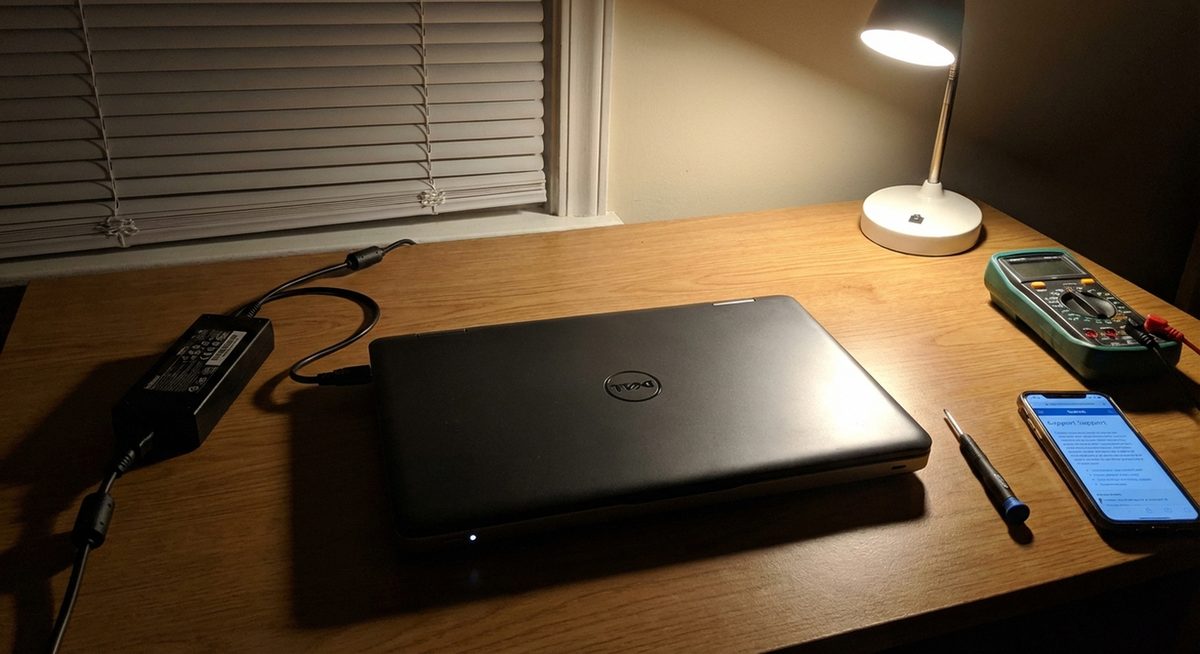
When a Dell laptop will not turn on, the issue typically falls into one of three categories: no power at all (no LEDs, no fan noise), power but no display (LEDs light up but screen stays black), or intermittent power (turns on briefly then shuts off). Each scenario points to a different cause and requires a different troubleshooting approach.
The most common causes are a drained battery, faulty power adapter, stuck residual charge, a failed display panel, or a hardware failure. Before assuming the worst, the methods below resolve the issue in the majority of cases — often in under 10 minutes.
Disconnect the charger, remove the battery (if removable), hold the power button for 30 seconds to drain residual charge, reconnect only the charger, and press the power button. This fixes the majority of Dell no-power issues.
Method 1: Perform a Hard Reset (Power Drain)
Residual electrical charge in the motherboard can prevent the laptop from starting. A hard reset clears this charge and is the most effective first step.
Disconnect All External Devices
Unplug the power adapter, USB devices, external monitors, and any other connected peripherals.
Remove the Battery (If Removable)
If your Dell laptop has a removable battery, slide the battery release latch and remove it. For built-in batteries, skip this step.
Hold the Power Button for 30 Seconds
Press and hold the power button for a full 30 seconds. This drains all residual charge from the motherboard capacitors.
Reconnect Power and Turn On
Reconnect only the AC adapter (leave the battery out for now). Press the power button. If the laptop starts, shut it down, reinsert the battery, and restart normally.
Tip: For Dell laptops with non-removable batteries (most models after 2018), the 30-second power drain still works — it clears the charge through internal circuitry even without physically removing the battery.
Method 2: Check the Power Adapter and Charging
A faulty charger is the second most common cause of a Dell laptop not powering on.
Inspect the Charger and Cable
Look for frayed cables, bent connector pins, and damage to the power brick. Check that the wall outlet is working by plugging in another device.
Check the LED on the Power Adapter
Most Dell chargers have an LED light on the brick or connector. If it is off, the charger may be dead. If it flickers, there may be a short in the cable.
Try a Different Charger
If you have access to another compatible Dell charger, try it. Ensure the wattage matches your laptop's requirement (check the bottom label for specifications).
Check the Charging Port
Look inside the laptop's charging port with a flashlight. Debris, lint, or a broken pin can prevent charging. Clean gently with compressed air.
Method 3: Fix Power But No Display (Black Screen)
If you hear fan noise or see keyboard LEDs but the screen stays black, the issue is display-related rather than power-related.
Connect an External Monitor
Plug in an external monitor or TV via HDMI or USB-C. If the external display works, the laptop's screen or its cable is the problem.
Press Fn+F8 to Toggle Display Output
Some Dell models require pressing Fn+F8 (or the corresponding function key with a monitor icon) to switch between internal and external displays.
Increase Brightness
The screen may be on but at minimum brightness. Press Fn + the brightness up key (usually F12 or a key with a sun icon) multiple times.
Check for LED Blink Codes
Dell laptops communicate diagnostic information through LED blink patterns. Count the number of amber and white blinks after pressing the power button — then search Dell's support for the blink code meaning for your model.
Warning: If you smell burning or see physical damage to the motherboard or battery, do not attempt to power on the laptop. Contact Dell support or a professional repair service to avoid further damage or safety risks.
Method 4: Run Dell Built-In Diagnostics
Dell laptops have hardware diagnostic tools stored in the BIOS that run independently of Windows.
Access Dell Diagnostics
Press the power button, then immediately press F12 repeatedly until the boot menu appears. Select Diagnostics from the menu.
Run the Full Diagnostic Test
The diagnostic tool tests your hardware components: CPU, RAM, storage, battery, and display. Note any error codes displayed.
Interpret the Results
Green results mean the component passed. Red results with error codes indicate hardware failure. Search the error code on Dell's support site for specific guidance.
Why Won't a Dell Laptop Turn On?
Dell laptops can fail to power on for several reasons. Residual charge stuck in the motherboard is the most common and easily fixed cause. Dead or depleted batteries prevent startup when the charger is not connected. Faulty power adapters that appear functional but deliver insufficient wattage leave the laptop unable to boot. Failed RAM modules or improperly seated memory sticks prevent POST from completing. Motherboard failures from power surges, liquid damage, or component wear are hardware issues requiring professional repair. Display cable disconnections or panel failures cause a black screen despite the system running normally underneath.
Frequently Asked Questions
No LEDs, no fan, no response usually means a power delivery issue: dead battery, faulty charger, damaged charging port, or motherboard power circuit failure. Start with a hard reset and charger check.
Dell uses LED blink patterns to indicate specific hardware failures. For example, 2 amber + 3 white blinks typically indicates a memory issue. Check Dell's support site for your model's specific blink code definitions.
Yes. A completely dead or short-circuited battery can prevent the laptop from starting even when plugged in. Try removing the battery and running on AC power only.
A black screen with a movable cursor usually indicates a Windows Explorer crash. Press Ctrl+Shift+Esc to open Task Manager, click File > Run New Task, type explorer.exe, and press Enter.
No. A hard reset only clears residual electrical charge from the motherboard. Your files, programs, and settings are completely unaffected.
This usually indicates overheating (CPU thermal shutdown), a failing power supply, or a short circuit. Check if the fans are running and ensure vents are not blocked.
Press and hold the power button for 10-15 seconds until the laptop shuts off completely. Wait 10 seconds, then press the power button normally to restart.
Yes, most Dell laptops can run on AC power alone without a battery installed. If the laptop starts without the battery but not with it, the battery is the problem.
Press Ctrl+Esc during startup while holding the power button. This initiates BIOS recovery mode, which can reflash a corrupted BIOS from a USB recovery drive.
Test by running on AC power without the battery (Method 1). If it works, the battery is the issue. If it does not work even on AC power, the charger or motherboard is the problem.