 Errors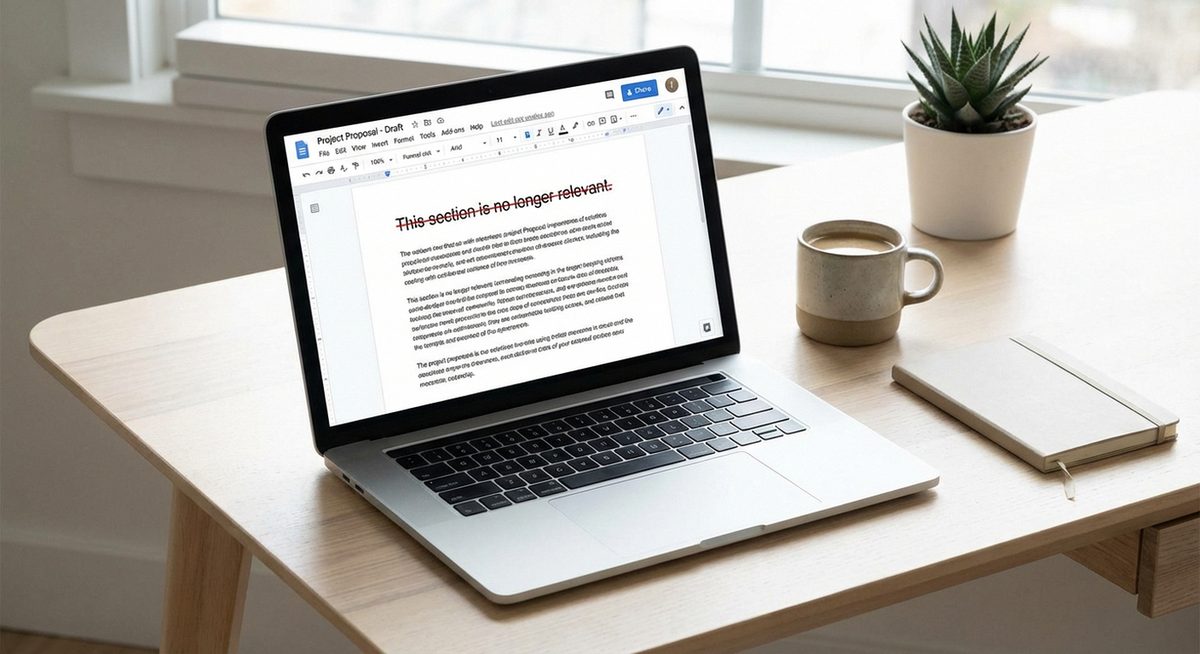
To strikethrough text in Google Docs, select the text and press Alt+Shift+5 (Windows/ChromeOS) or Cmd+Shift+X (Mac). This draws a horizontal line through the selected text, commonly used to show deleted content, completed tasks, or edits in collaborative documents.
Strikethrough is one of the most used formatting options in editing workflows but is not as prominently displayed as bold or italic in the toolbar. This guide covers every way to apply and remove strikethrough formatting in Google Docs on all platforms.
Select the text, then press Alt+Shift+5 (Windows) or Cmd+Shift+X (Mac). The text instantly gets a line through it.
Method 1: Keyboard Shortcut
The fastest way to apply strikethrough formatting in Google Docs.
Select the Text
Click and drag to highlight the text you want to strike through. You can select a single word, a sentence, or multiple paragraphs.
Press the Keyboard Shortcut
Windows/ChromeOS: Press Alt+Shift+5. Mac: Press Cmd+Shift+X. The selected text immediately shows a horizontal line through it.
Toggle Off to Remove
To remove strikethrough, select the struck-through text and press the same shortcut again. The line is removed.
Method 2: Use the Format Menu
If you prefer using menus or forget the keyboard shortcut, the Format menu provides the strikethrough option.
Select Your Text
Highlight the text you want to format.
Open the Format Menu
Click Format in the top menu bar of Google Docs.
Apply Strikethrough
Click Text, then click Strikethrough. The formatting is applied to the selected text.
Tip: Strikethrough can be combined with other formatting. Text can be bold, italic, and struck through simultaneously. Apply each format independently using its respective shortcut or menu option.
Method 3: Strikethrough on Google Docs Mobile App
The Google Docs mobile app on iPhone and Android supports strikethrough through the formatting menu.
Select Text in the Document
Long-press on a word to select it, then drag the handles to extend the selection.
Tap the Format Button
Tap the A with horizontal lines icon in the toolbar (Format button) at the top of the screen.
Tap Strikethrough
Under the Text tab, find and tap the S with a line through it (Strikethrough button). The formatting is applied.
Method 4: Strikethrough in Google Sheets
The same formatting works in Google Sheets with the same keyboard shortcut.
Select the Cell or Text
Click a cell or highlight specific text within a cell.
Apply Strikethrough
Press Alt+Shift+5 (Windows) or Cmd+Shift+X (Mac). Or go to Format > Strikethrough. The text in the cell shows with a line through it.
Warning: Strikethrough text is still visible and selectable. If you want to permanently remove content, delete it instead. Strikethrough is best used when you want others to see what was changed or crossed out.
Why Use Strikethrough in Google Docs?
Strikethrough formatting serves several purposes in document editing. In collaborative writing, it shows proposed deletions for others to review before removing text permanently. In to-do lists, it visually marks completed items while keeping them visible. In legal and academic documents, it indicates redacted or amended text. In editing workflows, it helps track changes when Suggesting Mode is not being used. Strikethrough is a non-destructive way to communicate that text should be removed or has been superseded, making it invaluable in revision-heavy document work.
Frequently Asked Questions
Alt+Shift+5 on Windows and ChromeOS. Cmd+Shift+X on Mac. This works in both Google Docs and Google Sheets.
Select the struck-through text and press the same shortcut (Alt+Shift+5 or Cmd+Shift+X) again. The strikethrough formatting is toggled off.
Yes. Select the text, tap the Format button (A icon), and tap the Strikethrough option under the Text formatting section.
No, strikethrough is not on the default toolbar. Access it through the Format > Text > Strikethrough menu or use the keyboard shortcut.
Yes. Select text in a text box, then go to Format > Text > Strikethrough. The keyboard shortcut Alt+Shift+5 also works in Google Slides.
Yes. Select the entire paragraph and apply strikethrough using the shortcut or menu. The line appears through all selected text.
Google Docs only supports single strikethrough. Double strikethrough is not available as a native formatting option. You would need to use a different application like Microsoft Word for double strikethrough.
No, the strikethrough line color matches the text color. If your text is red, the strikethrough line is red. Change the text color to change the line color.
Yes, strikethrough formatting is preserved when printing or exporting to PDF. The line through the text appears exactly as shown on screen.
Hold Ctrl (Cmd on Mac) and click to select multiple non-adjacent text sections. Then apply strikethrough with the shortcut — it applies to all selected sections simultaneously.