 Errors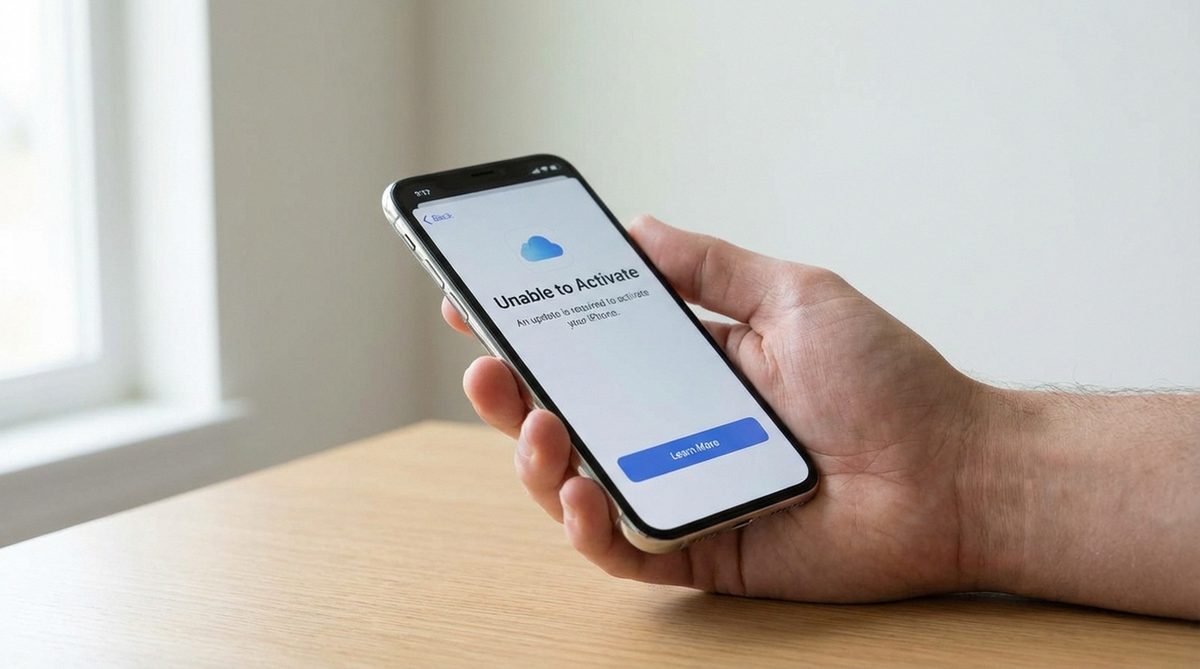
iCloud Photos stores your entire photo library in the cloud, making it accessible across all your Apple devices. However, there are many situations where you need to download those photos to local storage — whether you are switching devices, want a local backup, need to free up iCloud space, or simply want to access your photos without an internet connection.
Apple provides several methods for downloading iCloud photos depending on the device you are using and how many photos you need. You can download individual photos, select batches, or download your entire library at once. The process differs between iPhone, Mac, and Windows PC, and this guide covers all three platforms in detail.
Before you start downloading, make sure you have enough storage space on the target device. Your iCloud photo library may be several gigabytes or even hundreds of gigabytes depending on how many photos and videos you have stored. Check your available storage first to avoid interruptions during the download process.
On iPhone: Settings > [Your Name] > iCloud > Photos > select "Download and Keep Originals." On Mac: Open Photos app > Preferences > iCloud > select "Download Originals to this Mac." On Windows: Visit icloud.com/photos in a browser, select photos, and click the download icon.
iCloud Photos — Download to Local StorageBasic Troubleshooting
Step 1: Download iCloud photos to iPhone. Open the Settings app, tap your name at the top, then tap iCloud > Photos. Change the setting from "Optimize iPhone Storage" to "Download and Keep Originals." Your iPhone will begin downloading full-resolution versions of all your iCloud photos. This process runs in the background and may take hours or days depending on your library size and internet speed. Keep the phone connected to Wi-Fi and plugged in to a charger.
Step 2: Download iCloud photos to Mac using the Photos app. Open the Photos app, click Photos in the menu bar, then click Preferences (or Settings on macOS Ventura and later). Click the iCloud tab. Select "Download Originals to this Mac." The Mac will download all original full-resolution photos from iCloud. You can monitor progress by looking at the bottom of the Photos app window where it shows the download status.
Step 3: Download iCloud photos on Windows using iCloud.com. Open any web browser and go to icloud.com. Sign in with your Apple ID. Click on Photos. Select the photos you want to download — hold Ctrl and click to select multiple individual photos, or hold Shift and click to select a range. Click the download button (cloud with down arrow) in the top toolbar. Photos will download as a ZIP file to your Downloads folder.
Step 4: Install iCloud for Windows for automatic syncing. Download iCloud for Windows from the Microsoft Store. Sign in with your Apple ID. Check the box next to Photos and click Options. Enable "iCloud Photos" to sync your photo library to a folder on your PC. Photos will appear in a dedicated iCloud Photos folder in File Explorer, and new photos sync automatically.
Step 5: Download specific albums or date ranges. On icloud.com, use the sidebar to navigate to specific albums, or use the date slider to jump to a particular time period. Select all photos in an album by pressing Ctrl+A (Cmd+A on Mac). This is more efficient than downloading your entire library when you only need certain photos.
Advanced Solutions
Step 1: Bulk download your entire iCloud library using Apple's data export tool. Go to privacy.apple.com and sign in. Select "Request a copy of your data." Check "iCloud Photos" and select your preferred maximum file size for the download packages. Apple will prepare your data and send you download links via email (this can take several days for large libraries). Each download link contains a ZIP file with a portion of your photos.
Step 2: If iCloud photos are not downloading on your iPhone, troubleshoot the connection. Ensure you are connected to Wi-Fi (downloads pause on cellular by default). Check that you have enough free storage on your iPhone (Settings > General > iPhone Storage). Toggle iCloud Photos off and back on in Settings. If the download stalls, restart your iPhone and it will resume where it left off.
Step 3: Use AirDrop to transfer iCloud photos from iPhone to Mac quickly. On your iPhone, open the Photos app, select the photos you want to transfer, tap the Share button, and select AirDrop. Choose your Mac from the AirDrop list. This method is fast for small batches but impractical for hundreds or thousands of photos.
Step 4: For Windows users who need offline access to large libraries, use the iCloud for Windows app with the "Download" feature. In File Explorer, navigate to the iCloud Photos folder. Right-click on photos or folders and select "Always keep on this device" to force a local download. Alternatively, select photos in the iCloud Photos section and click the download cloud icon to save them permanently to your PC.
Step 5: If you are migrating away from iCloud entirely, download all photos first using one of the methods above, then disable iCloud Photos on all devices. Go to Settings > [Your Name] > iCloud > Photos and toggle off iCloud Photos. Choose "Download Photos & Videos" when prompted to keep local copies. Only disable iCloud Photos after confirming all photos are downloaded to avoid data loss.
Why Does This Problem Happen?
The need to download iCloud photos arises from Apple's storage optimization features. When "Optimize Storage" is enabled (which is the default on iPhones with limited storage), your device keeps only small thumbnail versions of photos locally while the full-resolution originals are stored in iCloud. This saves device storage but means you cannot access full-quality photos without an internet connection.
Users often discover this when they try to edit a photo and see a "Downloading" indicator, when they want to send full-resolution photos via email or messaging apps, or when they plan to switch to a non-Apple device. Having a complete local backup of your photo library is also important in case of account issues, accidental deletion, or if you decide to reduce your iCloud storage plan.