 Errors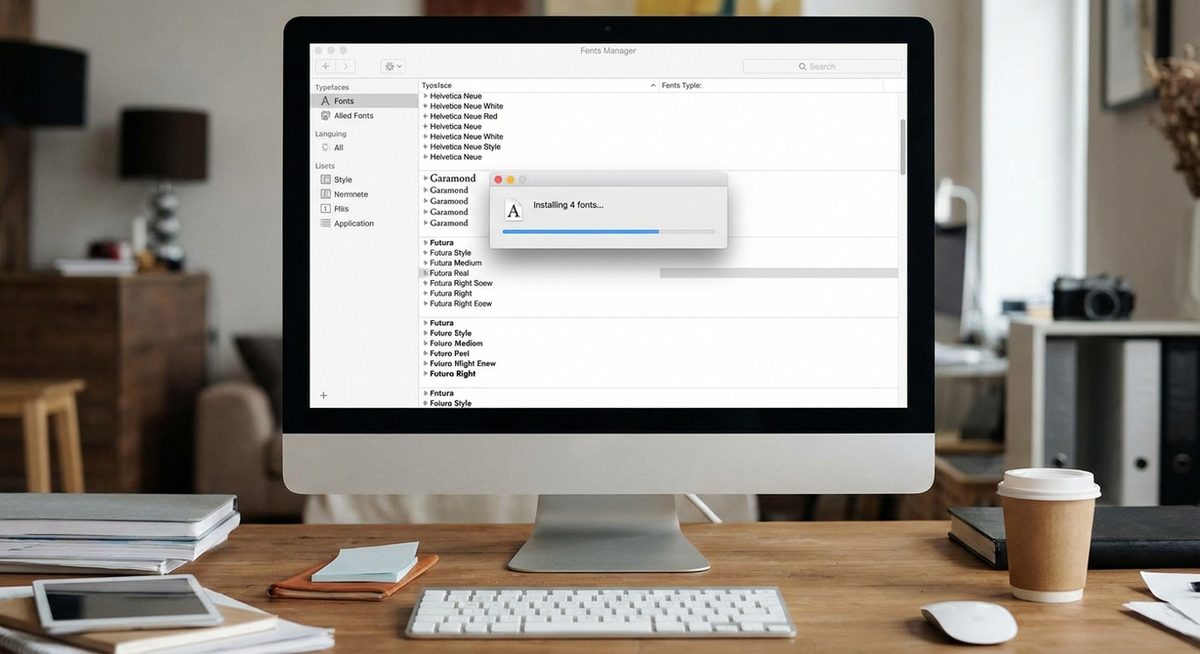
Adding custom fonts to Microsoft Word lets you go beyond the default typeface selection and use professional, decorative, or brand-specific fonts in your documents. Whether you downloaded a font from Google Fonts, purchased a premium typeface from a foundry, or received a font file from a colleague, installing it on your system makes it automatically available in Word and every other application on your computer.
The process for adding fonts differs between Windows and macOS, but both operating systems support the same font formats: TrueType (.ttf), OpenType (.otf), and TrueType Collections (.ttc). Once installed, fonts appear in the Word font dropdown immediately without requiring a restart in most cases.
This guide covers the complete process from downloading fonts from reliable sources to installing them on Windows 10, Windows 11, and macOS, including troubleshooting steps for fonts that do not appear in Word after installation.
Download the font file (.ttf or .otf), double-click it, and click Install. Restart Word if it was already open. The font will now appear in the font dropdown list.
Downloaded font does not appear in Word's font list after installationMethod 1: Install Fonts on Windows 10 and Windows 11
Step 1: Download the font file from a trusted source such as Google Fonts (fonts.google.com), DaFont, Font Squirrel, or Adobe Fonts. The download will typically be a ZIP file containing .ttf or .otf files.
Step 2: Extract the ZIP file by right-clicking it and selecting Extract All. Open the extracted folder to find the individual font files. There may be multiple files for different weights (Regular, Bold, Italic, Light, etc.).
Step 3: Double-click any font file to open the Windows Font Viewer. You will see a preview of the font with sample text at various sizes. Click the Install button at the top of the preview window.
Step 4: To install multiple fonts at once, select all the font files in File Explorer (Ctrl+A), right-click, and choose Install or Install for all users. The "Install for all users" option requires administrator privileges but makes the font available to every user account on the computer.
Method 2: Install Fonts on macOS
Step 1: Download and extract the font files as described above. macOS also supports .dfont files in addition to .ttf and .otf formats.
Step 2: Double-click the font file to open it in Font Book, the built-in macOS font manager. A preview window will display the font with sample characters.
Step 3: Click Install Font in the bottom-right corner of the Font Book preview. The font will be installed to your user fonts directory (~Library/Fonts/) and become available immediately.
Step 4: To install fonts for all users on the Mac, open Font Book from the Applications folder, then drag the font files into the Computer section in the sidebar. You will need to enter your administrator password.
Method 3: Install Fonts via the Windows Fonts Folder Directly
Step 1: Open File Explorer and navigate to C:\Windows\Fonts. This is the system fonts directory where all installed fonts are stored.
Step 2: Open a second File Explorer window showing the location of your downloaded font files.
Step 3: Drag and drop the font files from the download location into the C:\Windows\Fonts folder. Windows will automatically install each font as it is copied.
Step 4: If you see an "Install Font" progress bar, wait for it to complete. Once finished, open Word and check the font dropdown. Press Ctrl+F in the font name box and type the font name to find it quickly.
Method 4: Fix Fonts Not Showing in Word After Installation
Step 1: Close Word completely and reopen it. Word caches the font list when it launches, so fonts installed while Word is running may not appear until you restart the application.
Step 2: Verify the font is actually installed by opening the system font settings. On Windows, go to Settings > Personalization > Fonts and search for the font name. On Mac, open Font Book and check if the font appears in the list.
Step 3: If the font is listed in system settings but not in Word, the font file may be corrupt. Delete the installed font, re-download it from the original source, and install it again.
Step 4: For persistent issues, clear the Word font cache by closing all Office applications, navigating to %localappdata%\Microsoft\Office\16.0\ on Windows, and deleting any font cache files. Restart Word to rebuild the cache.
Why Does This Problem Happen?
Fonts not appearing in Word after installation is typically caused by one of three issues. First, Word needs to be restarted to detect newly installed fonts because it loads the font list from the operating system during startup. Second, the font file format may not be compatible — Word supports TrueType (.ttf) and OpenType (.otf) but does not support all variants of bitmap or PostScript Type 1 fonts without additional software.
Third, permission issues on corporate or managed machines can prevent font installation. If your computer is managed by an IT department, you may need to install fonts to the user directory rather than the system fonts folder, or request that your IT administrator install the font system-wide. On Windows, installing "for current user only" bypasses the need for admin rights and places fonts in %LOCALAPPDATA%\Microsoft\Windows\Fonts instead of C:\Windows\Fonts.