 Errors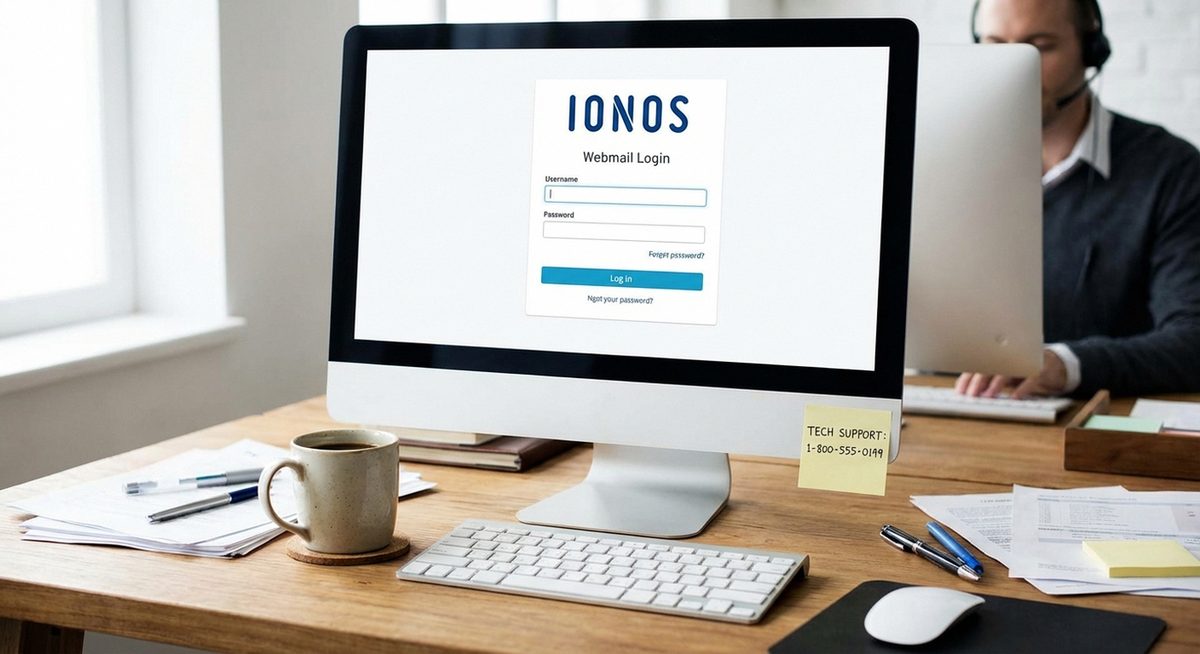
If you are experiencing 1&1 webmail login issues, the problem is usually related to incorrect server settings, an expired password, browser cache conflicts, or IONOS server outages. Since 1&1 rebranded to IONOS, many email URLs and server addresses changed, causing login failures for long-time users who have not updated their settings.
This guide covers fixes for the 1&1 IONOS webmail portal, Outlook desktop client, Apple Mail, iPhone Mail app, and Android email apps. Whether you see "authentication failed," "cannot connect to server," or the webmail page simply will not load, the solutions below address every common scenario.
Start with Method 1 to verify your login credentials are correct, then work through the remaining methods if the issue persists.
Go to mail.ionos.com (the updated webmail URL) and log in with your full email address and current password. If it fails, reset your password at login.ionos.com using your customer ID or email address.
Common 1&1 IONOS Login Errors:
• Authentication failed
• Cannot connect to mail server
• Invalid username or password
• Webmail page not loading
Method 1: Use the Correct 1&1 IONOS Webmail URL
After the 1&1 to IONOS rebrand, the old webmail URLs were phased out. Using outdated bookmarks or links causes login failures or redirect loops.
Navigate to the Current Webmail URL
Open your browser and go to mail.ionos.com. This is the current correct URL for 1&1 IONOS webmail access.
Enter Your Full Email Address
Type your complete email address (e.g., [email protected]) in the username field. Do not use just the username portion.
Enter Your Current Password and Sign In
Type your email password and click Sign In. If you do not remember your password, proceed to Method 2.
Tip: Bookmark mail.ionos.com to avoid using outdated URLs in the future. The old webmail.1and1.com and mail.1and1.com URLs may still redirect but are not reliable long-term.
Method 2: Reset Your 1&1 IONOS Email Password
If your password is not accepted, it may have expired or been compromised. IONOS provides a self-service password reset through their control panel.
Go to the IONOS Login Page
Open login.ionos.com in your browser.
Click Forgot Password
On the login page, click the Forgot Password or Reset Password link.
Verify Your Identity
Enter your customer ID, registered email, or phone number. IONOS will send a verification code to your recovery contact.
Set a New Password
Enter the verification code and create a new password. Use at least 8 characters with a mix of upper/lowercase letters, numbers, and symbols.
Log In with the New Password
Return to mail.ionos.com and sign in with your email address and the new password.
Method 3: Update Email Server Settings in Outlook and Mobile Apps
If webmail works but your email client (Outlook, Apple Mail, etc.) cannot connect, the server settings likely need updating to match the current IONOS configuration.
Use the Correct IMAP/POP and SMTP Servers
IONOS IMAP Server: imap.ionos.com (Port 993, SSL/TLS). IONOS POP3 Server: pop.ionos.com (Port 995, SSL/TLS). IONOS SMTP Server: smtp.ionos.com (Port 465, SSL/TLS or Port 587, STARTTLS).
Update Settings in Your Email Client
Open your email client's account settings. Update the incoming and outgoing server addresses to the IONOS servers listed above. Ensure SSL/TLS is enabled.
Enter Full Email as Username
The username must be your complete email address (not just the part before @). Update this if only the short form is entered.
Test the Connection
Save the settings and send a test email to yourself. If the test succeeds, your email client is properly configured.
IONOS Email Server Settings:
IMAP: imap.ionos.com : 993 (SSL/TLS)
POP3: pop.ionos.com : 995 (SSL/TLS)
SMTP: smtp.ionos.com : 465 (SSL) or 587 (STARTTLS)
Method 4: Clear Browser Cache and Cookies
Corrupted browser cache or stale cookies from the old 1and1.com domain can prevent the IONOS webmail interface from loading or authenticating properly.
Clear Cache in Chrome
Press Ctrl+Shift+Delete, select All Time for the time range, check Cookies and Cached Images, and click Clear Data.
Try an Incognito Window
Press Ctrl+Shift+N to open an incognito window. Navigate to mail.ionos.com and try logging in. If it works in incognito, a browser extension or cached data is the problem.
Disable Problematic Extensions
Ad blockers and privacy extensions can block IONOS webmail scripts. Temporarily disable all extensions and retry the login.
Warning: Clearing cookies will log you out of all websites. Make sure you have passwords saved or accessible before clearing all cookies.
Why Do 1&1 IONOS Email Login Issues Occur?
Login issues with 1&1 IONOS email stem from several common causes. The rebrand from 1&1 to IONOS changed server addresses and webmail URLs, breaking existing configurations. Passwords expire periodically on some IONOS plans. Server-side outages occasionally affect specific regions. Two-factor authentication changes can lock accounts. Email client settings using old 1and1.com server addresses fail as legacy servers are decommissioned. Browser cache holding old session data creates authentication conflicts with the new IONOS infrastructure.
Frequently Asked Questions
The current webmail URL is mail.ionos.com. The old webmail.1and1.com address may still redirect but is not guaranteed to work long-term.
Authentication failures are usually caused by an incorrect password, wrong server settings, or using only the username instead of the full email address. Verify all three and reset your password if needed.
Use imap.ionos.com with port 993 and SSL/TLS encryption. Your username should be your full email address.
Go to Settings > Mail > Accounts > Add Account > Other > Add Mail Account. Enter your name, full email address, password, and use the IONOS server settings listed in Method 3.
Yes. 1&1 Internet rebranded to IONOS in 2018. All 1&1 email services are now managed under the IONOS brand, but existing email addresses and domains continue to work.
This could be a browser cache issue, DNS propagation problem, or IONOS server outage. Try clearing your browser cache, using a different browser, or checking the IONOS status page for service alerts.
Yes, you can add your IONOS email to Gmail using POP3 or IMAP. Go to Gmail Settings > Accounts and Import > Add a Mail Account and enter the IONOS server settings.
Visit ionos.com/help or call the IONOS support number for your country. Live chat is also available during business hours from the IONOS control panel.
The phone may have correct server settings while the computer client uses outdated settings. Update the server addresses on your computer to match the current IONOS servers.
Contact IONOS support directly. Deleted email accounts may be recoverable within a limited timeframe depending on your hosting plan and how the deletion occurred.