 Errors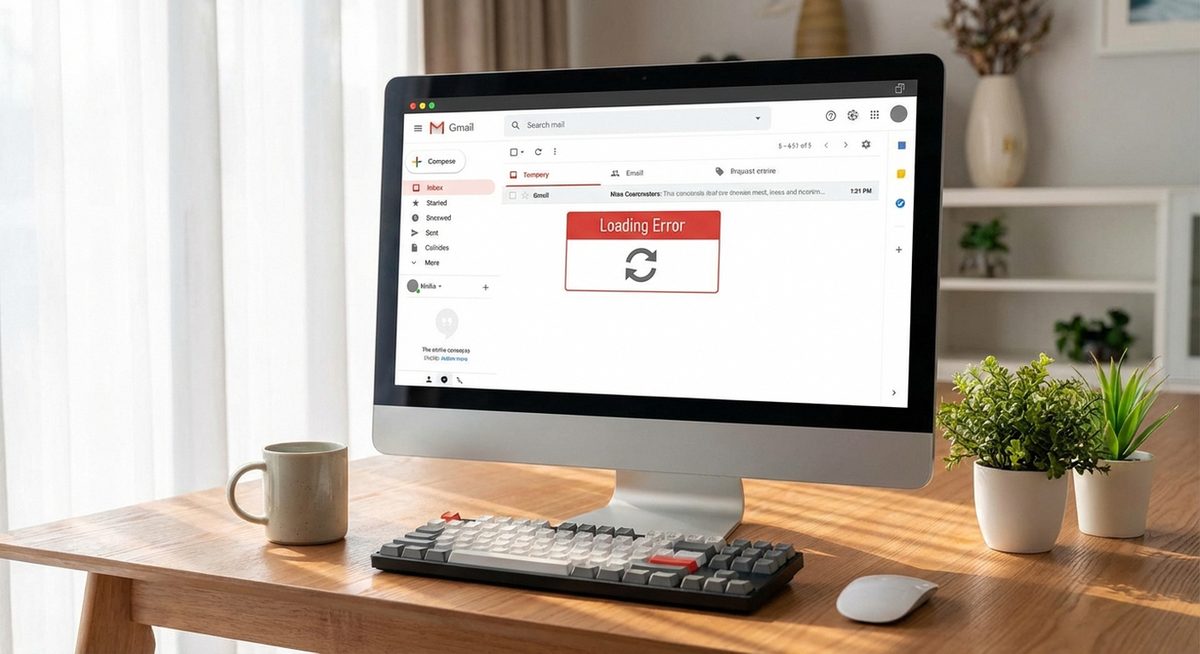
Gmail not working can manifest in several ways: the inbox fails to load, login attempts are rejected with "wrong password" errors despite entering the correct credentials, emails get stuck in the Outbox, or the Gmail app on your phone stops syncing new messages. These issues can be caused by browser problems, Google server outages, account security locks, storage quota limits, or incorrect app settings.
Before diving into troubleshooting, check whether Gmail is down for everyone by visiting the Google Workspace Status Dashboard (workspace.google.com/status) or DownDetector. If Google's servers are experiencing an outage, no troubleshooting on your end will fix the issue — you simply need to wait for Google to resolve it. Server-side outages are usually resolved within a few hours.
If Gmail is working for others but not for you, the problem is on your end and the methods below will resolve it. These solutions cover Gmail on desktop browsers (Chrome, Firefox, Edge, Safari), the Gmail mobile app on Android and iOS, and third-party email clients like Outlook and Thunderbird that connect to Gmail via IMAP or POP.
Clear your browser cache and cookies for mail.google.com, then try loading Gmail in an incognito/private window. If Gmail works in incognito, a browser extension is causing the conflict — disable extensions one by one to find the culprit.
Gmail fails to load, shows "Something went wrong" or "Oops... the system encountered a problem" error, or emails are stuck unsentMethod 1: Fix Gmail Not Loading in Browser
Step 1: Open Gmail in a private/incognito window (Ctrl+Shift+N in Chrome, Ctrl+Shift+P in Firefox). If Gmail loads correctly in incognito mode, the issue is caused by browser extensions, cached data, or cookies.
Step 2: Clear your browser cache and cookies specifically for Gmail. In Chrome, go to Settings > Privacy and security > Clear browsing data. Select "Cookies and other site data" and "Cached images and files." Set the time range to "All time" and click Clear data.
Step 3: Disable browser extensions one at a time to identify conflicts. Ad blockers (uBlock Origin, Adblock Plus), privacy extensions (Privacy Badger, Ghostery), and VPN extensions are the most common culprits. Disable each one, reload Gmail, and see if the issue resolves.
Step 4: Try loading Gmail's basic HTML version by going to mail.google.com/mail/?ui=html. If the basic version works but the standard version does not, your browser or internet connection may be too slow for the full Gmail interface. Update your browser to the latest version or switch to a supported browser (Chrome, Firefox, Edge, or Safari).
Method 2: Fix Gmail Login Failures
Step 1: If Gmail rejects your password, first verify you are using the correct Google account email address. If you have multiple Google accounts, you may be trying to log into the wrong one.
Step 2: Go to accounts.google.com/signin/recovery to reset your password. Google will send a verification code to your recovery email or phone number. Follow the prompts to create a new password.
Step 3: If you have 2-Step Verification enabled and cannot receive the verification code (e.g., lost phone), use one of your backup codes. If you do not have backup codes, click "Try another way" on the login screen to use alternative verification methods like a recovery email.
Step 4: If your account was locked due to suspicious activity, Google may require additional identity verification. Go to accounts.google.com/signin/recovery and follow the account recovery process. This may take up to 72 hours for Google to review. Provide as much verification information as possible (previous passwords, account creation date, recovery contacts).
Method 3: Fix Gmail Not Sending Emails
Step 1: Check your Gmail storage quota. Gmail shares its 15 GB free storage with Google Drive and Google Photos. If your storage is full, Gmail cannot send or receive new emails. Check your usage at drive.google.com/settings.
Step 2: If storage is full, free up space by deleting large emails with attachments. In Gmail, search for has:attachment larger:10M to find emails with attachments over 10 MB. Delete unwanted ones and empty the Trash folder (Trash items still count toward your quota until permanently deleted).
Step 3: If individual emails fail to send, check the attachment size. Gmail limits attachments to 25 MB per email. For larger files, Gmail automatically offers to upload to Google Drive and share a link instead. If this process fails, manually upload the file to Drive and share the link.
Step 4: If emails to a specific recipient bounce back, check the bounce message for details. Common reasons include: the recipient's mailbox is full, the email address does not exist, or the recipient's mail server rejected the email. Verify the email address is correct and try sending a short text-only email without attachments to test.
Method 4: Fix Gmail App Not Syncing on Mobile
Step 1: On Android, open the Gmail app, tap the three-line menu icon, scroll down, and tap Settings. Select your account and make sure Sync Gmail is toggled on. Also check Settings > Accounts > Google > [your account] in the phone's main settings and ensure Gmail sync is enabled.
Step 2: On iPhone/iPad, go to Settings > Mail > Accounts > Gmail and verify the Mail toggle is on. If you use the Gmail app instead of Apple Mail, open the Gmail app, tap your profile picture, and confirm the correct account is selected.
Step 3: Force stop the Gmail app and clear its cache. On Android: Settings > Apps > Gmail > Force Stop, then Storage > Clear Cache (do NOT clear data, as this removes your account). On iOS, swipe up on the Gmail app in the app switcher to close it, then reopen.
Step 4: If sync issues persist, remove the Google account from your phone and re-add it. On Android: Settings > Accounts > Google > Remove account. On iOS: Settings > Mail > Accounts > Gmail > Delete Account. Re-add the account and allow it to sync fully, which may take several minutes.
Why Does This Problem Happen?
Gmail issues fall into two broad categories: server-side and client-side. Server-side problems (Google outages, maintenance windows, infrastructure issues) affect millions of users simultaneously and resolve without user action. These are relatively rare — Google maintains 99.9% uptime for Gmail — but when they occur, they generate widespread reports on social media and DownDetector.
Client-side problems are far more common and include browser cache corruption that prevents the Gmail web interface from loading properly, browser extensions that interfere with Gmail's JavaScript, expired or incorrect cached credentials, full storage quotas that silently prevent sending and receiving, and mobile app sync settings that get toggled off during OS updates. Third-party email clients like Outlook and Thunderbird can also stop working with Gmail when Google tightens security requirements, as happened when Google disabled "Less Secure Apps" access and required OAuth 2.0 or app-specific passwords for all third-party connections.