 Errors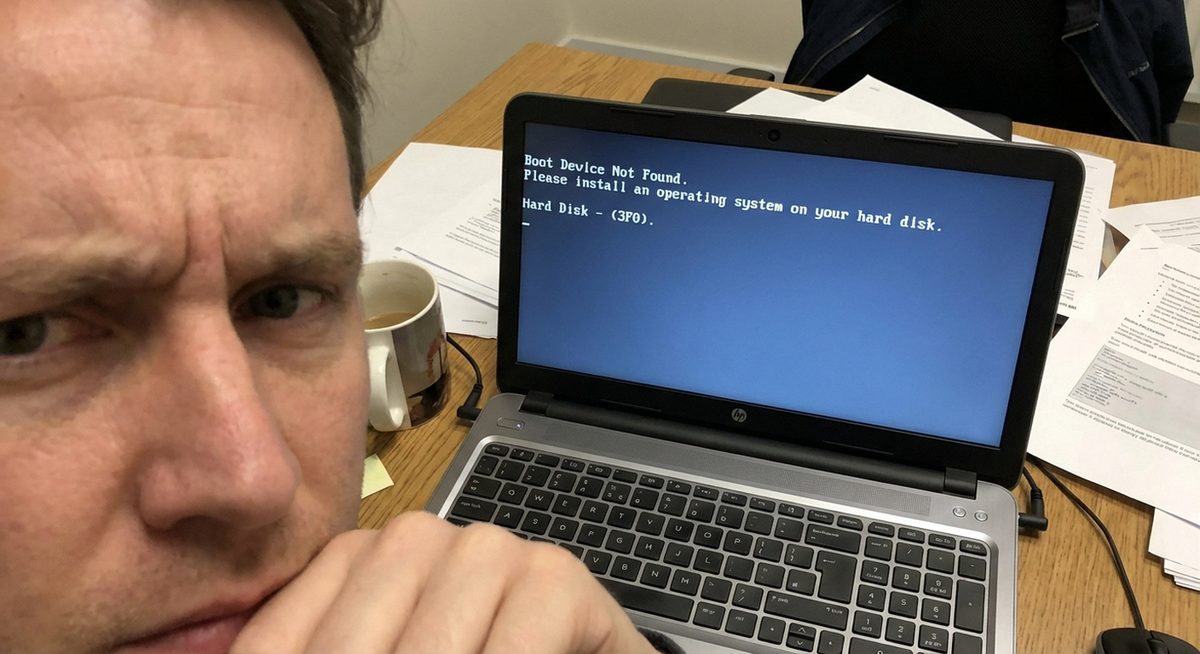
The HP hard disk error 3F0 displays the message "Boot Device Not Found — Please install an operating system on your hard disk. Hard Disk (3F0)" and prevents your HP laptop or desktop from starting Windows. This error means that the BIOS (or UEFI firmware) cannot detect a bootable storage device during the POST (Power-On Self-Test) process, which is the first thing your computer does when you press the power button.
Error 3F0 can appear on virtually any HP model, including the HP Pavilion, HP Envy, HP EliteBook, HP ProBook, and HP Omen series. The causes range from simple BIOS settings changes to physical hard drive failures. In many cases, the hard drive is fine but the BIOS boot order has been altered by a Windows update, a BIOS reset, or an accidental change, and the fix takes under five minutes.
The methods below are ordered from the simplest software fix to hardware diagnostics, so work through them in order. If Method 1 resolves the issue, you do not need to continue to the later methods.
Press Esc repeatedly while powering on, then press F10 to enter BIOS Setup. Go to System Configuration > Boot Options, ensure your hard drive is listed and set as the first boot device. Press F10 to save and exit.
Boot Device Not Found — Please install an operating system on your hard disk. Hard Disk (3F0). F2 System DiagnosticsMethod 1: Reset BIOS Boot Order and Settings
Step 1: Turn off the computer completely. Press the power button, then immediately begin pressing Esc repeatedly (about once per second) until the HP Startup Menu appears. From this menu, press F10 to enter BIOS Setup.
Step 2: In BIOS Setup, navigate to the System Configuration tab using the arrow keys. Select Boot Options or Boot Order.
Step 3: Check whether your hard drive (HDD or SSD) appears in the boot device list. If it is listed but not first, use the arrow keys and +/- keys to move it to the top position. If it does not appear at all, proceed to Method 2.
Step 4: While in Boot Options, ensure Legacy Support is set to match your drive's partition style. For drives with GPT partitions (most modern systems), enable UEFI Boot. For older MBR drives, enable Legacy Boot. Incorrect settings cause the BIOS to skip the drive. Press F10 to save changes and restart.
Method 2: Perform a Hard Reset to Clear BIOS Errors
Step 1: Turn off the HP laptop or desktop completely. Disconnect the power cable from desktop computers. For laptops, unplug the charger.
Step 2: For laptops with removable batteries, remove the battery. For laptops with internal (non-removable) batteries, skip this step.
Step 3: Press and hold the power button for 15-20 seconds. This drains residual electrical charge from the motherboard capacitors and resets the hardware state, which can clear firmware glitches that cause the 3F0 error.
Step 4: Reconnect the battery (if removed), plug in the charger or power cable, and turn on the computer. If the hard drive was temporarily undetectable due to a firmware glitch, the hard reset will restore detection.
Method 3: Run HP Hardware Diagnostics on the Hard Drive
Step 1: Turn off the computer. Press the power button, then immediately press Esc repeatedly to reach the HP Startup Menu. Press F2 to enter HP PC Hardware Diagnostics.
Step 2: In the diagnostics menu, select Component Tests > Hard Drive. Run the Quick Test first (takes 2-3 minutes). This checks whether the BIOS can communicate with the hard drive at all.
Step 3: If the Quick Test passes, run the Extensive Test (takes 1-2 hours depending on drive size). This performs a surface scan of the entire drive looking for bad sectors and mechanical failures.
Step 4: Note the results. If the tests pass, the hard drive hardware is functional and the issue is likely a boot configuration problem (proceed to Method 4). If the tests fail with a failure ID code, the hard drive is physically damaged and needs replacement. Write down the failure ID — you will need it for HP warranty support.
Method 4: Rebuild the Boot Configuration Using Windows Recovery
Step 1: Create a Windows 10/11 installation USB drive on another working computer using the Microsoft Media Creation Tool (microsoft.com/software-download). You need a USB drive with at least 8 GB capacity.
Step 2: Insert the USB drive into the HP computer showing the 3F0 error. Power on and press Esc, then F9 to open the Boot Device Options menu. Select the USB drive to boot from it.
Step 3: When the Windows installer appears, click Repair your computer (bottom-left corner) instead of Install. Go to Troubleshoot > Advanced options > Command Prompt.
Step 4: In the Command Prompt, run these commands in order:
bootrec /fixmbr
bootrec /fixboot
bootrec /scanos
bootrec /rebuildbcd
These commands repair the Master Boot Record, fix the boot sector, scan for Windows installations, and rebuild the Boot Configuration Data. Restart the computer after the commands complete.
Why Does This Problem Happen?
The 3F0 error has several distinct causes. The most common is a BIOS boot order change — when the BIOS is reset to default settings (after a CMOS battery replacement, firmware update, or accidental reset), the boot order may change so that the BIOS tries to boot from a network adapter or USB device instead of the internal hard drive, resulting in the "boot device not found" message even though the drive is perfectly functional.
Hardware-related causes include loose SATA data or power cables in desktop computers, a dislodged M.2 SSD in laptops (particularly after physical impact), and actual hard drive failure due to age, mechanical wear, or electrical damage. In HP laptops, the M.2 SSD connector can become partially unseated from normal handling, especially in thinner models like the HP Envy x360. On the software side, a corrupted boot partition, damaged bootloader files, or a failed Windows update that altered boot configuration data can make the drive undetectable to the BIOS even though the drive hardware is fine.