 Errors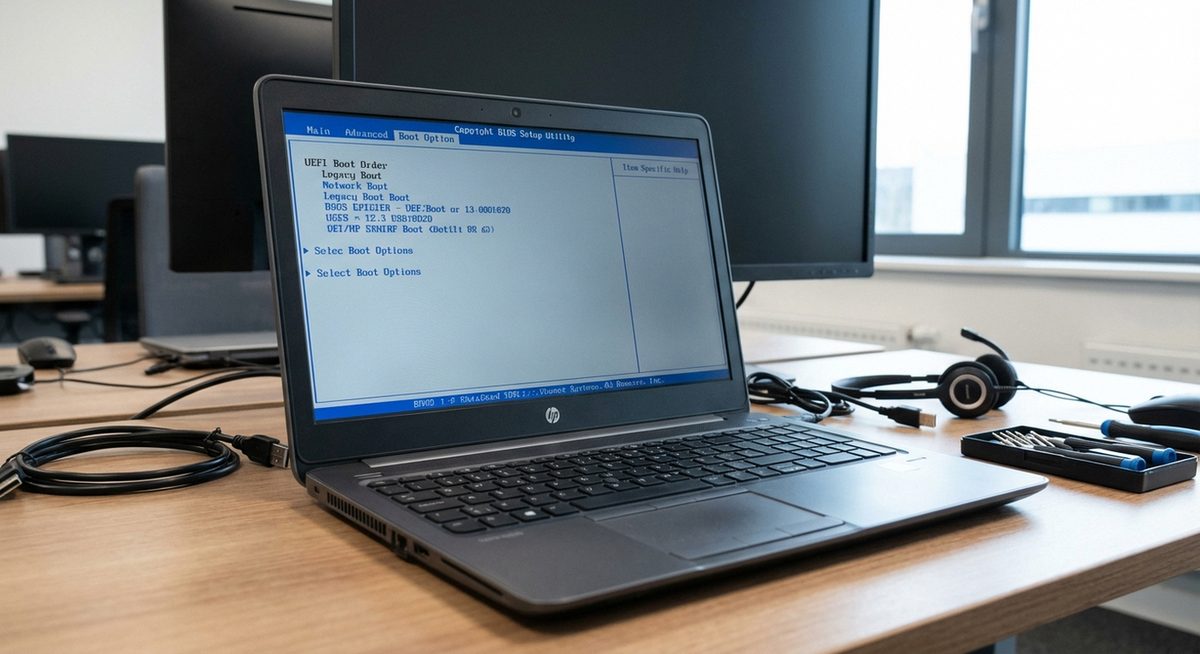
Accessing the HP laptop boot menu is essential when you need to boot from a USB drive, install a new operating system, or troubleshoot startup problems. The boot menu function key varies between HP models, but the most commonly used key is F9 for the boot device menu and F10 for BIOS setup.
Many HP users struggle to enter the boot menu because they press the wrong key or miss the timing window during startup. This guide covers the exact boot menu keys for every HP laptop series including Pavilion, Envy, ProBook, EliteBook, and Omen models running Windows 10, 11, 7, or 8.
Whether you need to boot from a USB installer, access recovery options, or change the boot order permanently, the methods below will get you there.
Press F9 repeatedly as soon as you power on your HP laptop to open the Boot Device Options menu. If that does not work, try Esc first, then select the boot menu from the startup options.
HP Boot Menu Keys: F9 (Boot Device Menu) | F10 (BIOS Setup) | Esc (Startup Menu)
Method 1: Access HP Boot Menu Using F9 Key
The F9 key is the universal boot device options key for most HP laptops manufactured after 2010. This opens a one-time boot menu that lets you select a boot device without changing permanent BIOS settings.
Power Off Your HP Laptop Completely
Shut down the laptop fully — do not use restart or sleep mode. Press and hold the power button for 5 seconds if the system is unresponsive.
Press the Power Button and Immediately Tap F9
As soon as you press the power button, begin tapping F9 repeatedly (about twice per second). Do not hold it down — tap it rhythmically until the Boot Options Menu appears.
Select Your Boot Device
Use the arrow keys to highlight the device you want to boot from (USB drive, CD/DVD, or hard drive). Press Enter to confirm your selection.
Boot from the Selected Device
The laptop will now boot from your chosen device. If booting from a USB installer, follow the on-screen prompts to proceed with installation or recovery.
Tip: If your USB drive does not appear in the boot menu, make sure it was formatted as bootable media and try a different USB port. USB 2.0 ports (black interior) are more reliable for boot drives than USB 3.0 (blue interior) on older HP models.
Method 2: Use the Esc Startup Menu for Full Boot Options
Pressing Esc during startup opens the HP Startup Menu, which provides access to the boot menu (F9), BIOS setup (F10), system diagnostics (F2), and system recovery (F11). This is the safest approach if you are unsure which key to use.
Shut Down and Power On the Laptop
Ensure the laptop is completely off, then press the power button to start it.
Tap Esc Repeatedly During Startup
Immediately begin pressing the Esc key repeatedly. The Startup Menu should appear within 3-5 seconds.
Select F9 Boot Device Options
From the Startup Menu, press F9 to open the Boot Device Options, or choose another option as needed.
Choose Your Boot Device and Confirm
Select the target boot device from the list and press Enter to boot from it.
Method 3: Access BIOS to Change Boot Order Permanently
If you need to boot from a USB or external drive every time the laptop starts, changing the boot order in BIOS is more efficient than using the one-time boot menu.
Enter BIOS Setup with F10
Power off the laptop, press the power button, and tap F10 repeatedly to enter BIOS Setup Utility.
Navigate to the Boot Tab
Use the arrow keys to move to the Boot or System Configuration tab in BIOS.
Change the Boot Order
Move your preferred boot device to the top of the list using F5/F6 or +/- keys. Place USB or external drive above the internal hard drive.
Save Changes and Exit
Press F10 to save your changes and exit BIOS. The laptop will restart and boot from the device at the top of the boot order.
Warning: Changing the boot order in BIOS affects every startup. Remember to restore the original boot order after you finish installing or troubleshooting, or your laptop may try to boot from a non-existent USB device.
HP Boot Menu Keys by Model Series
While F9 works for most HP laptops, some older or specialized models use different keys. Here is a complete reference table:
HP Pavilion: Esc → F9 | HP Envy: Esc → F9 | HP ProBook: F9 or Esc
HP EliteBook: F9 or Esc | HP Omen: F9 | HP Stream: Esc → F9
HP Spectre: Esc → F9 | HP 250/255: F9 | HP ZBook: Esc → F9
For all modern HP laptops (2015 and newer), pressing Esc at startup provides a universal entry point to all boot and BIOS options regardless of the specific model.
Method 4: Boot from USB Using Windows Settings
If you cannot access the boot menu through keyboard keys — common with fast-boot enabled UEFI systems — you can reach it through Windows itself.
Open Windows Settings
Go to Settings > Update and Security > Recovery (Windows 10) or Settings > System > Recovery (Windows 11).
Click Restart Now Under Advanced Startup
In the Recovery section, click Restart Now under Advanced Startup. Your PC will restart to a blue options screen.
Select Use a Device
Choose Use a Device from the options. Select your USB drive or other boot media from the list.
Boot from the Selected Device
Windows will restart and boot directly from your chosen device.
Why Can You Not Access the HP Boot Menu?
Several factors can prevent you from accessing the boot menu. Fast Boot in UEFI settings reduces the time window for key presses to near zero. Secure Boot may block booting from unsigned USB media. Some wireless keyboards do not register key presses during POST. If you experience these issues, connect a wired USB keyboard, disable Fast Boot in BIOS, or use the Windows Advanced Startup method described in Method 4.
Frequently Asked Questions
The boot menu key for HP Pavilion laptops is F9 for the Boot Device Options menu. You can also press Esc first to access the Startup Menu, then select F9 from there.
Power off the laptop, insert the USB drive, press the power button, and immediately tap F9 repeatedly. When the Boot Options menu appears, select your USB drive and press Enter.
F9 opens the one-time Boot Device Options menu to select a boot device for the current session only. F10 opens the BIOS Setup Utility where you can permanently change the boot order and other system settings.
The USB drive may not be formatted as bootable, may not be properly connected, or Secure Boot may be blocking it. Try disabling Secure Boot in BIOS, reformatting the USB with a tool like Rufus, or using a different USB port.
Yes. Press F9 or Esc during startup. If Fast Boot prevents this, use Windows Settings > System > Recovery > Restart Now under Advanced Startup, then select Use a Device.
Enter BIOS with F10, navigate to the Security or Boot tab, find Secure Boot Configuration, and set Secure Boot to Disabled. Save and exit with F10.
F2 opens the HP System Diagnostics tool, which runs hardware tests on your memory, hard drive, battery, and other components. It is useful for diagnosing hardware failures.
Press F11 during startup or select it from the Esc Startup Menu. This opens the HP Recovery Manager, which can restore your laptop to factory settings or a previous recovery point.
Changing the boot order does not affect your Windows installation or data. It only determines which device the laptop tries to boot from first. You can always change it back.
Fast Boot is likely enabled in BIOS, which minimizes the POST time and skips the boot menu key detection. Disable Fast Boot in BIOS settings or use the Windows Advanced Startup method instead.