 Errors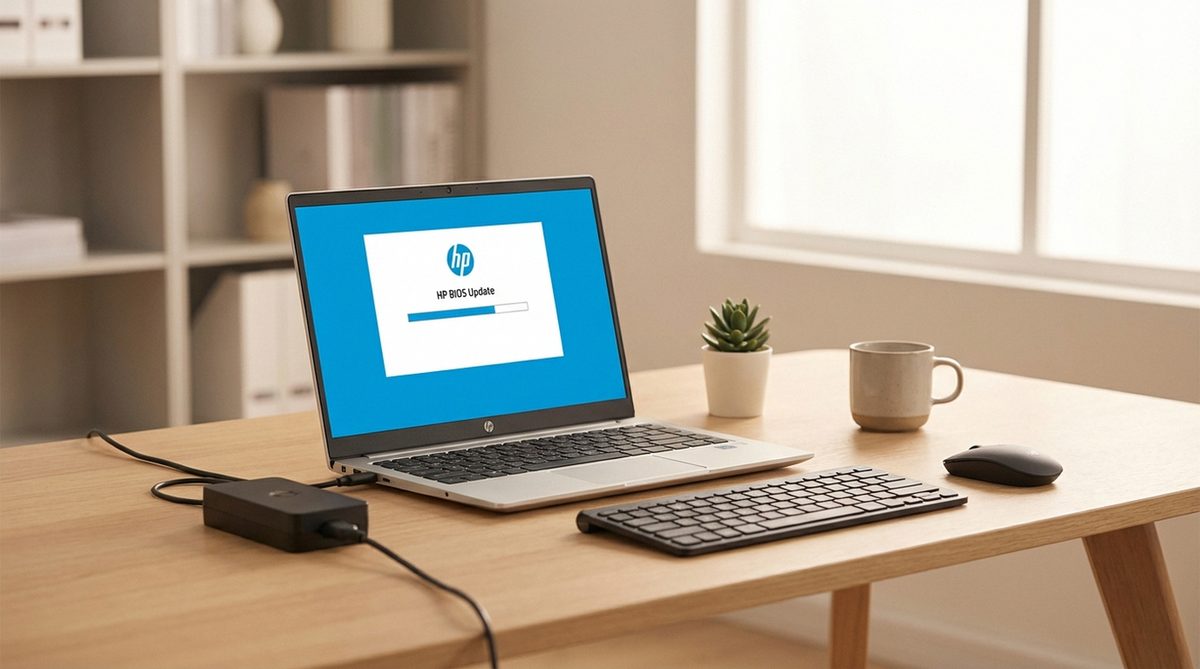
Updating the BIOS on an HP Pavilion or Spectre laptop can fix hardware compatibility issues, improve system stability, patch security vulnerabilities, and add support for new hardware. HP regularly releases BIOS updates for its laptop lines, and the process is straightforward when done correctly — but a failed BIOS update can render your laptop unbootable, so following the steps carefully is critical.
This guide covers three safe methods: HP Support Assistant (recommended), manual download from the HP website, and USB BIOS recovery for situations where the laptop will not boot.
Open HP Support Assistant (pre-installed on all HP laptops), click Updates, and install any available BIOS update. Keep your laptop plugged in and do not interrupt the process.
WARNING: Do NOT turn off your computer or disconnect the power supply during a BIOS update. Interrupting the process can permanently damage your laptop's firmware.
Before You Start: Check Your Current BIOS Version
Before updating, identify your current BIOS version to confirm whether an update is available and needed.
Open System Information
Press Windows + R, type msinfo32, and press Enter.
Find BIOS Version
In the System Summary, look for BIOS Version/Date. Note the version number (e.g., F.52 or N86 Ver. 01.14.00). You will compare this against the latest version on HP's website.
Note Your Product Number
Find your HP product number on the bottom label of your laptop or by running wmic bios get serialnumber in Command Prompt. You will need this to find the correct BIOS file.
Method 1: Update BIOS via HP Support Assistant (Recommended)
HP Support Assistant is the safest method because it automatically detects your laptop model, verifies the BIOS file, and manages the installation process.
Open HP Support Assistant
Search for "HP Support Assistant" in the Start menu. If it is not installed, download it from support.hp.com. Make sure you are running the latest version of the assistant itself.
Check for Updates
Click Updates on the main screen, then click Check for updates and messages. The assistant scans for all available updates including BIOS.
Install the BIOS Update
If a BIOS update appears in the list, select it and click Install. Ensure your laptop is plugged into AC power — the update will not proceed on battery alone.
Wait for the Process to Complete
The laptop will restart automatically. During the BIOS update, you will see a progress bar on a black screen. Do not press any keys, close the lid, or unplug the power. The process typically takes 5-15 minutes. The laptop restarts again when finished.
Tip: Close all open applications and save your work before starting the BIOS update. The system will restart without additional prompts during the update process.
Method 2: Manual BIOS Download from HP Website
Use this method if HP Support Assistant is not available or if you need to install a specific BIOS version.
Go to HP Support
Visit support.hp.com and click Software and Drivers. Enter your laptop's product number or let the site auto-detect your model.
Select Your Operating System
Choose Windows 10 or Windows 7 (whichever you are running). Expand the BIOS category in the driver list.
Download the BIOS File
Click Download next to the latest BIOS version. The file is typically an .exe installer (e.g., sp12345.exe). Compare the version number with your current BIOS — only update if the available version is newer.
Run the BIOS Installer
Close all programs. Connect AC power. Double-click the downloaded .exe file. Follow the on-screen instructions. The installer will verify the file, prepare the update, and restart your laptop into the BIOS update mode automatically.
Method 3: USB BIOS Recovery (When Laptop Won't Boot)
If your HP laptop fails to boot due to a corrupted BIOS, use the HP BIOS Recovery feature with a USB drive. This works even when the laptop cannot reach Windows.
Prepare a USB Drive
On another working computer, format a USB flash drive as FAT32. Download the BIOS .exe file for your specific laptop model from support.hp.com.
Extract the BIOS File
Run the downloaded .exe on the working computer. When the installer opens, select Create Recovery USB flash drive and point it to your USB drive. The installer extracts the BIOS files to the USB.
Initiate BIOS Recovery
Insert the USB into the non-booting HP laptop. With the laptop powered off and AC adapter connected, press and hold Windows + B keys, then press the Power button. Continue holding Windows + B for 3 seconds after pressing Power. Release all keys when you hear a beep or see the HP BIOS Recovery screen.
Complete the Recovery
The BIOS recovery process starts automatically. Follow any on-screen prompts. The laptop restarts when recovery is complete.
Warning: Never install a BIOS update intended for a different HP model. Using the wrong BIOS file can permanently damage your laptop's motherboard. Always verify the product number matches exactly.
Frequently Asked Questions
BIOS updates are not always necessary. Update if you are experiencing hardware issues, need to fix a security vulnerability, or HP specifically recommends an update for your model. If your laptop is working fine, updating is optional.
If the update is interrupted (power loss, forced shutdown), the BIOS can become corrupted, leaving the laptop unable to boot. Always use AC power and do not interrupt the process. HP's BIOS Recovery (Method 3) can fix a corrupted BIOS in most cases.
Typically 5-15 minutes. The laptop may restart multiple times during the process. Do not assume the update has failed and force a shutdown — some updates take longer on older hardware.
No. HP BIOS update tools require the AC adapter to be connected and the battery to be above 10%. The update will refuse to start on battery power alone to prevent corruption from a sudden power loss.
Some HP models allow BIOS downgrade, but most newer models block it for security reasons. If you need to downgrade, check the BIOS installer options or use the manual .bin file method in the BIOS recovery environment.
It forces the HP laptop into BIOS recovery mode, which loads a backup BIOS from the recovery partition or a USB drive. This works even when the main BIOS is completely corrupted and the laptop shows a black screen.
No. A BIOS update only modifies the firmware chip on the motherboard. Your files, programs, and Windows installation remain untouched. However, BIOS settings (boot order, secure boot, etc.) may reset to defaults.
Wait at least 30 minutes before assuming it is stuck. If there is absolutely no progress after 30 minutes and the screen is frozen, perform a hard reset: hold the power button for 15 seconds, then try the Windows + B BIOS recovery method.