 Errors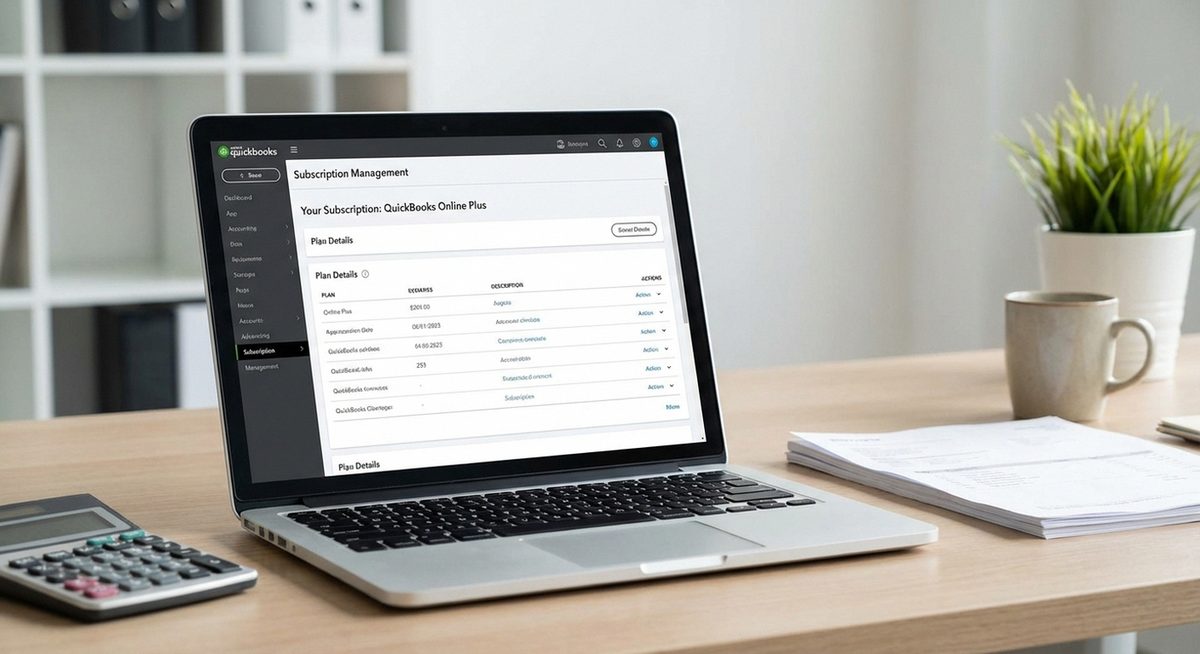
Canceling a QuickBooks subscription requires following specific steps depending on whether you use QuickBooks Online, QuickBooks Desktop (subscription version), or QuickBooks Payroll as a standalone service. Intuit has made the cancellation process less straightforward than signing up, so knowing the exact path through the account settings or customer support can save you significant time and frustration.
Before canceling, it is critical to export your financial data, as Intuit retains your QuickBooks Online data for only one year after cancellation. After that period, your company file, transaction history, reports, and attached documents are permanently deleted. QuickBooks Desktop users who own a perpetual license (non-subscription) retain their local data indefinitely, but subscription desktop users lose access to the software entirely upon cancellation.
This guide covers the cancellation process for every QuickBooks product, including how to export your data beforehand, what happens to your account after cancellation, and how to avoid unexpected charges during the cancellation window.
Log into QuickBooks Online, click the Gear icon > Account and Settings > Billing & Subscription, then click Cancel. Follow the prompts to confirm. Export your data first using Reports > All Reports > Export.
QuickBooks subscription continues billing after attempted cancellation or cancellation option not visible in account settingsMethod 1: Cancel QuickBooks Online Subscription
Step 1: Sign in to your QuickBooks Online account at qbo.intuit.com with the primary admin credentials. Only the primary admin (the person who created the account) can cancel the subscription. Other admin users and accountant users cannot access cancellation settings.
Step 2: Click the Gear icon (Settings) in the top-right corner, then select Account and Settings from the dropdown menu.
Step 3: Click Billing & Subscription in the left sidebar. You will see your current plan, billing date, and payment method. Click the Cancel subscription or Cancel link. Intuit may present retention offers (discounts, plan downgrades) — you can decline these and proceed.
Step 4: Select a cancellation reason from the dropdown, then click Continue to cancel. Confirm by clicking Cancel subscription on the final screen. You will receive a confirmation email from Intuit. Your access continues until the end of the current billing period.
Method 2: Cancel QuickBooks Desktop Subscription
Step 1: If you have a QuickBooks Desktop subscription (Plus or newer versions sold as annual subscriptions), you need to cancel through your Intuit account rather than within the software itself.
Step 2: Go to camps.intuit.com (Customer Account Management Portal) and sign in with the Intuit account linked to your QuickBooks Desktop license.
Step 3: Find your QuickBooks Desktop subscription under Products & Services. Click Cancel subscription or Cancel renewal to stop the next billing cycle.
Step 4: If you cannot find the cancellation option online, call Intuit support at 1-800-446-8848. Have your Customer Account Management Portal (CAMPs) login ready, along with your license number and product version. The phone agent can process the cancellation immediately.
Method 3: Cancel QuickBooks Payroll Separately
Step 1: QuickBooks Payroll must be canceled separately from QuickBooks Online or Desktop, even if it was purchased as an add-on. Canceling your QuickBooks subscription does not automatically cancel Payroll.
Step 2: Before canceling Payroll, complete all pending payroll runs and file any outstanding tax forms. Download copies of all W-2s, 1099s, payroll reports, and tax filing confirmations. You will lose access to the payroll tax filing feature immediately upon cancellation.
Step 3: In QuickBooks Online, go to Gear icon > Account and Settings > Billing & Subscription. Find the Payroll section and click Cancel. For standalone Payroll subscriptions, go to camps.intuit.com.
Step 4: Intuit may require you to call support to complete the Payroll cancellation, especially if you have unfiled tax forms or pending payroll liabilities. Resolve these before attempting cancellation to avoid compliance issues with the IRS.
Method 4: Get a Refund for QuickBooks
Step 1: Intuit offers a 60-day money-back guarantee for new QuickBooks Online subscriptions. If you cancel within 60 days of your initial purchase, you are entitled to a full refund.
Step 2: For refunds, you must contact Intuit support directly — refunds are not processed automatically through the self-service cancellation. Call 1-800-446-8848 or use the live chat at quickbooks.intuit.com/contact.
Step 3: After the 60-day guarantee period, refunds are issued on a prorated basis at Intuit's discretion. If you paid annually and cancel mid-term, you may receive a partial refund for unused months. Monthly subscribers typically do not receive refunds but retain access until the end of their billing period.
Step 4: Keep your cancellation confirmation email and note the date. If you see additional charges after cancellation, dispute them with Intuit support using the confirmation as evidence. Check your credit card or bank statement for 2-3 billing cycles to ensure no further charges occur.
Why Does This Problem Happen?
Users often struggle with QuickBooks cancellation because Intuit uses multiple cancellation pathways depending on the product version, how it was purchased, and whether add-on services (Payroll, Payments, Time Tracking) are active. The cancellation button may not appear if you are logged in as a secondary admin rather than the primary admin, if you have an active Payroll subscription that must be canceled first, or if your account has outstanding balances.
Additionally, QuickBooks Desktop versions purchased through retail stores or third-party resellers may require different cancellation processes than those bought directly from Intuit. Some users discover they have multiple Intuit accounts if they signed up for different products at different times, which adds confusion about which account controls the subscription billing. Searching for your receipt email from Intuit and using the email address from that receipt to log in will ensure you access the correct account.