 Errors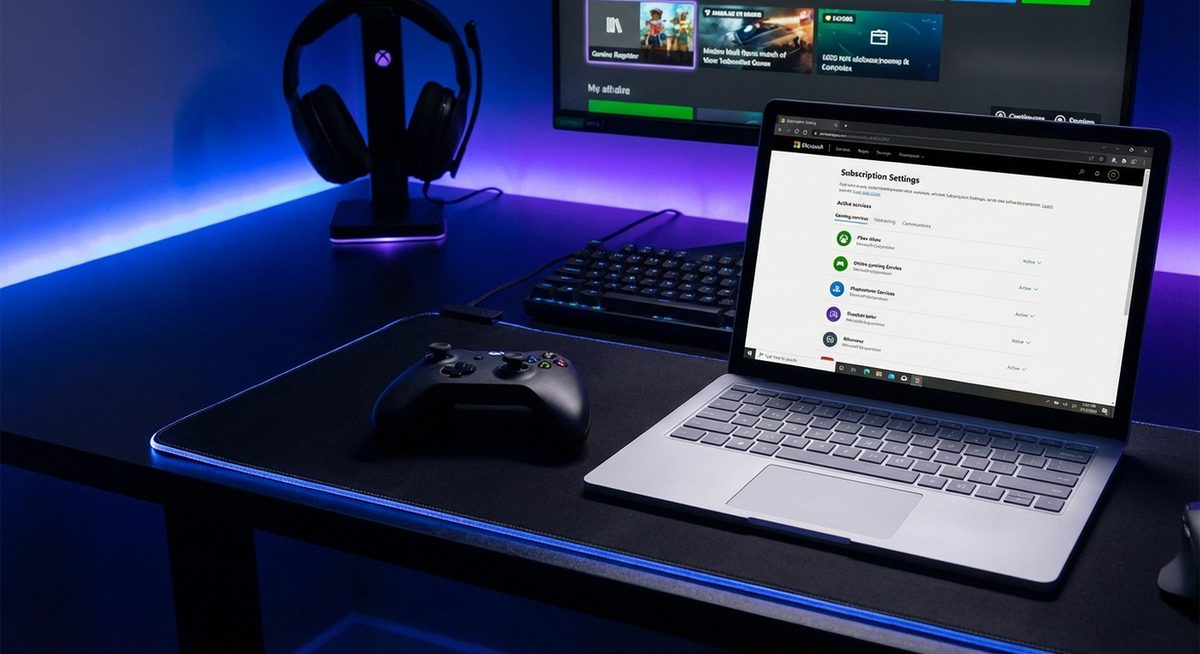
To cancel your Xbox subscription — whether it is Game Pass, Game Pass Ultimate, or Xbox Live Gold — you need to manage it through your Microsoft account at account.microsoft.com. You cannot cancel directly from the Xbox console settings, though you can start the process from there. The cancellation takes effect at the end of your current billing period.
Microsoft makes the cancellation process intentionally multi-step, offering alternatives like downgrading or pausing before completing the cancellation. This guide walks you through the fastest path to cancel without getting sidetracked by retention offers.
You can cancel from any device with a web browser — PC, phone, tablet, or the Xbox console's Edge browser.
Go to account.microsoft.com/services, sign in, find your Xbox subscription, click Manage, then click Cancel. Follow the prompts to confirm cancellation.
Method 1: Cancel Xbox Subscription via Microsoft Account Website
This is the fastest and most reliable method. It works for Game Pass, Game Pass Ultimate, Xbox Live Gold, and EA Play subscriptions billed through Microsoft.
Go to Microsoft Account Services
Open a browser and navigate to account.microsoft.com/services. Sign in with the Microsoft account linked to your Xbox subscription.
Find Your Xbox Subscription
Scroll through the Services & Subscriptions page to find your active Xbox subscription (Game Pass, Game Pass Ultimate, or Xbox Live Gold).
Click Manage, Then Cancel
Click Manage next to the subscription. On the next page, click Cancel or Turn Off Recurring Billing. Microsoft may offer alternatives — click through them if you want to proceed with cancellation.
Confirm Cancellation
Review the cancellation summary showing when your access ends. Click Confirm Cancellation. You retain access until the end of your current billing period.
Tip: If you do not see your subscription listed, you may be signed in with the wrong Microsoft account. Check which email is linked to your Xbox profile in the Xbox app or console settings.
Method 2: Cancel from the Xbox Console
While you cannot complete cancellation entirely from console settings, you can start the process which opens the Microsoft account page in the console's browser.
Press the Xbox Button
Press the Xbox button on your controller to open the guide menu.
Navigate to Settings
Go to Profile & System > Settings > Account > Subscriptions.
Select Your Subscription
Choose the subscription you want to cancel. The console will open the Edge browser to your Microsoft account management page.
Complete Cancellation in the Browser
Follow the same steps as Method 1 — click Manage, then Cancel, then confirm.
Method 3: Cancel via the Xbox Mobile App
The Xbox app on iOS and Android can direct you to subscription management without needing a computer.
Open the Xbox App
Launch the Xbox app on your phone and sign in if needed.
Go to Your Profile
Tap your profile icon in the bottom-right corner, then tap Settings or Account.
Tap Subscriptions
Find and tap the Subscriptions option. This opens your Microsoft account in a mobile browser.
Cancel the Subscription
Follow the web-based cancellation flow: Manage > Cancel > Confirm.
Warning: If you subscribed to Xbox Game Pass through the Apple App Store or Google Play Store, you must cancel through that store instead. Go to your iPhone's Settings > Apple ID > Subscriptions, or Google Play Store > Subscriptions to manage those billing methods.
What Happens After You Cancel Xbox Game Pass?
After cancellation, you keep access to Game Pass games until the end of your current billing period. After that date, you lose access to the Game Pass game library but retain any games you purchased at a discount. Your saved game data remains on your account and in the cloud. Xbox Live Gold benefits including free Games with Gold titles you claimed remain in your library as long as you resubscribe within a certain period. Any Microsoft Rewards points earned through Game Pass quests are not affected by cancellation.
Frequently Asked Questions
Microsoft may offer a prorated refund if you cancel shortly after being billed. Go to support.microsoft.com and request a refund. Refund approval is not guaranteed and depends on usage.
No. Your game saves are stored on your Xbox and in the cloud. If you resubscribe or purchase the game later, all your progress is intact.
Free-to-play games like Fortnite and Apex Legends do not require Xbox Live Gold. However, online multiplayer in paid games requires an active Gold or Game Pass Ultimate subscription.
The process is identical to canceling regular Game Pass. Go to account.microsoft.com/services, find Game Pass Ultimate, click Manage, then Cancel.
Turning off recurring billing stops future charges but lets you keep access until the paid period ends. Canceling may end access sooner on some plan types. Both achieve the same result of stopping payments.
Yes, during the cancellation flow, Microsoft may offer a pause option that suspends billing for 1-3 months. This is a good choice if you plan to return to the service.
The cancel option is sometimes hidden behind retention offers. Keep clicking through the alternative suggestions (downgrade, pause, etc.) until you reach the final cancel confirmation page.
If you are the plan organizer, canceling ends the subscription for all members. If you are a member (not the organizer), you can only leave the group, not cancel the plan.
Cancellation is immediate in terms of stopping future billing. Access to Game Pass games continues until the end of the current paid period.
Yes, you can resubscribe at any time. Microsoft occasionally offers discounted rates for returning subscribers, so you may see a promotional offer when you sign up again.