 Errors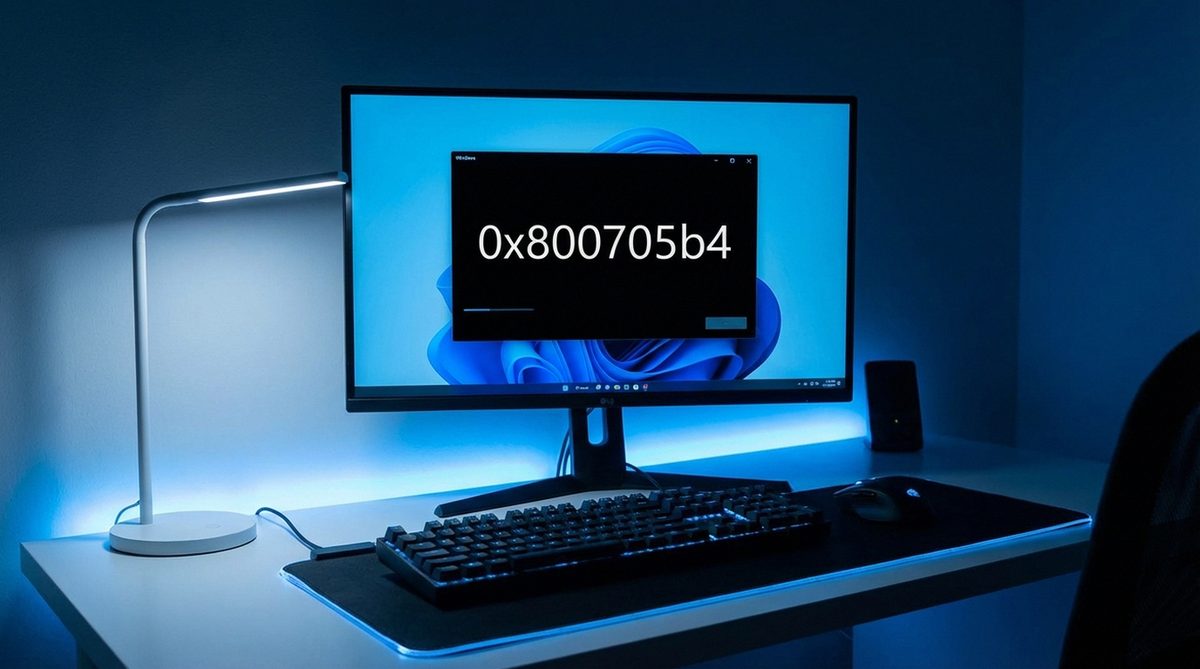
The error code 0x800705b4 appears in two contexts on Windows 10 and 11: when Windows Defender fails to update its virus definitions, and when Windows Update cannot install cumulative or feature updates. The error code translates to "ERROR_TIMEOUT" — meaning a system operation timed out before completing, typically because of conflicts with third-party antivirus software, corrupted update components, or Windows services that are not running properly.
This guide covers fixes for both scenarios — Windows Defender definition update failures and Windows Update installation failures — since the underlying causes often overlap.
Run the Windows Update Troubleshooter: go to Settings > Update & Security > Troubleshoot > Additional Troubleshooters > Windows Update and click Run. This automatically detects and fixes common update issues.
Windows Defender: Error code 0x800705b4 - An unexpected problem occurred. Install the latest definitions.
Windows Update: Error 0x800705b4 - There were some problems installing updates.
Method 1: Run the Windows Update Troubleshooter
The built-in troubleshooter automatically diagnoses and fixes common Windows Update and Defender update problems including service conflicts and corrupted cache files.
Open Troubleshoot Settings
Press Windows + I to open Settings. Go to Update & Security > Troubleshoot. On Windows 11: System > Troubleshoot > Other troubleshooters.
Run Windows Update Troubleshooter
Click Additional Troubleshooters (Windows 10) or find it in the list (Windows 11). Select Windows Update and click Run the troubleshooter.
Apply Fixes
The troubleshooter scans for problems. If issues are found, click Apply this fix. Common fixes include resetting Windows Update components and restarting update services.
Retry the Update
After the troubleshooter completes, go to Settings > Update & Security > Windows Update and click Check for updates. Also open Windows Security > Virus & threat protection > Check for updates to update Defender definitions.
Method 2: Remove Third-Party Antivirus Conflicts
Third-party antivirus software (Norton, McAfee, Avast, Kaspersky, etc.) can conflict with Windows Defender and Windows Update, causing the 0x800705b4 timeout error.
Temporarily Disable Third-Party Antivirus
Right-click the antivirus icon in the system tray and select Disable/Pause protection for 1 hour. Some antivirus programs require opening the main application to disable real-time protection.
Try the Update Again
With third-party antivirus disabled, open Windows Update and check for updates. If the update succeeds, the antivirus was causing the conflict.
Decide on Permanent Fix
If the antivirus caused the issue, check for an update to the antivirus software that resolves the conflict. Alternatively, if you plan to use Windows Defender as your primary antivirus, uninstall the third-party software completely through Settings > Apps.
Tip: When two antivirus programs run simultaneously, they can conflict by scanning each other's operations and causing timeouts. Windows Defender automatically deactivates when it detects a compatible third-party antivirus — but incompatible or partially uninstalled antivirus remnants can trigger 0x800705b4.
Method 3: Reset Windows Update Components
Corrupted Windows Update cache files or stopped services are a frequent cause of the 0x800705b4 error. Resetting update components clears the cache and restarts all related services.
Open Command Prompt as Administrator
Press Windows + X and select Terminal (Admin) or Command Prompt (Admin).
Stop Update Services
Run these commands one at a time:net stop wuauservnet stop cryptSvcnet stop bitsnet stop msiserver
Rename Update Cache Folders
Run:ren C:\Windows\SoftwareDistribution SoftwareDistribution.oldren C:\Windows\System32\catroot2 catroot2.old
This forces Windows to create fresh update cache folders.
Restart Update Services
Run:net start wuauservnet start cryptSvcnet start bitsnet start msiserver
Then check for updates again.
Method 4: Manually Update Windows Defender Definitions
If Windows Defender cannot update definitions automatically due to the 0x800705b4 error, you can download and install definitions manually.
Download Definitions Manually
Visit the Microsoft Security Intelligence page (microsoft.com/en-us/wdsi/definitions). Download the definition update file matching your system architecture (64-bit or 32-bit).
Install the Definition File
Double-click the downloaded .exe file. The definitions install silently — you may not see any visible progress. The process takes 1-2 minutes.
Verify the Update
Open Windows Security > Virus & threat protection. Under Virus & threat protection updates, check that the definition version and date have been updated to today's date.
Warning: If you are using a metered internet connection, Windows may delay updates to save bandwidth, which can appear as the 0x800705b4 error. Go to Settings > Network & Internet > Properties and turn off "Set as metered connection."
Frequently Asked Questions
Error 0x800705b4 translates to ERROR_TIMEOUT in Windows system codes. It means an update operation timed out before completing, usually due to service conflicts, corrupted cache, or blocked connections to Microsoft update servers.
If Windows Defender cannot update definitions, your protection against new threats is reduced. Fix this error promptly or manually download definitions (Method 4) to maintain up-to-date virus protection.
Yes. The error can appear on both Windows 10 and Windows 11. The causes and fixes are the same on both operating systems. The Settings menu paths may differ slightly between versions.
System Restore can fix the error if it was caused by a recent software installation or system change that corrupted update components. Restore to a point before the error started appearing.
Not recommended. If Windows Defender definitions are outdated, you are vulnerable to new threats. If Windows Update is failing, you miss security patches. Fix the error to keep your system secure and up to date.
Antivirus uninstallers sometimes leave behind drivers, services, or registry entries that conflict with Windows Defender. Use the antivirus vendor's dedicated removal tool (Norton Removal Tool, McAfee MCPR, etc.) to fully clean up remnants.
Yes. If your firewall blocks connections to Microsoft update servers (*.windowsupdate.com, *.microsoft.com), updates will time out with this error. Ensure these domains are allowed in your firewall settings.
They are different errors. 0x80070643 is a general installation failure (often .NET Framework related), while 0x800705b4 is specifically a timeout error. Both can affect Windows Update, but they have different causes and solutions.
Press Windows + R, type services.msc, press Enter. Find "Windows Update" (wuauserv), "Background Intelligent Transfer Service" (BITS), and "Cryptographic Services." All three should have Status "Running" and Startup Type "Automatic."
Running sfc /scannow followed by DISM /Online /Cleanup-Image /RestoreHealth can fix corrupted system files that cause update failures. These commands are worth trying if Methods 1-3 do not resolve the error.