 Errors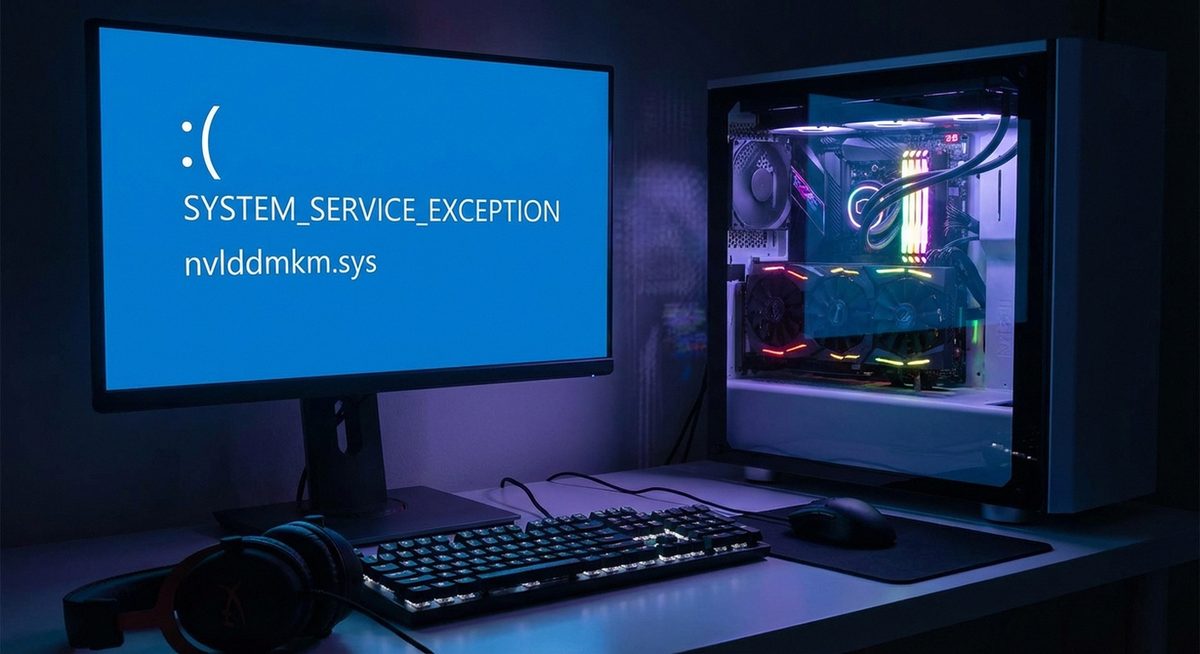
The VIDEO_TDR_FAILURE blue screen occurs when your graphics card driver stops responding and Windows cannot recover it. TDR stands for Timeout Detection and Recovery — a Windows mechanism that detects when a GPU takes too long to respond and attempts to reset it. When the reset fails, you get this BSOD. The error message typically mentions a specific driver file: atikmpag.sys (AMD), nvlddmkm.sys (NVIDIA), or igdkmd64.sys (Intel).
This error commonly occurs during gaming, video editing, watching high-resolution content, or after waking from sleep. The root cause is almost always a driver issue — either the driver is outdated, corrupted, or incompatible with a recent Windows update.
Boot into Safe Mode, completely uninstall your GPU driver using DDU (Display Driver Uninstaller), then install the latest driver from your GPU manufacturer's website (NVIDIA, AMD, or Intel).
Stop code: VIDEO_TDR_FAILURE
What failed: atikmpag.sys (AMD) | nvlddmkm.sys (NVIDIA) | igdkmd64.sys (Intel)
Method 1: Clean Install GPU Drivers with DDU
A clean driver installation is the most effective fix because it removes all traces of the old driver that may be corrupted or conflicting.
Download DDU and the Latest GPU Driver
Download Display Driver Uninstaller from guru3d.com and the latest driver from nvidia.com, amd.com, or intel.com (whichever matches your GPU). Save both to your desktop before proceeding.
Boot into Safe Mode
Restart and hold Shift while clicking Restart. Go to Troubleshoot > Advanced Options > Startup Settings > Restart, press F4 for Safe Mode.
Run DDU to Uninstall the Current Driver
Launch DDU, select your GPU type (NVIDIA, AMD, or Intel), and click Clean and Restart. DDU removes all driver files, registry entries, and folders.
Install the Fresh Driver
After restart, run the GPU driver installer you downloaded. Choose Custom/Clean Installation if available. Restart once more when installation completes.
Tip: Do not use Windows Update to install GPU drivers. Always download directly from the manufacturer for the most stable and current version. Windows Update often installs older or generic drivers.
Method 2: Roll Back to a Previous GPU Driver Version
If the BSOD started after a driver update, rolling back to the previous working version resolves the issue without a full clean install.
Open Device Manager
Press Windows + X > Device Manager. Expand Display Adapters.
Open Driver Properties
Right-click your GPU and select Properties. Go to the Driver tab.
Click Roll Back Driver
Click Roll Back Driver. If the button is grayed out, the previous driver version is not stored — use Method 1 instead.
Restart and Test
Restart your PC and test stability. If the BSOD stops, prevent Windows from auto-updating the driver by pausing updates temporarily.
Method 3: Increase TDR Timeout Value
Increasing the TDR timeout gives the GPU more time to respond before Windows forces a reset, which can prevent false-positive TDR failures on systems with heavy GPU workloads.
Open Registry Editor
Press Windows + R, type regedit, press Enter.
Navigate to the Graphics Drivers Key
Go to: HKEY_LOCAL_MACHINE\SYSTEM\CurrentControlSet\Control\GraphicsDrivers
Create a New TdrDelay Value
Right-click in the right pane, select New > DWORD (32-bit) Value. Name it TdrDelay. Double-click it and set the value to 8 (default is 2 seconds).
Restart Your PC
Close Registry Editor and restart. The GPU now has 8 seconds to respond before TDR triggers.
Warning: Modifying the registry incorrectly can cause system problems. Follow the steps exactly as written. Increasing TDR timeout is a workaround, not a fix — the underlying driver issue should still be addressed.
Method 4: Check for GPU Overheating
An overheating GPU throttles performance and can fail to respond within the TDR timeout, triggering this BSOD.
Monitor GPU Temperature
Use GPU-Z, MSI Afterburner, or HWMonitor to check GPU temperatures during normal use and under load. Idle should be below 50°C, under load below 85°C.
Clean the GPU and Fans
Power off, open the case, and use compressed air to clean dust from the GPU fans and heatsink. Dust buildup is the most common cause of overheating.
Improve Case Airflow
Ensure case fans are working and positioned for proper intake/exhaust airflow. Consider adding fans if your case has unused fan mounts.
Why Does VIDEO_TDR_FAILURE Happen?
The Windows TDR mechanism monitors GPU response times. When the GPU fails to complete an operation within the timeout period (default 2 seconds), Windows attempts a reset. If the reset succeeds, you may see a brief screen flicker and a notification that the driver recovered. If the reset fails, Windows triggers the VIDEO_TDR_FAILURE blue screen to prevent further instability. Common causes include buggy driver updates, GPU overheating causing throttling, unstable overclocks, insufficient power delivery to the GPU, and hardware failures in the graphics card itself.
Frequently Asked Questions
TDR stands for Timeout Detection and Recovery. It means your GPU failed to respond within the allowed time and Windows could not recover it, resulting in a blue screen crash.
atikmpag.sys for AMD GPUs, nvlddmkm.sys for NVIDIA GPUs, and igdkmd64.sys for Intel integrated graphics. The BSOD message tells you which file failed.
The error itself does not damage hardware. However, the underlying cause (overheating, power issues) could contribute to long-term wear if not addressed.
Games push the GPU to maximum load, exposing driver instabilities and thermal throttling that do not occur during light usage. Updating drivers and monitoring temperatures resolves most gaming-related TDR failures.
While uncommon, faulty RAM can cause GPU-related BSODs if the system memory used by the GPU driver is corrupted. Run Windows Memory Diagnostic to test.
Undervolting reduces heat and power consumption without significantly reducing performance. It can help if the issue is caused by overheating or power delivery problems. Use MSI Afterburner to test.
Both work, but manual installation from nvidia.com gives you more control. Choose Custom Installation and check Clean Install to ensure a fresh driver installation.
Yes. Windows Update sometimes installs GPU drivers that conflict with the manufacturer's version. After a Windows update causes TDR errors, clean install the manufacturer's driver using DDU.
If the error occurs with every driver version after a clean install and the GPU is not overheating, it may indicate hardware failure. Test with a different GPU to confirm.
You can disable TDR by setting TdrLevel to 0 in the registry, but this is strongly discouraged. Without TDR, a GPU hang freezes your entire system requiring a hard reboot instead of recovering gracefully.