 Errors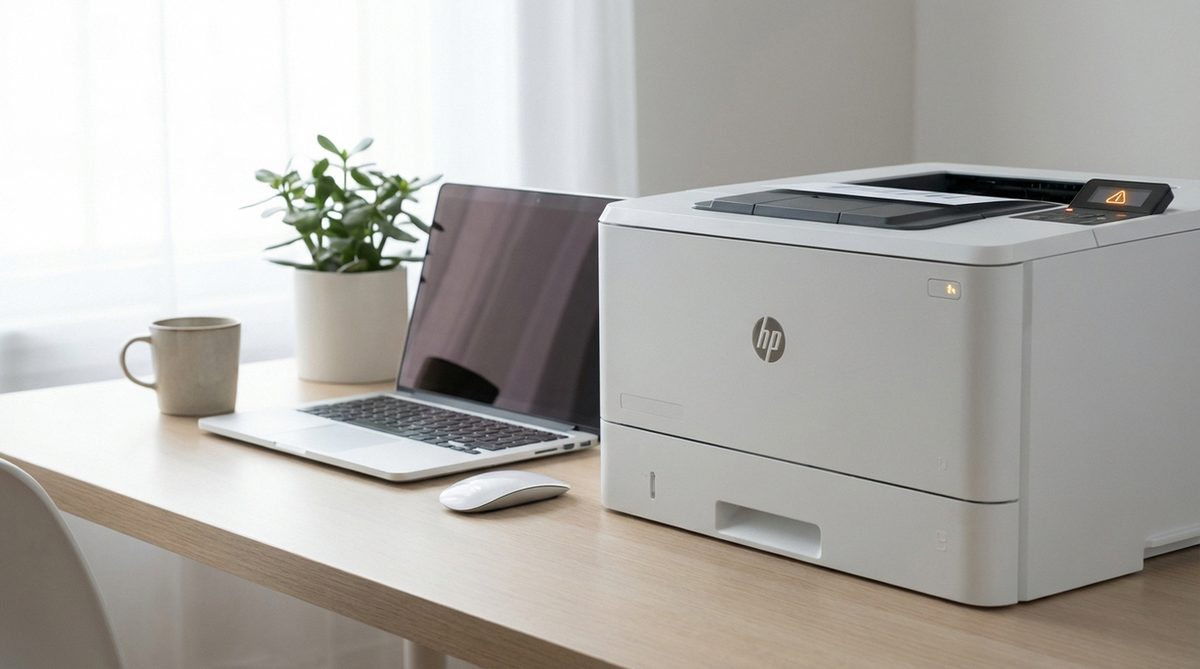
The 79 Service Error on HP LaserJet Pro 400 and M401 series printers is a firmware-level error that causes the printer to become unresponsive and enter a continuous reboot loop. The error typically displays as "79 Service Error" or "79.00FE" on the printer control panel and prevents all printing operations until resolved.
This error is most commonly triggered by a corrupt print job sent to the printer, outdated firmware, or a network communication issue. Unlike hardware errors, the 79 Service Error is almost always a software or firmware problem, which means it can be resolved without replacing any physical components.
The solutions in this guide are organized from the simplest to the most involved. Most users resolve this error within the first two steps by clearing the print queue and performing a power cycle, but firmware updates and network configuration changes may be necessary for recurring instances.
Turn off the printer, disconnect the USB or network cable, wait 30 seconds, then turn the printer back on. If it starts without the error, the cause was a corrupt print job. Clear the print queue on your computer before reconnecting the cable to prevent the bad job from being resent.
79 Service Error — Turn off then on (79.00FE)Basic Troubleshooting
Step 1: Power cycle the printer properly. Turn off the printer using the power button, then unplug the power cord from the wall outlet (not just from the printer). Wait at least 60 seconds to allow the printer memory to fully clear. Plug the power cord back in and turn the printer on. This clears any corrupt data stored in the printer buffer that may be causing the 79 error.
Step 2: Clear the print queue on your computer before reconnecting. On Windows, go to Control Panel > Devices and Printers, right-click your HP printer, and select "See what's printing." Click Printer > Cancel All Documents. On Mac, go to System Preferences > Printers & Scanners, select the HP printer, and click "Open Print Queue" then delete all pending jobs. A corrupt print job is the single most common cause of the 79 error.
Step 3: Disconnect all cables (USB, Ethernet, or phone line for fax models) from the printer and power it on with no connections. If the printer starts normally without the 79 error, the issue is being triggered by data received through one of these connections. Reconnect cables one at a time to identify which connection is causing the problem.
Step 4: If the printer is connected via network, disconnect the Ethernet cable and try connecting via USB instead to test if a network configuration issue is triggering the error. Network-related 79 errors can be caused by incorrect IP settings, DNS issues, or network traffic that the printer firmware cannot process correctly.
Advanced Solutions
Step 1: Update the printer firmware. Visit the HP Support website and search for your specific model (LaserJet Pro 400 M401a, M401d, M401dn, M401dne, or M401dw). Download the latest firmware update file. Connect the printer directly to your computer via USB, run the firmware update utility, and follow the on-screen instructions. Firmware updates frequently fix the 79 error by patching the data processing routines that cause it.
Step 2: Perform a cold reset to restore factory default settings. Turn off the printer. Press and hold the OK button while turning the printer back on. Continue holding OK until the control panel displays "Cold Reset" or "Permanent Storage Init." Release the button and allow the printer to restart. This clears all custom settings including network configuration, stored jobs, and any corrupted firmware settings.
Step 3: If the error occurs when printing specific file types (usually PDFs), the issue may be with the print driver. Uninstall the current HP printer driver completely. Go to the HP website and download the latest full-feature driver for your operating system. Install the fresh driver and try printing again. Select "Print as Image" in the PDF print settings to bypass complex rendering that can trigger the 79 error.
Step 4: For printers on a network, assign a static IP address instead of relying on DHCP. Access the printer Embedded Web Server by typing the printer IP address in a browser. Go to the Networking tab and set a static IP address outside your DHCP range. This prevents IP conflicts and network issues that can cause the 79 error during communication handshakes.
Step 5: If all other solutions fail, perform a semi-full reset or NVRAM reset. Turn off the printer. Hold the right arrow and Cancel buttons simultaneously while powering on. Hold until the display shows the initialization message. This performs a deeper reset than a cold reset and can resolve persistent 79 errors caused by deeply corrupted NVRAM data.
Why Does This Problem Happen?
The 79 Service Error is essentially the HP LaserJet equivalent of a computer crash. The printer firmware encounters data it cannot process — whether from a corrupt print job, a malformed network packet, or an internal firmware bug — and halts to prevent further issues. The "79.00FE" code specifically indicates a firmware exception error, meaning the processor encountered an instruction it could not execute.
This error became particularly common on Pro 400 and M401 models due to firmware handling of complex PostScript and PCL print jobs. Certain PDF files with embedded fonts, high-resolution images, or complex vector graphics can overwhelm the printer processor. Network-connected printers are also susceptible because malformed network data or SNMP queries can trigger the firmware exception.