 Errors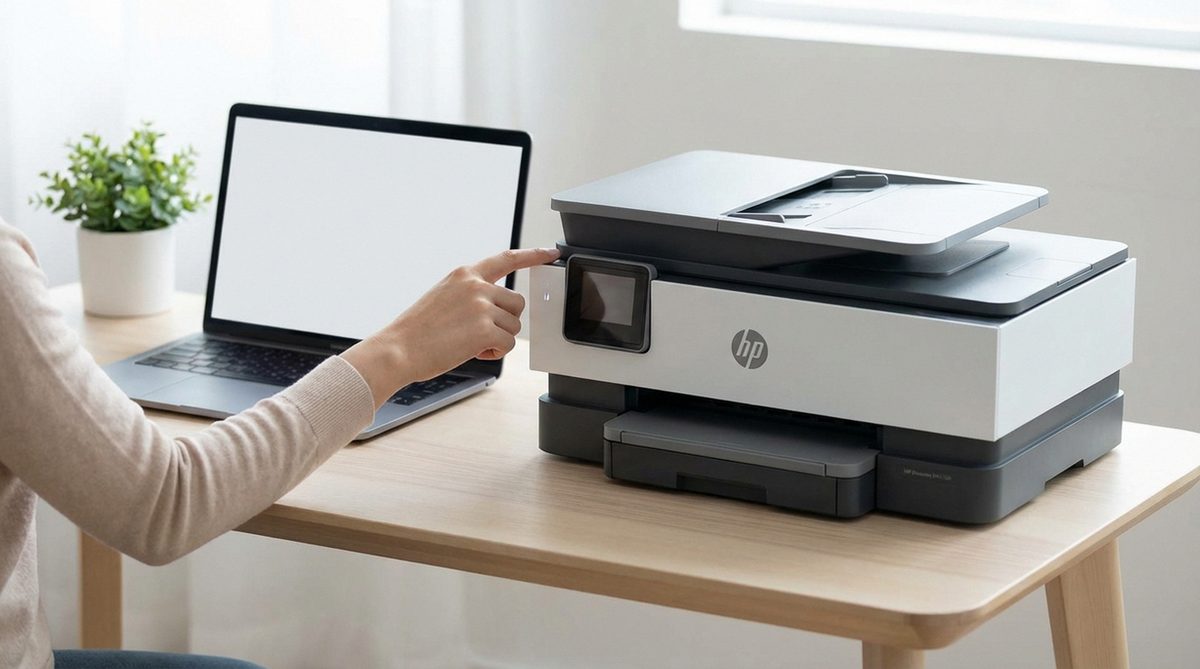
Resetting the HP wireless printer password or restoring the printer to factory defaults is necessary when you forget the Wi-Fi Direct password, cannot connect the printer to a new router, or need to clear all custom settings before giving the printer to someone else. The HP printer wireless password (also called Wi-Fi Direct password) is different from your home Wi-Fi password — it controls direct device-to-printer connections.
The reset process varies slightly between HP printer models (OfficeJet, LaserJet, DeskJet, ENVY), but the general approach is similar. This guide covers password reset and full factory restore for all major HP printer lines.
On most HP printers with a touchscreen: go to Settings > Network > Wi-Fi Direct > Password to view or change the Wi-Fi Direct password. For a full factory reset: Settings > Printer Maintenance > Restore > Restore Factory Defaults.
A factory reset erases ALL custom settings including Wi-Fi network connections, saved fax numbers, scan destinations, and print quality adjustments. You will need to set up the printer from scratch.
Method 1: Reset Wi-Fi Direct Password (Touchscreen Models)
HP printers with a touchscreen display (most OfficeJet Pro, ENVY, and newer DeskJet models) allow you to reset the Wi-Fi Direct password directly from the control panel.
Open Wi-Fi Direct Settings
On the printer's touchscreen, tap the Wi-Fi Direct icon (two overlapping pages or a printer with signal waves). Alternatively, go to Settings > Network Setup > Wi-Fi Direct.
View or Change Password
The current Wi-Fi Direct password is displayed on the screen. To change it, tap the Edit (pencil) icon next to the password field and enter a new password. The password must be at least 8 characters.
Reconnect Your Devices
After changing the password, any devices previously connected via Wi-Fi Direct will need to reconnect using the new password. On your computer or phone, forget the old Wi-Fi Direct connection and connect again with the new password.
Tip: The default Wi-Fi Direct password for most HP printers is printed on a label inside the front cover or cartridge access area. Common defaults include "12345678" or a model-specific password shown on the Network Configuration page.
Method 2: Factory Reset via Printer Control Panel
A full factory reset clears all settings and returns the printer to its original state. Use this when you cannot access Wi-Fi settings, want to start fresh, or are preparing the printer for a new owner.
Access Setup Menu
Touchscreen models: Tap Settings (gear icon) > Printer Maintenance > Restore > Restore Factory Defaults.
Non-touchscreen models: Press and hold the Cancel and Wireless buttons simultaneously for 5 seconds until the power light blinks.
Confirm the Reset
On touchscreen models, tap Yes or Restore to confirm. On non-touchscreen models, the printer resets automatically when the button combination is held long enough.
Wait for Restart
The printer restarts and returns to the initial setup state. This takes 1-3 minutes. The printer may print an alignment page or setup instructions automatically.
Set Up the Printer Again
After the reset, reconnect the printer to your Wi-Fi network using the HP Smart app or the printer's touchscreen setup wizard. You will need your Wi-Fi network name and password.
Method 3: Reset Network Settings Only
If you only need to clear the Wi-Fi connection (for example, when switching to a new router) without erasing all other settings, reset the network settings only.
Access Network Reset
Touchscreen: Go to Settings > Network Setup > Restore Network Settings.
Non-touchscreen: Press and hold the Wireless button for 10 seconds until the wireless light blinks.
Confirm and Wait
Confirm the reset on touchscreen models. The printer clears all saved Wi-Fi networks and Wi-Fi Direct settings but keeps print quality settings, fax numbers, and other preferences.
Reconnect to Wi-Fi
Open the HP Smart app on your phone or computer and follow the setup wizard to connect the printer to your Wi-Fi network. Alternatively, use WPS if your router supports it: press the Wireless button on the printer, then press the WPS button on your router within 2 minutes.
Method 4: Reset HP LaserJet Printers
HP LaserJet models have a slightly different reset process due to their different control panel designs.
HP LaserJet with LCD Display
Press the Setup button (wrench icon) > Service > Restore Defaults. The printer resets and restarts. All network settings, print settings, and saved configurations are erased.
HP LaserJet without Display
Turn off the printer. Press and hold the Resume/Cancel button (circle with triangle). While holding the button, turn the printer on. Continue holding for 10-20 seconds until the Ready light blinks. Release the button.
Print a Configuration Page
After reset, print a configuration page to verify defaults have been restored: press and hold the Resume button for 5 seconds. The page shows the current network settings and firmware version.
Warning: On HP LaserJet Pro MFP models, a factory reset also clears the address book, fax logs, and any stored scan-to-email settings. Export these settings before resetting if you need them.
Frequently Asked Questions
The default password varies by model. Common defaults are "12345678" or a randomly generated password printed on the label inside the cartridge access door. Print a Network Configuration Page from the printer's settings menu to see the current password.
No. Ink and toner levels are tracked by the cartridge's built-in chip, not the printer's firmware. A factory reset does not affect cartridge recognition or reported ink/toner levels.
After reconnecting to Wi-Fi, print a Network Configuration Page (Settings > Reports > Network Configuration). The page lists the printer's current IP address, MAC address, and other network details.
If the printer is connected to your network, access the Embedded Web Server by typing the printer's IP address in a browser. Go to Network > Wi-Fi Direct to change the password. The default login for the EWS is typically blank or "admin."
Ensure the printer is in wireless setup mode (wireless light blinking). Use the HP Smart app for guided setup. If the printer still will not connect, check that your router is broadcasting on 2.4 GHz — many HP printers do not support 5 GHz Wi-Fi networks.
A network reset only clears Wi-Fi and Wi-Fi Direct settings. A factory reset clears everything — network settings, print preferences, fax numbers, saved scan destinations, language settings, and more.
A factory reset can fix software-related errors caused by corrupted settings, but it will not fix hardware issues like paper jams, cartridge errors, or mechanical failures. It is a good troubleshooting step when software fixes have failed.
A factory reset clears the EWS admin password and returns it to the default (blank or "admin"). If you only need to reset the EWS password without a full factory reset, you will need to do a network reset, which also clears EWS credentials.