 Errors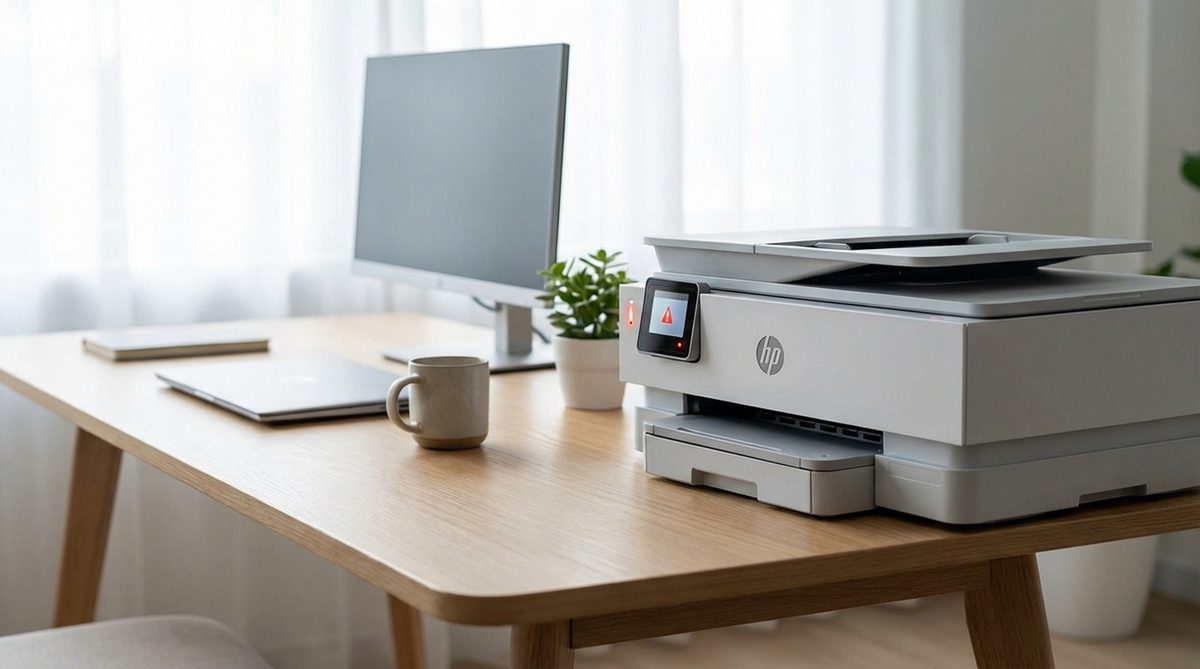
When your HP printer shows "Error State" in Windows 10 or 11, it means the operating system has lost communication with the printer or detected a problem that prevents printing. The printer appears in Devices and Printers with a grayed-out icon or an error badge, and all print jobs get stuck in the queue. This is different from the printer showing a specific error code — "Error State" is a generic Windows status indicating the printer is unreachable or unresponsive.
The most common causes are a disconnected or loose USB/network cable, print spooler service crash, outdated or corrupted printer drivers, paper jams, or empty ink cartridges. The fixes below address each cause systematically.
Turn off the printer, unplug the USB cable (or disconnect from Wi-Fi), wait 60 seconds, reconnect the cable, and turn the printer back on. Then restart the Print Spooler service: open Services (services.msc), find Print Spooler, right-click > Restart.
Printer Status: Error — The printer is in an error state.
Windows cannot communicate with the printer. Check the connection and try again.
Method 1: Check Physical Connections and Printer Status
Before troubleshooting software, verify the printer itself is functioning and properly connected. Physical issues are the most common cause of the error state.
Check the Printer Display
Look at the printer's built-in screen or LED indicators. Check for error messages like paper jam, low ink, open cover, or cartridge issues. Resolve any displayed errors first before troubleshooting the Windows error state.
Verify Cable Connections
USB printers: Unplug the USB cable from both the printer and computer. Inspect for damage. Reconnect firmly — try a different USB port on the computer. Avoid USB hubs; connect directly.
Wireless printers: Ensure the printer is connected to the same Wi-Fi network as your computer. Check the wireless indicator light on the printer.
Power Cycle the Printer
Turn off the printer using the power button. Unplug the power cord from the back of the printer (not just from the wall). Wait 60 seconds. Plug the power cord back in and turn on the printer. Wait for it to complete its startup sequence.
Check Paper and Ink
Ensure the paper tray has paper loaded correctly (not overfilled, no bent sheets). Check that ink or toner cartridges are properly seated and have sufficient levels. Open and close the cartridge access door to reset cartridge detection.
Method 2: Restart the Print Spooler Service
The Print Spooler is the Windows service responsible for managing print jobs. When it crashes or hangs, all printers show an error state.
Open Services
Press Windows + R, type services.msc, and press Enter.
Find Print Spooler
Scroll down to Print Spooler in the services list. Check its Status — it should say "Running." If it says "Stopped" or shows no status, this is likely the cause.
Restart the Service
Right-click Print Spooler and select Restart. If it was stopped, select Start. Also set the Startup Type to Automatic if it is not already.
Clear the Print Queue
If restarting does not help, stop the Print Spooler, navigate to C:\Windows\System32\spool\PRINTERS and delete all files in this folder. These are stuck print jobs. Start the Print Spooler again.
Tip: You can also restart the Print Spooler from Command Prompt: run net stop spooler then net start spooler as Administrator.
Method 3: Update or Reinstall the HP Printer Driver
An outdated, corrupted, or incompatible printer driver is a major cause of the error state, especially after Windows updates that may break existing drivers.
Remove the Existing Printer
Go to Settings > Bluetooth & Devices > Printers & Scanners. Select your HP printer and click Remove. This removes the printer and its current driver configuration.
Download the Latest Driver
Visit support.hp.com, enter your printer model, and download the latest full-feature driver for your Windows version. Use the "Full Solution Software" package, not just the basic driver.
Install the Driver
Run the downloaded installer and follow the setup wizard. The installer will detect the printer (USB or network) and configure it with the latest driver. Restart your computer when prompted.
Print a Test Page
After installation, go to Printers & Scanners, select the newly installed HP printer, click Manage > Print a Test Page. If the test page prints, the error state is resolved.
Method 4: Run the Printer Troubleshooter
Windows includes a dedicated printer troubleshooter that automatically detects and fixes common printer problems including driver issues, spooler errors, and connection problems.
Open Troubleshooter
Windows 10: Settings > Update & Security > Troubleshoot > Additional Troubleshooters > Printer.
Windows 11: Settings > System > Troubleshoot > Other troubleshooters > Printer.
Select Your Printer
When prompted, select the HP printer that is in error state from the list. Click Next to begin the diagnostic scan.
Apply Recommended Fixes
The troubleshooter checks the printer connection, driver, spooler service, and queue. Click Apply this fix for each issue found. Common fixes include restarting the spooler and clearing the queue.
Warning: If your HP printer recently received a firmware update and started showing error state immediately after, the firmware update may be incompatible with your cartridges (especially third-party ink). Contact HP support for firmware rollback options.
Frequently Asked Questions
It means Windows cannot communicate with the printer or has detected a problem. It is a generic status — the actual cause could be a connection issue, driver problem, paper jam, empty ink, or spooler crash. The printer itself may be fine; the issue is often on the Windows side.
Recurring error state issues usually indicate a loose cable connection, unstable Wi-Fi connection, or a driver that keeps crashing. For USB printers, try a different cable. For wireless printers, assign a static IP address to prevent DHCP reassignment issues.
No. When a printer is in error state, all print jobs are queued but not sent to the printer. You must resolve the error state before the printer will accept and process print jobs.
Usually not. Error state is most often a software or connection issue, not a hardware failure. If the printer powers on, has no flashing error lights, and works when connected to another computer, the issue is on the original computer's side.
Restart both the printer and router. Ensure they are on the same Wi-Fi network. Print a Wireless Network Test report from the printer's settings menu to verify connectivity. If the printer lost its Wi-Fi connection, reconnect it using the HP Smart app.
Yes, if the driver is corrupted. Remove the printer from Settings, uninstall the driver from Device Manager (Printers section), then install the latest driver from HP's website. This gives you a clean driver installation.
Yes. Windows updates occasionally break printer driver compatibility. If the error appeared immediately after a Windows update, check for a newer printer driver from HP. You can also roll back the Windows update if needed (Settings > Update & Security > View update history > Uninstall updates).
This confirms the printer hardware is fine. The problem is specific to the computer showing error state — likely a corrupted driver, stopped spooler service, or firewall blocking the printer. Reinstall the driver (Method 3) on the affected computer.