 Errors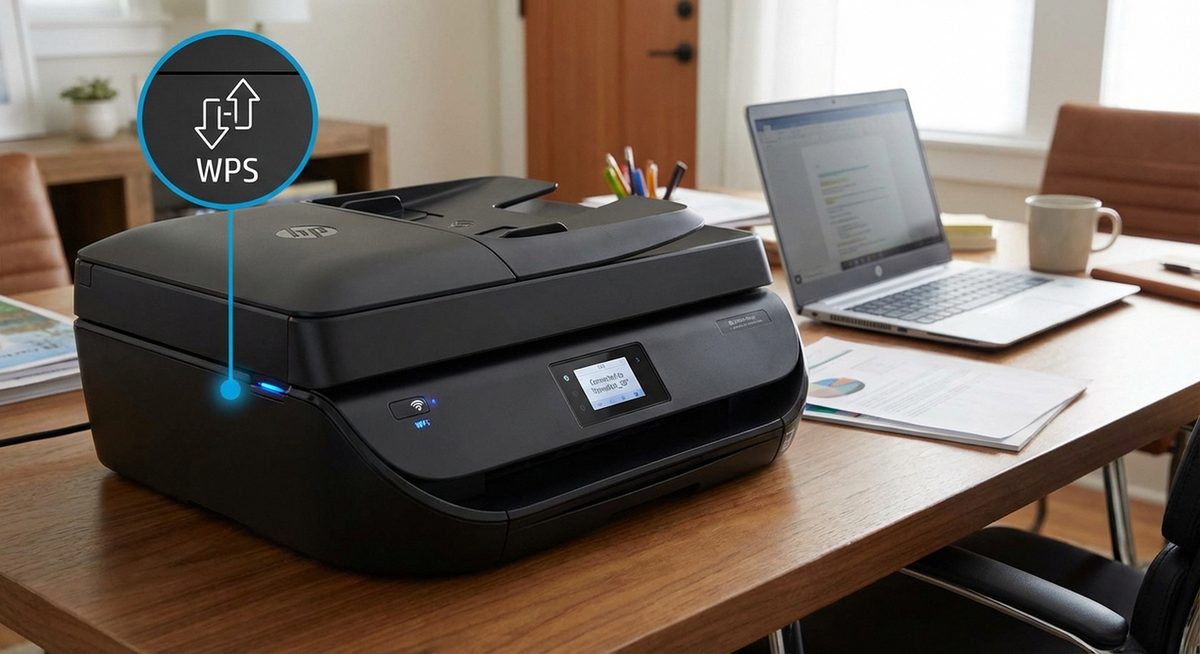
The WPS PIN on an HP printer is a temporary code generated by the printer to establish a secure Wi-Fi connection through your router. To find it, go to the printer's control panel, navigate to Network Settings or Wireless Settings, and look for Wi-Fi Protected Setup (WPS) > PIN. The printer generates an 8-digit PIN that you enter into your router's admin page to complete the connection.
WPS PIN setup is useful when the standard WPS push-button method does not work (some routers lack a physical WPS button) or when you need a more secure connection setup. The PIN is time-sensitive and changes each time you initiate the process, so you need to enter it into your router promptly.
This guide covers finding the WPS PIN on HP DeskJet, OfficeJet, Envy, LaserJet, and Smart Tank printers with both touchscreen and non-touchscreen control panels.
On your HP printer, go to Setup > Network > Wireless Settings > Wi-Fi Protected Setup > PIN. The 8-digit PIN appears on the screen. Enter this PIN into your router's WPS settings within 2 minutes.
Method 1: Find WPS PIN on HP Printers with Touchscreen
HP printers with a color touchscreen (most OfficeJet Pro, Envy, and newer DeskJet models) display the WPS PIN directly on the screen.
Go to the Printer's Wireless Settings
On the printer's touchscreen, tap the wireless icon or go to Setup > Network Setup > Wireless Settings.
Select Wi-Fi Protected Setup
Tap Wi-Fi Protected Setup or WPS in the wireless settings menu.
Select PIN Method
Tap PIN. The printer generates and displays an 8-digit PIN code on the screen. This PIN is valid for approximately 2 minutes.
Enter the PIN in Your Router
Open your router's admin page (usually 192.168.1.1 or 192.168.0.1 in a browser), find the WPS section, select PIN method, and enter the 8-digit code from the printer. The connection establishes automatically.
Tip: Have your router's admin page open before generating the WPS PIN on the printer. The PIN expires quickly, so being ready to enter it immediately prevents timeout issues.
Method 2: Find WPS PIN on HP Printers Without Touchscreen
Older HP printers or budget models with button-only control panels display the WPS PIN on a printed information sheet or through LED indicators.
Press the Wireless Button
Press and hold the wireless button on the printer for 3-5 seconds until the wireless light starts blinking.
Print a Network Configuration Page
Press the Information button (i) or hold the Resume button to print a network configuration page. The WPS PIN may be listed on this page.
Use HP Smart App Instead
If you cannot find the PIN, download the HP Smart app on your phone. It can detect your printer and guide you through the Wi-Fi setup process without needing the WPS PIN.
Method 3: Use WPS Push-Button Instead of PIN
If finding the WPS PIN is proving difficult, the push-button method is simpler and does not require a PIN at all.
Press WPS on the Printer
On the printer, press and hold the Wireless button until it starts blinking. On touchscreen models, go to Wireless Settings > WPS > Push Button.
Press WPS on Your Router
Within 2 minutes, press the WPS button on your Wi-Fi router. It is usually a small button labeled WPS on the back or side of the router.
Wait for Connection
The printer and router will communicate and establish the Wi-Fi connection automatically. The wireless light on the printer turns solid when connected.
Warning: Some newer routers have disabled WPS for security reasons (WPS PIN is vulnerable to brute-force attacks). If WPS does not work, use the HP Smart app or Wireless Setup Wizard on the printer instead — these are more secure connection methods.
Method 4: Connect Using HP Smart App (Recommended)
The HP Smart app provides the most reliable setup experience and does not require WPS at all.
Download HP Smart
Install the HP Smart app from the App Store (iPhone/iPad) or Google Play Store (Android).
Add Your Printer
Open the app and tap the + icon to add a new printer. The app searches for printers in setup mode.
Follow the Guided Setup
HP Smart walks you through entering your Wi-Fi network name and password. It configures the printer's wireless connection directly without WPS.
Why Is WPS PIN Used for HP Printer Setup?
WPS (Wi-Fi Protected Setup) was designed to simplify connecting devices to Wi-Fi networks without typing long passwords. The PIN method adds a security layer compared to push-button WPS — instead of anyone within physical reach connecting to your network, the PIN acts as a one-time verification code. HP printers support WPS because it was a standard feature when many printer models were designed. However, modern security best practices recommend using the HP Smart app or Wireless Setup Wizard instead, as WPS PIN has known security vulnerabilities that could allow unauthorized network access.
Frequently Asked Questions
On HP DeskJet printers with a display, go to Setup > Network > Wireless Settings > WPS > PIN. On models without a display, print a network configuration page by pressing the Information button.
The WPS PIN is typically valid for 2 minutes after being generated. If it expires, generate a new PIN by repeating the process on the printer.
The PIN may have expired, the router may have WPS disabled, or there may be a distance issue. Generate a fresh PIN, ensure WPS is enabled on your router, and place the printer closer to the router during setup.
Yes. Use the HP Smart app, the Wireless Setup Wizard on the printer's control panel, or USB setup through HP software on your computer. These methods do not require WPS.
Use the WPS PIN method instead — you enter the printer's PIN through your router's web-based admin page. Alternatively, use the HP Smart app which does not require WPS at all.
WPS PIN has known security vulnerabilities. It is acceptable for one-time setup but should be disabled on your router afterward. The HP Smart app is the more secure alternative.
Open a browser and go to your router's IP address (usually 192.168.1.1 or 192.168.0.1). Log in with admin credentials and look for WPS under Wireless or Security settings.
Yes, most HP LaserJet printers with network capability support WPS PIN setup. Check the printer's Network Setup menu for the WPS option.
Frequent disconnections are usually caused by router distance, network congestion, or power-saving settings on the printer. Move the printer closer to the router and disable its auto-sleep function.
Most Wi-Fi enabled HP printers manufactured after 2010 support WPS. Very old models or USB-only printers do not have wireless capability and therefore do not support WPS.