 Errors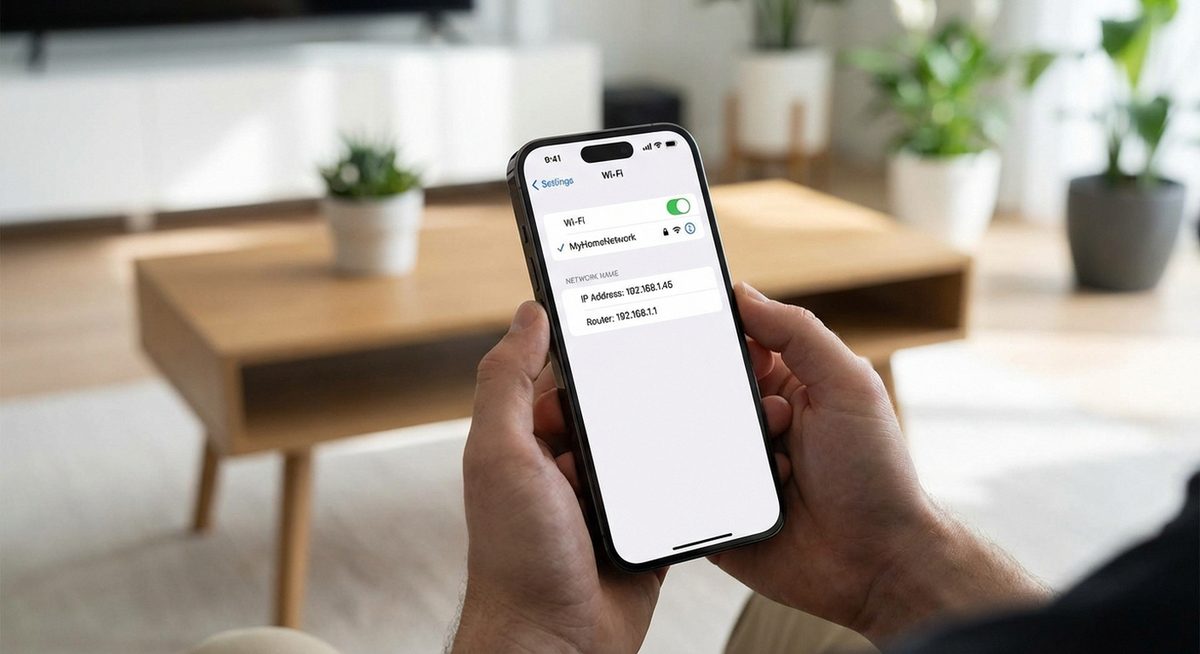
To find your IP address on iPhone, go to Settings > Wi-Fi, tap the i icon next to your connected network, and look for the IP Address field. This shows your private (local) IP address on the current network. For your public IP address (the one websites see), open Safari and search "what is my IP."
Knowing your IP address is necessary for network troubleshooting, setting up port forwarding, connecting to local network devices, configuring VPNs, or providing your IP to technical support. This guide covers finding both private and public IPs on all iOS versions.
Private IP: Settings > Wi-Fi > tap (i) next to your network > IP Address. Public IP: Open Safari, search "what is my IP address."
Method 1: Find Private IP Address in Wi-Fi Settings
Open Settings
Tap the Settings app on your iPhone home screen.
Tap Wi-Fi
Tap Wi-Fi to see your current network connection.
Tap the Info Button
Tap the blue (i) icon next to the name of the Wi-Fi network you are connected to.
Find the IP Address
Scroll down to the IPv4 Address section. Your IP address is listed there (e.g., 192.168.1.15). You can also find the subnet mask, router IP, and DNS server addresses.
Tip: iOS 15 and later includes a Private Wi-Fi Address toggle on this screen. When enabled, your iPhone uses a randomized MAC address for that network, which helps protect your privacy but does not affect your IP address.
Method 2: Find Public IP Address Using Safari
Your public IP is the address that websites and external services see when you connect to the internet.
Open Safari
Launch the Safari browser on your iPhone.
Search for Your IP
Type what is my IP address in the address bar and tap Search. Google or your search engine displays your public IP address at the top of the results.
Note Your Public IP
Your public IP appears as a series of numbers like 203.45.167.89. This is different from your private IP and is shared by all devices on your network.
Method 3: Find IP Address for Cellular Data
When using mobile data instead of Wi-Fi, your IP is assigned by your cellular carrier.
Disconnect from Wi-Fi
Go to Settings > Wi-Fi and toggle it off, or simply move out of Wi-Fi range.
Use a Browser
Open Safari and search what is my IP address. The IP shown is your cellular IP assigned by your carrier.
Check in Settings (Limited)
Go to Settings > Cellular > Cellular Data Options. Some carriers show IP information here, but not all.
Method 4: Find Your Router's IP Address
The router IP (default gateway) is useful for accessing your router's admin page.
Go to Wi-Fi Settings
Settings > Wi-Fi > tap (i) next to your connected network.
Find the Router Field
Scroll to the Router field under IPv4 Address. This is your router's IP (commonly 192.168.1.1 or 192.168.0.1).
Access Router Admin
Open Safari and type the router IP in the address bar to access your router's admin panel for network configuration.
Warning: Your public IP address can reveal your approximate geographic location and ISP. Do not share it publicly unless necessary. Use a VPN if you need to mask your public IP for privacy.
What Is the Difference Between Private and Public IP?
Your private IP address (like 192.168.1.15) is assigned by your router and is only used within your local network. Devices on the same Wi-Fi can communicate using private IPs. Your public IP address (like 203.45.167.89) is assigned by your Internet Service Provider and is how the outside world identifies your network. All devices on your home network share the same public IP when accessing the internet, even though each has a unique private IP locally.
Frequently Asked Questions
Go to Settings > Wi-Fi > tap the (i) icon next to your connected network. Your IP address is listed under IPv4 Address.
A private IP (e.g., 192.168.1.x) is assigned by your router for local network communication. It is not visible to websites or services outside your network.
Your private IP may change when you reconnect to Wi-Fi (unless you set a static IP). Your public IP changes when your ISP assigns a new one, which happens periodically or when you restart your router.
When using cellular data, open Safari and search what is my IP to find your cellular IP. There is no direct setting to view the cellular IP on most iOS versions.
Yes. Go to Settings > Wi-Fi > tap (i) > Configure IP > Manual. Enter your desired IP address, subnet mask, and router address.
One is your IPv4 address and the other is your IPv6 address. Most networks assign both. IPv4 is the traditional format (192.168.x.x), IPv6 is the newer format (longer with colons).
No. Each device on your network has a unique private IP assigned by the router. However, all devices share the same public IP when accessing the internet.
It generates a random MAC address for each Wi-Fi network, preventing network operators from tracking your device across different locations. It does not change your IP address.
While theoretically possible, hacking through an IP alone is extremely difficult on modern systems. Your router's firewall and iOS security protections provide strong defense. Avoid sharing your IP unnecessarily.
Use a VPN app to mask your public IP. Apple also offers iCloud Private Relay (with iCloud+ subscription) which hides your IP from websites in Safari.