 Errors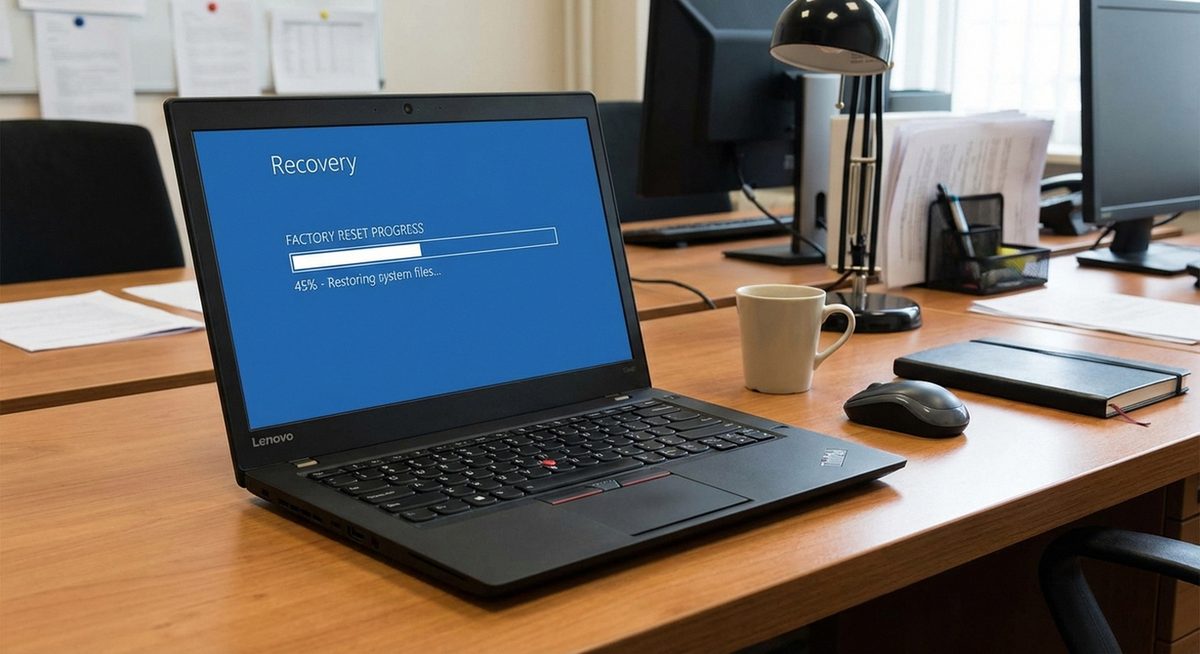
To factory reset a Lenovo laptop without a password, the fastest method is to use the Novo button — a small pinhole or raised button on the side of most Lenovo laptops that boots directly into the recovery environment. From there, you can reset the laptop to factory settings without entering any Windows password.
This guide covers every method to factory reset Lenovo ThinkPad, IdeaPad, Yoga, and Legion laptops on Windows 10 and Windows 11. Whether you have forgotten your login password, want to prepare the laptop for sale, or need to fix persistent software problems, the methods below will restore your Lenovo to its original out-of-box state.
All methods erase your personal files and installed programs. Back up important data before proceeding if possible.
Turn off the laptop. Find the Novo button (small pinhole on the side or next to the power button). Press it with a paperclip. Select System Recovery from the menu. Follow the prompts to reset to factory settings.
Method 1: Factory Reset Using the Lenovo Novo Button
The Novo button is Lenovo's proprietary recovery shortcut. It bypasses the Windows login screen entirely and boots into a recovery menu where you can reset the laptop.
Turn Off the Laptop Completely
Shut down the laptop. If it is frozen or you cannot access the login screen, press and hold the power button for 10 seconds to force shutdown.
Locate the Novo Button
The Novo button is a small pinhole or tiny button usually located on the left side of the laptop near the charging port, or next to the power button. On some models, it is on the bottom of the laptop near a small arrow icon.
Press the Novo Button
Use a paperclip or SIM ejector tool to press the Novo button. Hold it for 1-2 seconds. The laptop powers on and displays the Novo Button Menu.
Select System Recovery
Use the arrow keys to select System Recovery from the menu and press Enter. The Lenovo OneKey Recovery or Windows Recovery Environment launches.
Follow the Factory Reset Prompts
Select Restore from Initial Backup (to return to original factory state) or Restore from User Backup if you created one previously. Confirm the reset and wait 30-60 minutes for it to complete.
Tip: If you cannot find the Novo button, search for your specific Lenovo model number plus "Novo button location" in a search engine. Lenovo's support site has diagrams for every model.
Method 2: Factory Reset Using Windows Recovery Environment
If the Novo button does not work or your model does not have one, you can access the Windows Recovery Environment by forcing interrupted boots.
Force-Interrupt Boot Three Times
Turn on the laptop. When you see the Lenovo or Windows logo, press and hold the power button to force shutdown. Repeat this three times. On the fourth boot, Windows enters Automatic Repair mode.
Select Advanced Options
When Automatic Repair appears, click Advanced Options instead of attempting automatic repair.
Navigate to Reset This PC
Go to Troubleshoot > Reset This PC. Select Remove Everything for a complete factory reset.
Choose Clean the Drive (Recommended for Selling)
If you are preparing the laptop for sale, choose Clean the Drive which securely erases all data. For personal use, Just Remove My Files is faster.
Wait for the Reset to Complete
The reset process takes 30-90 minutes depending on drive speed. The laptop restarts multiple times and eventually boots into the Windows initial setup screen.
Method 3: Factory Reset Using Windows Installation Media
If the recovery partition is damaged or missing, you can perform a clean install using a Windows USB installer.
Create Windows Installation USB
On another computer, download the Windows Media Creation Tool from Microsoft. Create a bootable USB drive (8GB minimum).
Boot from USB
Insert the USB into the Lenovo laptop. Power on and press F12 to open the boot menu. Select the USB drive.
Start Windows Setup
Click Install Now. When asked for a product key, click I Don't Have a Product Key (Windows will activate automatically on most Lenovo laptops using the embedded license).
Choose Custom Install
Select Custom: Install Windows Only. Delete all existing partitions on the main drive and select the unallocated space. Click Next to install Windows fresh.
Complete Setup
Wait for installation (20-40 minutes). Windows restarts and presents the initial setup screens for language, account, and preferences.
Warning: A factory reset permanently erases all personal files, installed applications, and saved passwords on the laptop. There is no undo option. If you can still access the laptop (even without password), try backing up important files to a USB drive first.
Method 4: Reset from the Windows Login Screen
You can initiate a factory reset from the Windows lock screen without logging in.
Go to the Login Screen
Boot the laptop normally until you see the Windows login screen with the password prompt.
Click the Power Icon
Click the power icon in the bottom-right corner of the login screen.
Hold Shift and Click Restart
Hold the Shift key on your keyboard and click Restart. This boots into the Windows Recovery Environment.
Select Reset This PC
Go to Troubleshoot > Reset This PC > Remove Everything. The reset proceeds without requiring your Windows password.
Why Would You Factory Reset a Lenovo Laptop Without Password?
The most common reason is a forgotten Windows login password that prevents access to the desktop. Other scenarios include preparing a used laptop for a new owner, removing malware or ransomware that has taken over the system, fixing persistent crashes or performance issues that standard troubleshooting cannot resolve, or restoring a laptop purchased second-hand to a clean state. Factory resetting without a password is a legitimate recovery operation supported by both Lenovo and Microsoft through official recovery tools.
Frequently Asked Questions
On most IdeaPad models, the Novo button is a small pinhole on the left side of the laptop, near the charging port. Look for a small curved arrow icon next to it.
Yes. A factory reset removes all user accounts and passwords, returning the laptop to the initial Windows setup screen where you create a new account.
Yes, a full factory reset (Remove Everything with Clean the Drive option) eliminates all software including malware. However, BIOS-level infections (extremely rare) may survive a factory reset.
Yes. Use Method 2 (force-interrupt boot three times) or Method 3 (Windows installation USB) to access recovery options without the Novo button.
No, factory resetting your laptop does not void the warranty. It is an official recovery procedure recommended by Lenovo for troubleshooting.
Typically 30-90 minutes depending on drive speed and whether you chose Just Remove Files or Clean the Drive. SSD-equipped laptops reset faster than HDD models.
OneKey Recovery is Lenovo's proprietary recovery software that stores a factory image in a hidden partition. It is activated through the Novo button and can restore the laptop to its original state.
If you reset using the Novo button or OneKey Recovery, all original Lenovo drivers are included. If you use a Windows installation USB (Method 3), you may need to install some drivers from Lenovo's support website.
Windows Reset This PC offers a Keep My Files option that preserves personal files while resetting Windows settings and removing apps. However, this requires being able to access the recovery options, which may need a password.
If the reset appears stuck for more than 3 hours, force shutdown by holding the power button. Retry the reset. If it fails repeatedly, the recovery partition may be damaged — use Method 3 with a Windows USB installer instead.