 Errors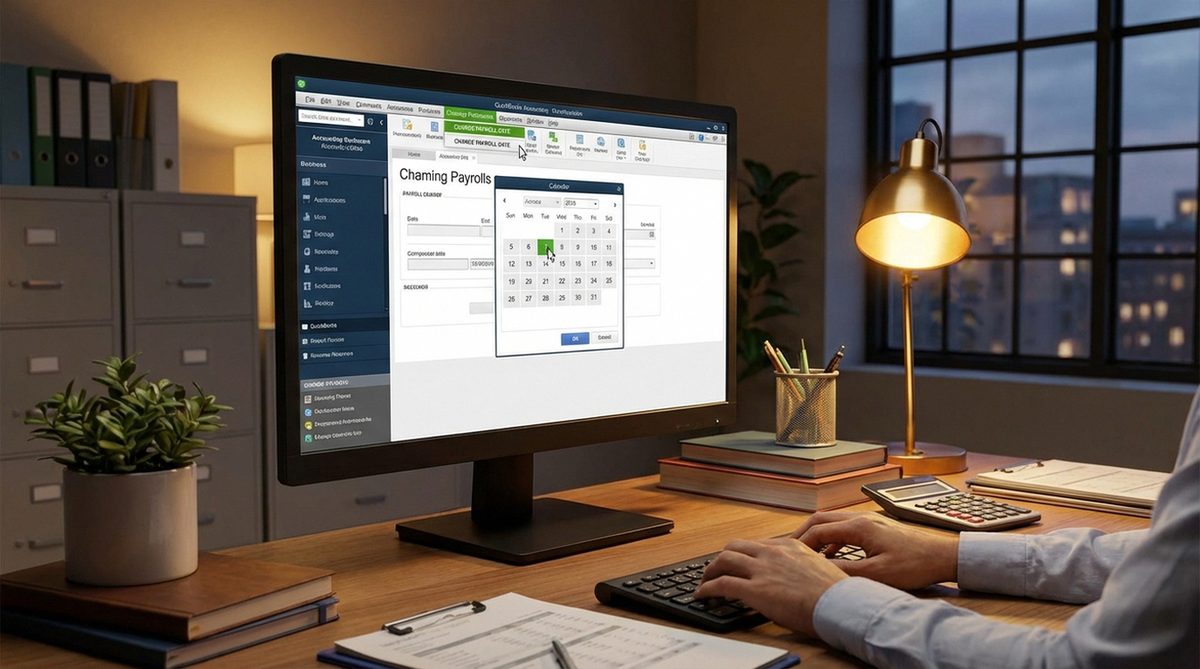
Changing the payroll date in QuickBooks requires modifying your pay schedule settings, which affects when employees receive their paychecks, when direct deposits are initiated, and when payroll tax liabilities are calculated. QuickBooks supports weekly, bi-weekly, semi-monthly, and monthly pay schedules, and switching between them or adjusting the specific pay date within a schedule involves different steps depending on your QuickBooks version.
Before making any changes, it is important to process any pending payroll runs under the current schedule. Changing the pay date mid-cycle can create overlapping pay periods or gaps that affect tax calculations and employee compensation records. If you have direct deposit enabled, banks require 2-4 business days lead time, so factor this into your new schedule timing.
This guide walks through changing payroll dates in both QuickBooks Online Payroll and QuickBooks Desktop Payroll, including how to handle the transition period between old and new schedules.
Go to Payroll > Payroll Settings > Pay Schedules. Select the schedule to modify, change the next pay date and next work period end date, then save. Process any pending payroll first.
Change Pay Date in QuickBooks Online Payroll
Step 1: Navigate to Payroll > Payroll Settings and click Pay Schedules under the Payroll and Services section.
Step 2: Click the pencil icon next to the pay schedule you want to modify. You can change the pay frequency, next pay date, and next work period end date.
Step 3: Enter the new pay date and adjust the work period end date accordingly. QuickBooks will automatically calculate future pay dates based on the new schedule. Review the preview of upcoming pay dates before saving.
Step 4: Click Done to save changes. QuickBooks will use the new dates starting with the next payroll run. Notify employees of the schedule change so they can plan accordingly.
Change Pay Schedule in QuickBooks Desktop
Step 1: Go to Employees > Payroll Center and click the Payroll Schedules dropdown. Select Edit Schedule for the schedule you want to change.
Step 2: Modify the Pay Frequency (weekly, bi-weekly, semi-monthly, monthly), the next pay date, and the next check date. QuickBooks Desktop allows more granular control over the pay period window.
Step 3: Click OK and review the upcoming payroll dates that QuickBooks generates. If any dates fall on weekends or holidays, QuickBooks will flag them for you to adjust.
Step 4: If switching from one frequency to another (e.g., bi-weekly to semi-monthly), you may need to create a new pay schedule and reassign employees to it rather than editing the existing one.
Why Does This Problem Happen?
Payroll date changes in QuickBooks require careful planning because they directly affect tax withholding calculations, direct deposit timing, and compliance reporting. The IRS requires that employers report payroll on specific schedules, and mid-year changes to pay frequencies can complicate Form 941 quarterly filings and W-2 annual summaries.
QuickBooks calculates tax withholdings based on the pay frequency — an employee paid bi-weekly has different per-paycheck withholding amounts than one paid monthly, even if their annual salary is identical. Switching frequencies without adjusting the transition can result in over- or under-withholding for the affected pay periods.