 Errors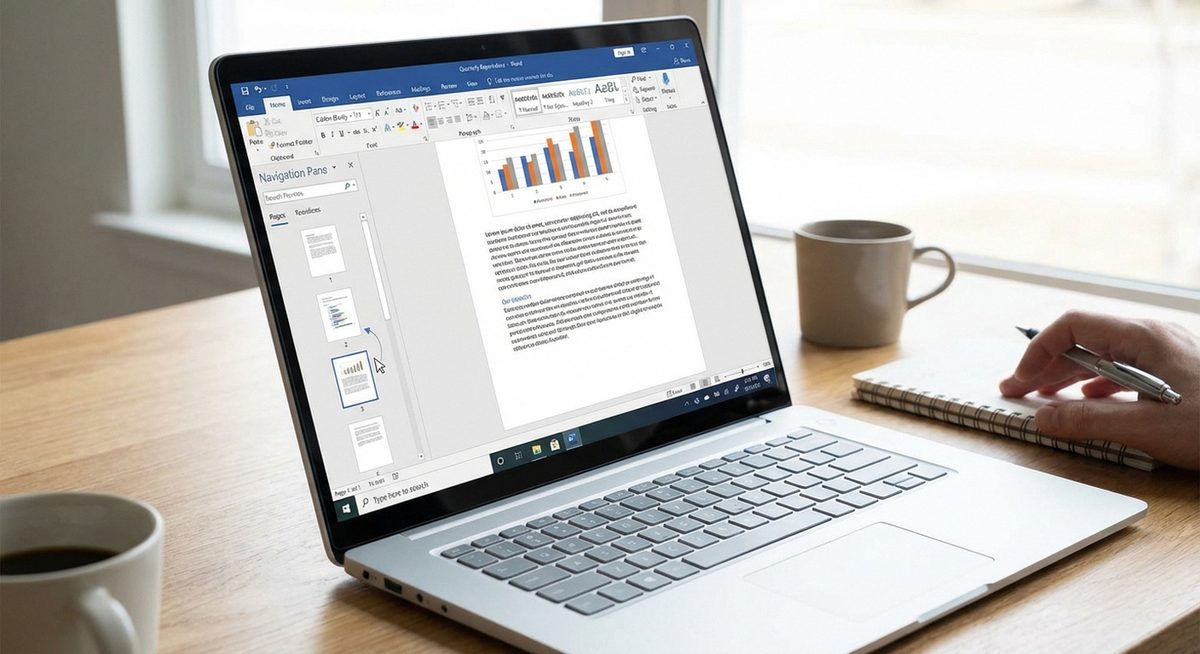
Microsoft Word does not have a drag-and-drop page reordering feature like PowerPoint, but there are effective methods to rearrange pages in Word. The fastest approach is to use the Navigation Pane: if your document uses headings, you can drag headings (and all content under them) to a new position. For documents without headings, use cut and paste to move entire page contents.
Rearranging pages is common when restructuring reports, reordering chapters, moving sections in a thesis, or reorganizing proposal documents. The methods below cover every scenario from simple one-page moves to restructuring entire multi-section documents.
Enable the Navigation Pane (View > Navigation Pane), then drag headings up or down to reorder sections. All content under each heading moves with it.
Method 1: Drag Headings in the Navigation Pane
This is the fastest method if your document uses heading styles (Heading 1, Heading 2, etc.).
Open the Navigation Pane
Click the View tab, then check the Navigation Pane checkbox. The panel appears on the left side of the screen showing a list of all headings in your document.
Locate the Section to Move
In the Navigation Pane, find the heading of the section you want to move. Each heading represents a section that includes all content until the next heading of the same or higher level.
Drag the Heading to Its New Position
Click and hold the heading in the Navigation Pane, then drag it up or down to the desired position. A horizontal line indicates where the section will be placed when you release.
Release to Reorder
Let go of the mouse button. The entire section — heading, paragraphs, images, tables, and subheadings — moves to the new position in the document.
Tip: If your document does not use heading styles, apply them quickly: select each page's title text, then click Heading 1 in the Styles group on the Home tab. This enables the Navigation Pane method instantly.
Method 2: Cut and Paste Entire Pages
For documents without headings, or when you need to move a specific page regardless of heading structure, use cut and paste.
Select the Entire Page Content
Click at the very beginning of the page you want to move. Hold Shift and click at the end of the page content. Alternatively, use Ctrl+Shift+End to select from cursor to the end of the document.
Cut the Selection
Press Ctrl+X (Cmd+X on Mac) to cut the selected content. It is removed from its current position and stored in the clipboard.
Navigate to the Destination
Scroll to or use Ctrl+G (Go To) to navigate to the page where you want to insert the content. Click at the exact insertion point.
Paste the Content
Press Ctrl+V (Cmd+V on Mac) to paste. The content appears at the new location. Add or remove page breaks as needed to maintain proper pagination.
Method 3: Use Outline View for Complex Restructuring
Outline View provides the most control when restructuring large documents with multiple sections and heading levels.
Switch to Outline View
Go to View > Outline. The document displays in outline format with heading levels visible.
Collapse Sections
Click the + icons next to headings to collapse or expand sections. This lets you see the document structure without the full content.
Move Sections with Arrow Buttons
Select a heading, then use the Move Up and Move Down arrow buttons in the Outlining ribbon tab to reposition sections. You can also drag headings directly.
Return to Print Layout
Click View > Print Layout to return to the normal document view. Verify that pages are in the correct order.
Warning: When cutting and pasting pages, page breaks and section breaks may shift. After reordering, scroll through the entire document to verify that page breaks, headers/footers, and formatting are correct.
Why Does Word Not Have a Page Reorder Feature?
Unlike PowerPoint which treats each slide as an independent unit, Word documents are continuous text flows. Pages in Word are dynamically generated based on content, margins, and font sizes — a paragraph that ends on page 3 today might end on page 4 if you change the font size. This fluid page model makes a fixed page reordering feature impractical. Instead, Word provides tools to move content blocks (headings, sections, selections) which achieves the same result while respecting the document's flowing nature.
Frequently Asked Questions
Not directly. Word does not treat pages as discrete objects. Use the Navigation Pane to drag headings, which moves entire sections including their content.
Use cut and paste (Method 2). Select all content on the page, cut it with Ctrl+X, navigate to the destination, and paste with Ctrl+V.
Word Online supports cut and paste for moving content but does not have the Navigation Pane drag feature. Use the desktop version of Word for the easiest reordering experience.
Place your cursor at the start of the page. Use Ctrl+Shift+Down Arrow to select paragraph by paragraph, or hold Shift and click at the end of the page content.
If your table of contents is auto-generated from headings, it updates automatically when you right-click it and select Update Field. Page numbers will reflect the new order.
Press Ctrl+Enter to insert a page break at the cursor position. This forces subsequent content to start on a new page regardless of how much space remains.
Open the PDF in Word (File > Open > select PDF), reorder the content using the methods above, then save or export as PDF. Note that complex PDF formatting may not convert perfectly.
Select all content on the last page, cut it (Ctrl+X), move your cursor to the very beginning of the document, and paste (Ctrl+V). Insert a page break after the pasted content if needed.
Footnotes move with their associated text. If you move a paragraph that has a footnote from page 5 to page 2, the footnote appears on page 2 automatically.
Reorder the content template before running the merge. Mail merge generates output based on the template order, so changing the template structure changes the output order for all records.