 Errors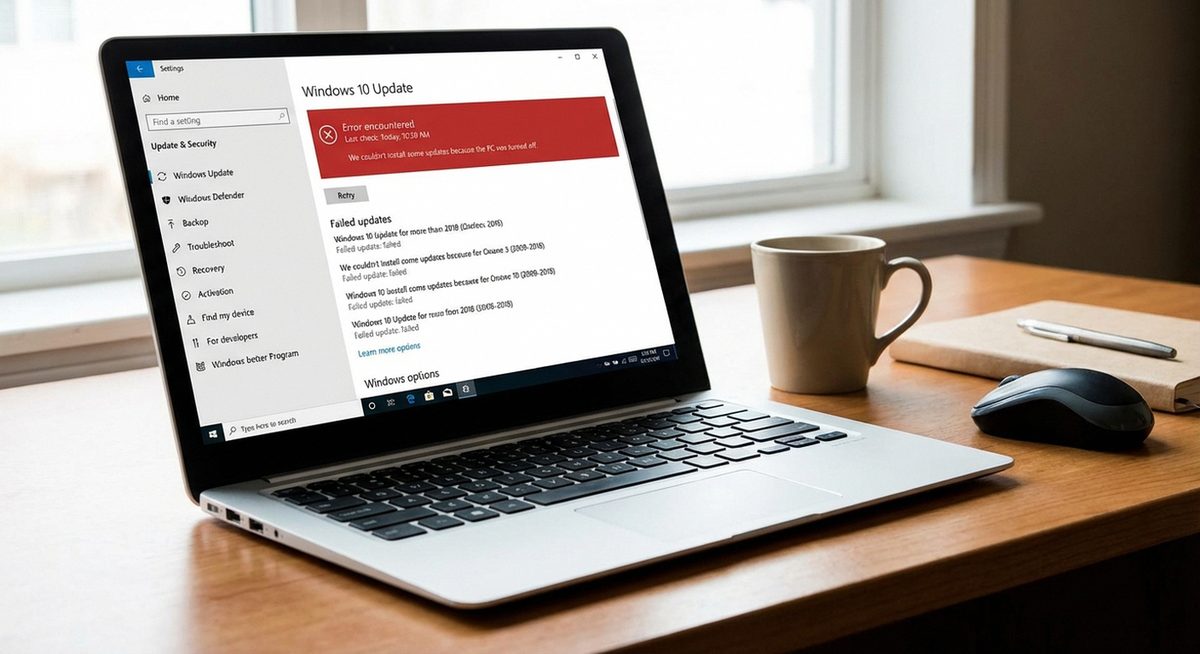
The Windows Update error code 0x80070643 stops updates from installing and typically displays the message "Installation Failure" in Windows Update history. This error affects both Windows 10 and Windows 11 and commonly occurs with .NET Framework updates, security definitions, and cumulative quality updates.
Error 0x80070643 usually indicates that the Windows Installer service encountered a problem, .NET Framework components are corrupted, or Windows Defender definition updates conflict with the main update process. The error can also appear during Microsoft Office updates or Visual C++ redistributable installations.
The fixes below target each known cause, starting with the fastest solutions.
Run the Windows Update Troubleshooter: go to Settings > Update & Security > Troubleshoot > Additional Troubleshooters > Windows Update > Run. This automatically detects and resolves common update issues.
Error 0x80070643 — There were problems installing some updates.
Installation Failure: Windows failed to install the following update with error 0x80070643
Method 1: Run the Windows Update Troubleshooter
The built-in troubleshooter automatically detects and fixes issues with Windows Update components, including service registration errors and corrupted download caches.
Open Windows Settings
Press Windows + I to open Settings. Go to Update & Security (Windows 10) or System > Troubleshoot (Windows 11).
Run the Windows Update Troubleshooter
Click Troubleshoot > Additional Troubleshooters > Windows Update > Run the Troubleshooter. Wait for it to detect and apply fixes automatically.
Restart and Retry the Update
After the troubleshooter completes, restart your PC and go to Settings > Windows Update > Check for Updates to retry the failed update.
Tip: If the troubleshooter finds issues but cannot fix them automatically, note the specific error details it reports — these help narrow down the correct manual fix from the methods below.
Method 2: Repair .NET Framework Installation
A large percentage of 0x80070643 errors are caused by corrupted .NET Framework components. Microsoft provides a dedicated repair tool for this scenario.
Download the .NET Framework Repair Tool
Search for Microsoft .NET Framework Repair Tool on the Microsoft support website and download it.
Run the Repair Tool
Launch the downloaded tool as Administrator. It will scan for .NET Framework issues and apply fixes automatically.
Restart and Retry Updates
After the repair completes, restart your PC and attempt the Windows Update again.
Method 3: Reset Windows Update Components Manually
Resetting the Windows Update service and its cache forces Windows to download fresh update files, resolving issues caused by corrupted or incomplete downloads.
Open Command Prompt as Administrator
Press Windows + X and select Terminal (Admin) or Command Prompt (Admin).
Stop Windows Update Services
Run these commands one at a time:net stop wuauservnet stop cryptSvcnet stop bitsnet stop msiserver
Rename the Update Cache Folders
Run:ren C:\Windows\SoftwareDistribution SoftwareDistribution.oldren C:\Windows\System32\catroot2 catroot2.old
Restart the Services
Run:net start wuauservnet start cryptSvcnet start bitsnet start msiserver
Retry Windows Update
Close Command Prompt, open Settings > Windows Update, and click Check for Updates.
Warning: Renaming the SoftwareDistribution folder forces Windows to re-download all pending updates from scratch. This uses additional bandwidth and may take longer than a normal update cycle.
Method 4: Manually Install the Failed Update
If a specific update keeps failing with 0x80070643, downloading and installing it manually from the Microsoft Update Catalog often bypasses the issue.
Find the KB Number of the Failed Update
Go to Settings > Windows Update > Update History and note the KB number of the failed update (e.g., KB5034441).
Download from Microsoft Update Catalog
Open a browser and go to catalog.update.microsoft.com. Search for the KB number and download the version matching your system architecture (x64 or ARM64).
Install the Update Manually
Double-click the downloaded .msu file and follow the installation prompts. Restart when prompted.
Method 5: Run SFC and DISM Scans
Corrupted Windows system files can prevent updates from installing. SFC and DISM repair these underlying issues.
Run DISM First
Open Command Prompt as Admin and run: DISM /Online /Cleanup-Image /RestoreHealth. Wait 10-20 minutes for completion.
Run SFC Next
Run: sfc /scannow. Wait for the scan to complete and repair any found issues.
Restart and Retry Updates
Restart your PC and attempt Windows Update again.
Why Does Error 0x80070643 Occur?
Error 0x80070643 signals a generic installation failure in the Windows Installer engine. The underlying cause can be corrupted .NET Framework components that prevent security updates from installing properly, a malfunctioning Windows Installer service, damaged Windows Update cache files, conflicts between Windows Defender definition updates and cumulative updates running simultaneously, or corrupted system files that prevent the update package from being applied. Identifying which component is at fault helps you choose the most effective fix.
Frequently Asked Questions
Error 0x80070643 is a Windows Installer failure code indicating that an update or installation could not complete. It commonly affects .NET Framework updates, Windows Defender definitions, and cumulative quality updates.
The error itself is not harmful to your system, but leaving updates uninstalled means you miss security patches. Resolve it promptly to keep your system protected against known vulnerabilities.
Ignoring it for a single optional update is generally safe, but if it blocks security updates or cumulative updates, you should resolve it. Unpatched systems are more vulnerable to malware and exploits.
Yes, this error frequently affects Windows Defender definition updates. If only Defender updates are failing, try manually updating definitions: open Windows Security > Virus & Threat Protection > Check for Updates.
Resetting Windows Update components (Method 3) fixes this error in most cases by clearing corrupted cache files and forcing fresh downloads.
Yes, some third-party antivirus software conflicts with Windows Update. Temporarily disable your antivirus, retry the update, and re-enable it afterward.
Recurring errors usually indicate a persistent .NET Framework corruption or system file issue. Running both the .NET Framework Repair Tool and SFC/DISM scans typically provides a permanent fix.
Yes, 0x80070643 affects both Windows 10 and Windows 11. The troubleshooting methods are the same on both operating systems.
While uncommon, a damaged user profile can affect Windows Update. Try running Windows Update from a different administrator account to test this.
A clean install is a last resort. Try all the methods in this guide first. If nothing works, a Windows Reset (keeping files) is less disruptive than a clean install and usually resolves the issue.