 Errors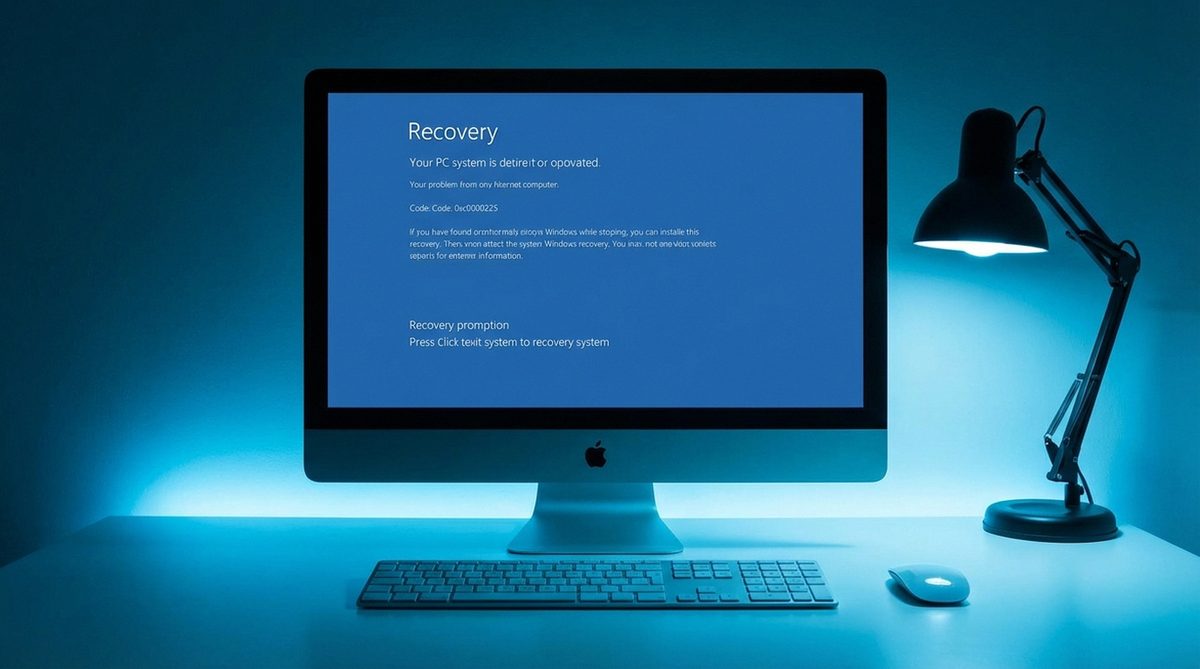
The Windows Boot Manager error code 0xc0000225 appears when your computer cannot find or load the Boot Configuration Data (BCD) needed to start Windows. This error typically displays the message "An unexpected error has occurred" or "A required device isn't connected or can't be accessed" on a black or blue screen during startup. The error prevents Windows from booting entirely, leaving you staring at a recovery screen.
Error 0xc0000225 most commonly occurs after a failed Windows update, disk corruption, changes to the BIOS boot order, or when the system partition becomes damaged. It can also appear after cloning a drive or resizing partitions if the boot records are not properly updated. The error is particularly common on UEFI-based systems where the EFI System Partition (ESP) stores the boot loader files.
Fixing this error requires accessing the Windows Recovery Environment (WinRE) either through the automatic recovery screen or by booting from a Windows installation USB drive. All repair methods involve rebuilding or repairing the BCD store that tells the boot manager where to find the Windows operating system files.
Boot from Windows installation media, select Repair your computer > Troubleshoot > Startup Repair. Windows will automatically detect and fix common boot issues including corrupted BCD. If Startup Repair fails after three attempts, proceed to the manual methods below.
Recovery — Your PC/Device needs to be repaired
Error code: 0xc0000225
A required device isn't connected or can't be accessed
File: \BCD
Status: 0xc0000225
Method 1: Run Automatic Startup Repair
Windows includes an automatic repair tool that can detect and fix boot-related issues without manual intervention.
Access the Recovery Environment
If Windows shows the error screen with recovery options, click Advanced options. If not, create a bootable Windows USB drive on another computer (download the Media Creation Tool from Microsoft's website). Boot your computer from the USB drive by pressing the boot menu key during startup (usually F12, F9, or Esc depending on your manufacturer).
Navigate to Startup Repair
From the Windows Setup screen, click Repair your computer in the bottom left. Go to Troubleshoot > Advanced options > Startup Repair. Select your Windows installation if prompted. The repair tool will scan for boot problems and attempt to fix them automatically.
Wait for the Process to Complete
Startup Repair may take 15-30 minutes to complete. Do not turn off your computer during this process. The tool will restart your computer automatically when finished. If the repair succeeds, Windows will boot normally. If it fails, it will display a message saying Startup Repair could not repair your PC — proceed to Method 2.
Tip: If you cannot access the recovery environment at all, try forcing it by turning your computer on and off three times in a row during the Windows loading screen. After three consecutive failed boots, Windows automatically enters the Recovery Environment on the fourth attempt.
Method 2: Rebuild the BCD Store Using Command Prompt
If automatic repair fails, you can manually rebuild the Boot Configuration Data using the bootrec command-line tool.
Open Command Prompt in Recovery
Boot from Windows installation media or access WinRE. Navigate to Troubleshoot > Advanced options > Command Prompt. A command prompt window will open with administrator privileges.
Run Bootrec Commands
Execute the following commands one at a time, pressing Enter after each:bootrec /fixmbr — Writes a new Master Boot Record to the system partitionbootrec /fixboot — Writes a new boot sector to the system partitionbootrec /scanos — Scans all disks for Windows installationsbootrec /rebuildbcd — Rebuilds the BCD store
When rebuildbcd finds a Windows installation, type Y and press Enter to add it to the boot configuration.
Handle Access Denied Errors
If bootrec /fixboot returns "Access is denied," use this alternative approach:bootrec /fixmbrbcdedit /export C:\bcdbackupattrib C:\boot\bcd -h -r -sren C:\boot\bcd bcd.oldbootrec /rebuildbcd
This renames the corrupted BCD file and creates a fresh one.
Restart and Test
Type exit and press Enter to close Command Prompt. Click Continue or Turn off your PC, then power it back on. Remove the installation USB if present. Windows should now boot normally with the rebuilt BCD.
Method 3: Repair the EFI Boot Loader (UEFI Systems)
On modern UEFI-based computers, the boot loader is stored on the EFI System Partition (ESP). Repairing the EFI boot loader requires different commands than legacy BIOS systems.
Identify the EFI Partition
Open Command Prompt from the recovery environment. Type diskpart and press Enter. Then run:list disk — to see all disksselect disk 0 — select your main disk (usually disk 0)list partition — find the EFI System Partition (usually 100-260 MB, type System)select partition 1 — select the EFI partition (adjust the number to match)assign letter=S — assign a drive letter to the EFI partitionexit — leave diskpart
Rebuild the EFI Boot Files
Find your Windows installation drive letter first. Try dir C:\Windows and dir D:\Windows to locate it. Once you know the drive letter (assume C:), run:bcdboot C:\Windows /s S: /f UEFI
This copies the boot files from your Windows installation to the EFI partition and creates a new BCD store. The /f UEFI flag specifies UEFI firmware.
Verify and Restart
Run bcdedit /enum to verify the new boot configuration. You should see an entry for Windows Boot Manager and Windows Boot Loader pointing to your Windows installation. Close Command Prompt and restart. Remove any boot media before the restart.
Warning: When using diskpart, be extremely careful with the disk and partition numbers. Selecting the wrong disk or partition can lead to data loss. Always verify the disk size and partition layout match your system drive before making changes. Never run clean or format commands on any partition unless you are certain it is the correct one.
Method 4: Run System File Checker and DISM
Corrupted system files can also cause the 0xc0000225 error. Running SFC and DISM from the recovery environment can repair these files.
Run SFC Offline
Open Command Prompt from the recovery environment. Run SFC targeting your offline Windows installation:sfc /scannow /offbootdir=C:\ /offwindir=C:\Windows
Replace C: with your actual Windows drive letter if different. This scan can take 15-30 minutes. It will find and repair corrupted system files.
Run DISM Offline
If SFC reports that it could not fix some files, run DISM:DISM /image:C:\ /Cleanup-Image /RestoreHealth
DISM attempts to repair the Windows component store using files from Windows Update or the installation media. If no internet connection is available, you can specify the installation media as the source:DISM /image:C:\ /Cleanup-Image /RestoreHealth /Source:D:\Sources\install.wim
Run Bootrec Again
After SFC and DISM complete, rebuild the BCD one more time:bootrec /fixmbrbootrec /fixbootbootrec /rebuildbcd
Restart and test whether Windows boots successfully.
Why Does This Problem Happen?
The 0xc0000225 boot error can be triggered by several scenarios:
- Corrupted BCD store: The Boot Configuration Data file becomes corrupted due to power outages during updates, malware, or disk errors. The boot manager cannot read the corrupted file and throws error 0xc0000225.
- Failed Windows updates: If a major Windows update is interrupted (by power loss, forced shutdown, or system crash), the boot files may be left in an incomplete state.
- Changed boot order: BIOS/UEFI settings changes — like switching from UEFI to Legacy mode or changing the boot disk order — can make the existing boot configuration invalid.
- Disk cloning issues: Cloning a Windows drive to a new SSD without properly copying the EFI System Partition or updating the BCD references often triggers this error on the new drive.
- Partition modifications: Resizing, moving, or deleting partitions can shift the location of the boot files or the Windows partition, breaking the references in the BCD store.
- Hardware failure: A failing hard drive or SSD with bad sectors in the boot partition area can corrupt boot files, making them unreadable.
Frequently Asked Questions
No. All the repair methods described in this guide only modify boot configuration files, not your personal data. Your documents, photos, and other files remain untouched. However, if the error is caused by a failing drive, back up your data as soon as you regain access to Windows to prevent future data loss.
On a working computer, download the Media Creation Tool from microsoft.com. Run the tool, select "Create installation media for another PC," choose your language and Windows edition, select USB flash drive, and insert a USB drive with at least 8 GB of space. The tool will download Windows and create a bootable USB drive.
UEFI is the modern firmware interface that replaces the traditional BIOS. UEFI uses an EFI System Partition with boot loader files, while Legacy BIOS uses a Master Boot Record (MBR). Most computers manufactured after 2012 use UEFI. The repair commands differ slightly between the two — use the bcdboot method for UEFI and the bootrec method for Legacy BIOS.
Yes. Boot sector viruses and rootkits can corrupt the BCD store or MBR, causing this error. If you suspect malware, boot from a Windows installation USB, open Command Prompt, and run the bootrec commands to rebuild the boot records. After fixing the boot issue, run a full antivirus scan from Safe Mode to remove any remaining malware.
This means the tool cannot find a Windows installation on any connected drive. Possible causes: the Windows partition is damaged, the drive is not being detected (hardware issue), or you are booted in the wrong mode (UEFI vs Legacy). Verify the drive appears in BIOS/UEFI settings. Try running chkdsk C: /r to repair disk errors, then retry rebuildbcd.
On Legacy BIOS systems (MBR disks), use bootrec commands (/fixmbr, /fixboot, /rebuildbcd). On UEFI systems (GPT disks), use bcdboot (e.g., bcdboot C:\Windows /s S: /f UEFI). You can check your disk type in diskpart by running list disk — if there is an asterisk in the GPT column, use bcdboot; otherwise, use bootrec.
From the recovery Command Prompt, run chkdsk C: /r to scan for and repair bad sectors. If chkdsk reports a large number of bad sectors or cannot complete the scan, your drive may be failing. You can also check the drive's SMART status from BIOS/UEFI or using a tool like CrystalDiskInfo after booting into Windows.
If Windows displays the blue recovery screen with the "Advanced options" link, you can access the repair tools without a USB drive. Click Advanced options > Troubleshoot > Advanced options > Command Prompt. If the error screen does not show these options, you will need a Windows installation USB or DVD to access the recovery environment.
When cloning a drive to a new SSD, the EFI System Partition sometimes does not get copied correctly, or the BCD references still point to the old drive. After installing the new SSD, boot from Windows installation media and run bcdboot C:\Windows /s S: /f UEFI to regenerate the boot files on the new drive's EFI partition.
A clean install is the last resort. Before that, try the Reset this PC option (Troubleshoot > Reset this PC > Keep my files) which reinstalls Windows while preserving your personal files. If even this fails, a clean install will definitely resolve the 0xc0000225 error. Back up your data from the Command Prompt recovery environment before reinstalling by copying files to an external drive.