 Errors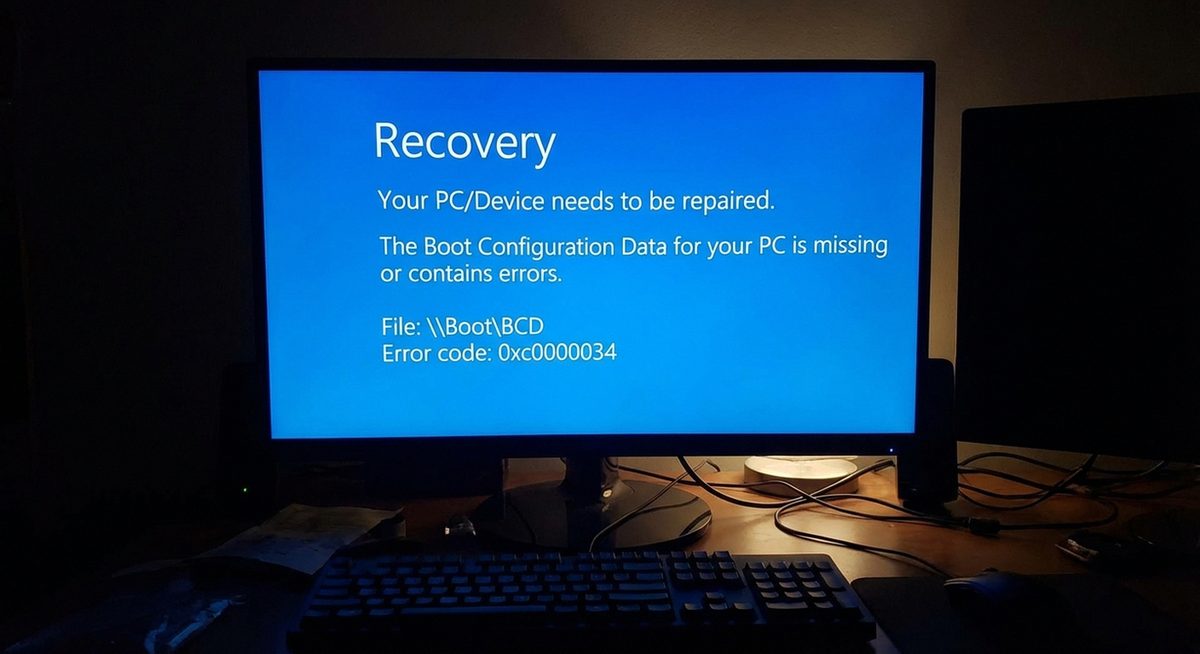
Windows Boot Manager error code 0xc0000001 appears during startup with the message "Your PC/Device needs to be repaired. A required device isn't connected or can't be accessed." This error prevents Windows 10 and Windows 11 from loading and indicates that the operating system cannot read critical files needed during the boot process, most commonly the SAM (Security Account Manager) registry hive or essential boot configuration files.
Error 0xc0000001 is classified as a STATUS_UNSUCCESSFUL error in Windows and can be triggered by corrupted system files, damaged SAM database entries, faulty RAM modules, or a hard drive with developing bad sectors. Unlike simpler boot errors that can be fixed with a single command, 0xc0000001 often requires multiple repair approaches because the root cause varies between systems.
The methods in this guide cover all proven fixes, from using the built-in Windows Startup Repair to manually replacing the corrupted SAM hive file. Each method requires a Windows installation USB drive or recovery disk, so prepare one on a working computer before starting.
Boot from a Windows installation USB, select Repair your computer > Troubleshoot > Startup Repair. Run it up to 3 times — each pass fixes different components. If Startup Repair alone does not resolve it, proceed to the manual methods below.
Your PC/Device needs to be repaired. Error code: 0xc0000001. A required device isn't connected or can't be accessed.Method 1: Run Windows Startup Repair
Step 1: Create a Windows installation USB using the Media Creation Tool on another computer (download from microsoft.com/software-download). Insert the USB into the computer showing the 0xc0000001 error.
Step 2: Power on the computer and press the boot menu key (usually F12, F9, or Esc depending on your manufacturer) to select the USB drive as the boot device.
Step 3: When the Windows Setup screen appears, select your language and click Next. Click Repair your computer in the bottom-left corner instead of "Install now."
Step 4: Navigate to Troubleshoot > Advanced options > Startup Repair. Windows will attempt to diagnose and fix startup issues automatically. This process takes 5-15 minutes. If the first attempt does not fix the error, run Startup Repair up to 3 times — each pass can repair different components.
Method 2: Repair the SAM Registry Hive
Step 1: Boot from the Windows installation USB and go to Repair your computer > Troubleshoot > Advanced options > Command Prompt.
Step 2: First, identify your Windows drive letter. In the recovery environment, your Windows drive may not be C:. Type diskpart, then list volume, and find the volume with Windows installed (usually the largest NTFS partition). Note the drive letter. Type exit to leave diskpart.
Step 3: Back up the current (corrupted) SAM file and restore it from the RegBack folder. Run these commands (replace D: with your actual Windows drive letter):
copy D:\Windows\System32\config\SAM D:\Windows\System32\config\SAM.bak
copy D:\Windows\System32\config\RegBack\SAM D:\Windows\System32\config\SAM
Confirm overwrite when prompted by typing Y.
Step 4: Also restore the SYSTEM and SOFTWARE hives as they may also be corrupted:
copy D:\Windows\System32\config\RegBack\SYSTEM D:\Windows\System32\config\SYSTEM
copy D:\Windows\System32\config\RegBack\SOFTWARE D:\Windows\System32\config\SOFTWARE
Type exit, remove the USB drive, and restart the computer.
Method 3: Run SFC and DISM from Recovery
Step 1: Boot from the Windows installation USB and open Command Prompt from the recovery options as described in Method 2.
Step 2: Identify your Windows drive letter using diskpart. Once identified, run the System File Checker targeting that drive:
sfc /scannow /offbootdir=D:\ /offwindir=D:\Windows
(Replace D: with your actual Windows drive letter.) This scans all protected system files and replaces corrupted ones from the component store.
Step 3: If SFC reports it found and fixed errors, restart and check if the error is resolved. If it reports it could not fix some errors, run DISM to repair the component store itself:
DISM /Image:D:\ /ScratchDir:D:\Temp /Cleanup-Image /RestoreHealth
Step 4: After DISM completes, run SFC again to verify all files are now repaired. Type exit, remove the USB drive, and restart the computer.
Method 4: Check and Replace Faulty RAM
Step 1: Error 0xc0000001 can be caused by faulty RAM that corrupts data during the boot process. Boot from the Windows installation USB, go to Repair your computer > Troubleshoot > Advanced options > Command Prompt, and type mdsched to launch the Windows Memory Diagnostic tool.
Step 2: Select Restart now and check for problems. The computer will restart and run a memory test that takes 15-30 minutes depending on the amount of RAM installed.
Step 3: If the memory test reports errors, the issue is a faulty RAM module. If your computer has two or more RAM sticks, power off, remove one stick at a time, and boot the computer to identify which specific module is faulty.
Step 4: Replace the faulty RAM module. If all RAM passes the diagnostic, the error is not memory-related and you should focus on the boot file and registry repair methods above. For a more thorough memory test, boot from a MemTest86 USB drive and run the extended test overnight.
Why Does This Problem Happen?
Error 0xc0000001 is primarily caused by corruption of the SAM (Security Account Manager) registry hive, which stores local user account credentials and security policies. When Windows cannot read the SAM file during boot, it cannot authenticate the system and throws this error. The SAM file can become corrupted due to sudden power loss during a write operation, failed Windows updates that modify registry entries, malware that targets system files, or physical issues with the storage drive.
A second common cause is faulty RAM that introduces bit errors when the operating system loads files into memory. If a RAM module has intermittent errors, it can corrupt data unpredictably, leading to boot failures that seem random. This is why the error sometimes appears and disappears without any user intervention — the RAM errors occur inconsistently depending on which memory cells are used during each boot attempt. Hard drives with developing bad sectors can also cause this error if the boot files are stored on damaged portions of the disk.