 Errors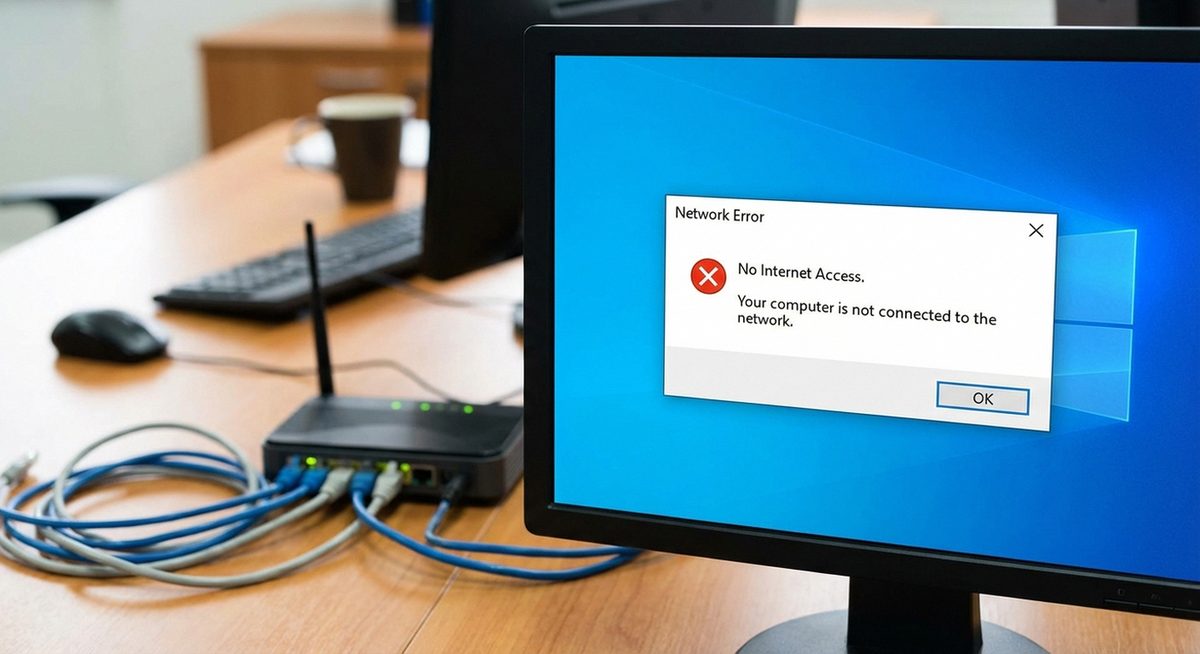
Windows 10 network error code 0x80070035 with the message "The network path was not found" appears when your computer cannot connect to a shared folder, printer, or another device on your local network. This error is particularly common after Windows updates that change SMB (Server Message Block) protocol settings, disable network discovery, or alter firewall rules that block file sharing traffic.
The 0x80070035 error can occur even when you can ping the target computer successfully, which indicates that basic network connectivity works but the file-sharing protocol layer is blocked or misconfigured. The issue affects both wired Ethernet and Wi-Fi connections and commonly appears when trying to access shared folders via the \\COMPUTERNAME\ShareName path in File Explorer.
This guide provides four tested solutions that address the most common causes of error 0x80070035, from enabling the correct SMB version to configuring Windows Firewall and network discovery services.
Open Control Panel > Programs > Turn Windows features on or off, enable SMB 1.0/CIFS File Sharing Support, and restart your computer. This resolves the issue in most cases where older NAS devices or computers are involved.
Error code: 0x80070035 — The network path was not found. Windows cannot access \\COMPUTERNAME\SharedFolderMethod 1: Enable SMB 1.0/CIFS File Sharing Support
Step 1: Press Windows + R, type optionalfeatures, and press Enter to open the Windows Features dialog.
Step 2: Scroll down and find SMB 1.0/CIFS File Sharing Support. Expand it by clicking the plus icon. You will see three sub-options: SMB 1.0/CIFS Automatic Removal, SMB 1.0/CIFS Client, and SMB 1.0/CIFS Server.
Step 3: Check the boxes for SMB 1.0/CIFS Client and SMB 1.0/CIFS Server. Leave "Automatic Removal" unchecked as it will disable SMB 1.0 again after 15 days of non-use.
Step 4: Click OK and wait for Windows to install the feature. Restart your computer when prompted, then try accessing the network path again.
Method 2: Enable Network Discovery and File Sharing
Step 1: Open Control Panel > Network and Sharing Center > Change advanced sharing settings (or search for "Advanced sharing settings" in the Start menu).
Step 2: Under the Private network profile, enable Turn on network discovery and check Turn on automatic setup of network connected devices.
Step 3: Enable Turn on file and printer sharing under the same Private profile section.
Step 4: Scroll down to All Networks, enable Turn on sharing so anyone with network access can read and write files in the Public folders, and set password-protected sharing according to your security preference. Click Save changes.
Method 3: Configure Windows Firewall for Network Sharing
Step 1: Press Windows + R, type firewall.cpl, and press Enter. Click Allow an app or feature through Windows Defender Firewall on the left panel.
Step 2: Click Change settings (requires admin privileges). Find File and Printer Sharing in the list and ensure both the Private and Public checkboxes are enabled.
Step 3: Also enable Network Discovery for both Private and Public networks. If these entries are missing, click Allow another app and browse to add them.
Step 4: If the error persists, temporarily disable Windows Firewall entirely (for testing only) by going to Windows Defender Firewall > Turn Windows Defender Firewall on or off and selecting "Turn off" for both network types. If the network path works with the firewall off, a specific firewall rule is blocking SMB traffic on port 445.
Method 4: Reset Network Settings and TCP/IP Stack
Step 1: Open Command Prompt as Administrator by right-clicking the Start button and selecting Command Prompt (Admin) or Windows Terminal (Admin).
Step 2: Run the following commands one at a time, pressing Enter after each:
netsh int ip reset
netsh winsock reset
ipconfig /flushdns
ipconfig /release
ipconfig /renew
Step 3: Restart the Function Discovery Resource Publication service by running:
net stop FDResPub
net start FDResPub
Also restart the SSDP Discovery and UPnP Device Host services the same way.
Step 4: Restart your computer for the TCP/IP reset to take full effect. After rebooting, try accessing the network path using the IP address directly: \\192.168.1.X\ShareName instead of the computer name. If the IP address works but the computer name does not, the issue is with NetBIOS name resolution.
Why Does This Problem Happen?
Error 0x80070035 most frequently occurs because Microsoft has been gradually deprecating SMB 1.0 for security reasons. Since the Windows 10 Fall Creators Update (version 1709), SMB 1.0 is disabled by default on clean installations. Many older network devices — including NAS enclosures manufactured before 2017, older routers with USB sharing features, and legacy Windows XP/Vista computers — only support SMB 1.0 and cannot communicate over SMB 2.0 or 3.0.
Windows Updates can also reset network discovery and sharing settings, particularly major feature updates that perform partial reinstallations. Third-party antivirus software with its own firewall (Norton, Kaspersky, Bitdefender) may also block SMB traffic on port 445, even when Windows Firewall is configured correctly. In enterprise environments, Group Policy settings pushed by domain controllers can override local sharing configurations and prevent peer-to-peer file sharing.