 Errors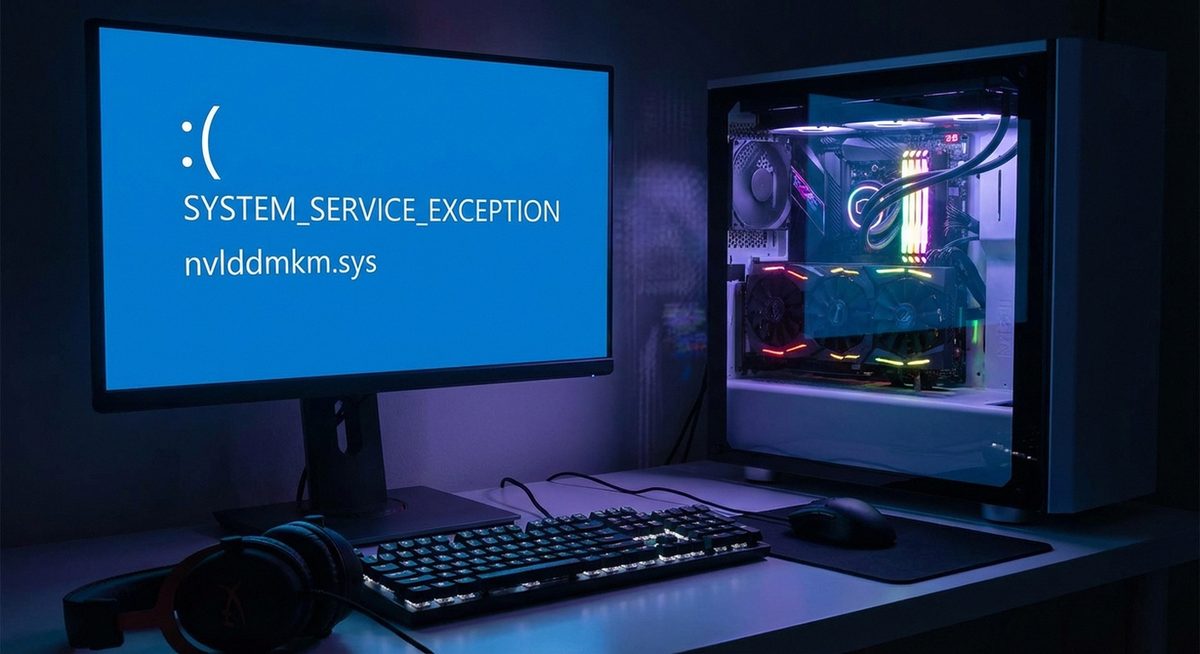
Keeping your graphics drivers up to date is one of the most important maintenance tasks for any Windows PC. Graphics drivers control how your operating system communicates with your GPU (graphics processing unit), and outdated drivers can cause display glitches, poor gaming performance, application crashes, blue screen errors, and compatibility issues with new software.
The three major GPU manufacturers — NVIDIA, AMD, and Intel — regularly release driver updates that fix bugs, improve performance in new games, and add support for new features. Whether you have a dedicated gaming GPU or integrated graphics built into your processor, updating your graphics driver follows a similar process across all Windows versions.
This guide covers every method for updating graphics drivers on Windows 7, 8, 8.1, 10, and 11, including the built-in Device Manager, manufacturer-specific tools, and manual downloads from official websites. Choose the method that best fits your technical comfort level — all methods achieve the same result.
Right-click the Start button, select Device Manager, expand "Display adapters," right-click your GPU, and select "Update driver" > "Search automatically for drivers." Windows will check for and install the latest available driver. For the newest drivers, download directly from nvidia.com, amd.com, or intel.com.
Graphics Driver Update — NVIDIA / AMD / IntelBasic Troubleshooting
Step 1: Identify your graphics card model. Press Windows+R, type dxdiag, and press Enter. Click the Display tab to see your GPU name, manufacturer, and current driver version. Alternatively, open Device Manager (right-click Start > Device Manager) and expand "Display adapters." Note the exact model name — for example, "NVIDIA GeForce RTX 4070" or "AMD Radeon RX 7800 XT" or "Intel UHD Graphics 770." You need this information to download the correct driver.
Step 2: Update through Windows Device Manager. Right-click Start and select Device Manager (or search for it in Windows 7/8). Expand "Display adapters," right-click your graphics card, and select "Update driver." Choose "Search automatically for drivers." Windows will search its update database and install a newer driver if one is available. This method is the simplest but may not provide the very latest driver version.
Step 3: Update through Windows Update. On Windows 10/11, go to Settings > Windows Update > Check for updates. Click "View optional updates" (or "Advanced options" > "Optional updates" on Windows 11). Look under "Driver updates" for a graphics driver update. If one is listed, check the box and click "Download and Install." This provides Microsoft-certified drivers that have been tested for stability.
Step 4: For NVIDIA GPUs, use GeForce Experience. Download and install GeForce Experience from nvidia.com/geforce-experience. Open the application, sign in (or create a free account), and click the Drivers tab. If a new driver is available, click "Download" then "Express Installation." GeForce Experience also notifies you automatically when new drivers are released and can optimize game settings for your hardware.
Step 5: For AMD GPUs, use AMD Software: Adrenalin Edition. Download and install from amd.com/en/support. Open AMD Software, click the gear icon (Settings) at the top right, and navigate to the System tab. The software shows your current driver version and checks for updates automatically. Click "Check for Updates" to search for newer drivers, then follow the prompts to download and install.
Advanced Solutions
Step 1: Download drivers manually from the manufacturer website. For NVIDIA: go to nvidia.com/Download, select your GPU series and model, your operating system, and click Search, then Download. For AMD: go to amd.com/en/support, select your product type and model, and download the latest driver package. For Intel: go to intel.com/content/www/us/en/download-center, search for your processor model, and download the graphics driver. Run the downloaded installer and follow the prompts.
Step 2: Perform a clean driver installation. If you are experiencing driver-related issues, a clean install removes all previous driver settings and files before installing the new version. For NVIDIA: during installation, select "Custom (Advanced)" and check "Perform a clean installation." For AMD: during installation, select "Factory Reset" to remove the old driver completely. This resolves conflicts caused by residual files from older driver versions.
Step 3: Use Display Driver Uninstaller (DDU) for persistent driver problems. Download DDU from guru3d.com. Boot Windows into Safe Mode (hold Shift while clicking Restart, then Troubleshoot > Advanced > Startup Settings > Safe Mode). Run DDU, select your GPU manufacturer, and click "Clean and restart." Once Windows restarts, install the fresh driver. DDU removes every trace of the old driver, which is especially useful when switching between NVIDIA and AMD GPUs.
Step 4: Roll back a problematic driver update. If a new driver causes issues (crashes, artifacts, worse performance), you can revert to the previous version. Open Device Manager, right-click your GPU under Display adapters, select Properties, click the Driver tab, and click "Roll Back Driver." Follow the prompts. If the rollback option is grayed out, you will need to manually download and install the previous driver version from the manufacturer website.
Step 5: For Intel integrated graphics on older systems, use the Intel Driver & Support Assistant. Download it from intel.com/content/www/us/en/support/detect.html. This tool automatically detects your Intel hardware and finds the latest compatible drivers. It is particularly useful for laptop users where the GPU model may not be immediately obvious from the Device Manager entry (e.g., "Intel HD Graphics" without a specific model number).
Why Does This Problem Happen?
Graphics drivers need regular updates because GPU manufacturers continuously optimize performance, fix bugs, and add support for new software and games. A newly released game may run poorly or not at all on an outdated driver because the driver lacks the optimizations and compatibility fixes developed specifically for that title. Similarly, Windows updates can change how the OS interacts with hardware, requiring corresponding driver updates.
Display problems such as screen flickering, resolution issues, color inaccuracies, and artifacts are frequently caused by outdated or corrupted graphics drivers. Blue screen errors like VIDEO_TDR_FAILURE and DRIVER_IRQL_NOT_LESS_OR_EQUAL often point directly to graphics driver issues. Keeping drivers current is the single most effective way to prevent these problems and maintain optimal display performance.