 Errors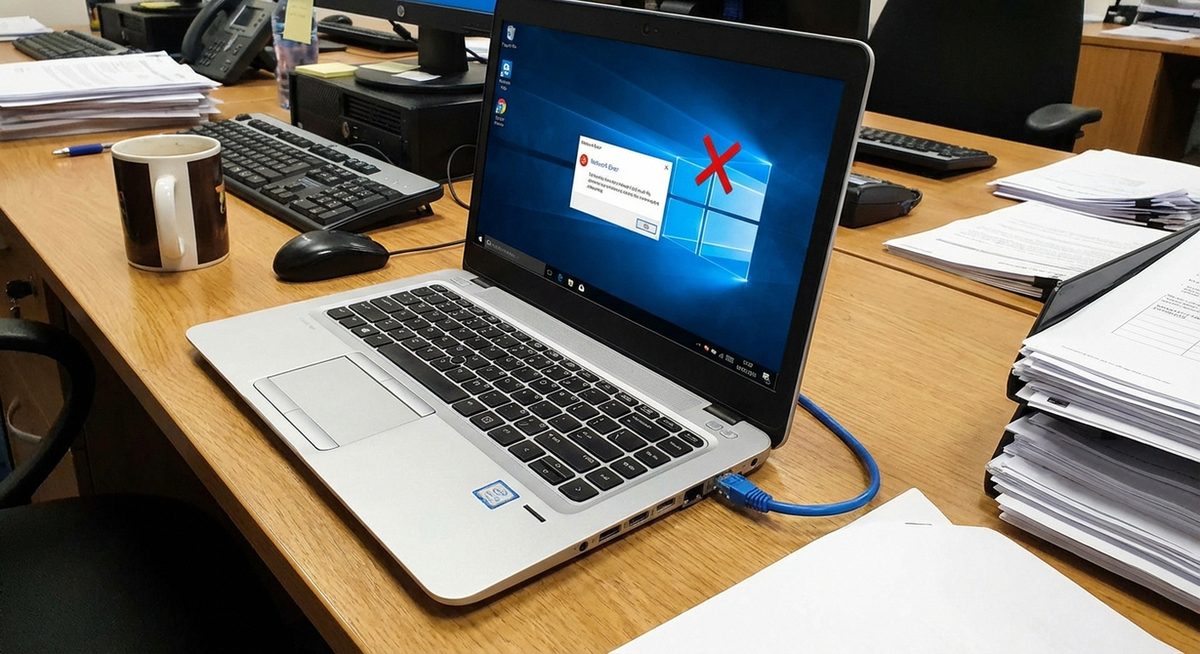
The "Ethernet doesn't have a valid IP configuration" error appears when the Windows Network Troubleshooter detects that your ethernet adapter failed to obtain a proper IP address from the router or DHCP server. Without a valid IP, your computer cannot communicate on the network, resulting in no internet access despite being physically connected via ethernet cable.
This error is typically caused by DHCP server issues, IP address conflicts, faulty ethernet cables, outdated network drivers, or corrupted TCP/IP stack settings. The fixes below resolve the problem in order of likelihood and simplicity.
Open Command Prompt as Admin and run: ipconfig /release then ipconfig /renew. This forces your adapter to request a new IP address from the DHCP server.
Ethernet doesn't have a valid IP configuration
Windows Network Diagnostics detected a problem with your network adapter
Method 1: Release and Renew IP Address
The most common fix — forces your ethernet adapter to release its current (invalid) IP and request a new one from the DHCP server.
Open Command Prompt as Administrator
Press Windows + X and select Terminal (Admin) or Command Prompt (Admin).
Release the Current IP
Type ipconfig /release and press Enter. This releases the current IP address assignment.
Renew the IP Address
Type ipconfig /renew and press Enter. Windows requests a new IP from the router's DHCP server.
Check the Result
Type ipconfig and verify that the Ethernet adapter now shows a valid IPv4 address (typically 192.168.x.x or 10.x.x.x). If it shows 169.254.x.x, the DHCP server was not reached — continue to Method 2.
Tip: An IP address starting with 169.254.x.x is an APIPA (Automatic Private IP) address assigned when DHCP fails. This confirms the adapter cannot reach the DHCP server.
Method 2: Reset TCP/IP Stack and Winsock
A corrupted TCP/IP stack or Winsock catalog can prevent the adapter from obtaining or using an IP address correctly.
Open Command Prompt as Admin
Press Windows + X > Terminal (Admin).
Reset TCP/IP
Type: netsh int ip reset and press Enter.
Reset Winsock
Type: netsh winsock reset and press Enter.
Flush DNS Cache
Type: ipconfig /flushdns and press Enter.
Restart Your Computer
Restart for all resets to take effect. Check if ethernet connectivity is restored.
Method 3: Set IP Address Manually (Static IP)
If DHCP is not working, assigning a static IP address bypasses the problem and restores network access.
Open Network Adapter Settings
Press Windows + R, type ncpa.cpl, press Enter. Right-click your Ethernet adapter and select Properties.
Open IPv4 Properties
Select Internet Protocol Version 4 (TCP/IPv4) and click Properties.
Enter Static IP Settings
Select Use the Following IP Address. Enter: IP Address: 192.168.1.100 (or another unused address on your network). Subnet Mask: 255.255.255.0. Default Gateway: 192.168.1.1 (your router's IP). Preferred DNS: 8.8.8.8. Alternate DNS: 8.8.4.4.
Click OK and Test
Click OK on both dialogs. Open a browser and test your internet connection.
Method 4: Update or Reinstall Network Driver
An outdated or corrupted ethernet driver can prevent proper DHCP communication.
Open Device Manager
Press Windows + X > Device Manager. Expand Network Adapters.
Update the Ethernet Driver
Right-click your Ethernet adapter, select Update Driver > Search Automatically. If Windows finds an update, install it and restart.
Reinstall if Update Fails
Right-click the adapter, select Uninstall Device. Check Delete the Driver Software if prompted. Restart — Windows automatically reinstalls the driver.
Warning: Before uninstalling the network driver, ensure you have another way to access the internet (Wi-Fi or another device) in case you need to download the driver manually from the manufacturer's website.
Method 5: Restart Router and Check Cable
Physical connection issues and router problems account for a significant portion of ethernet IP configuration errors.
Power Cycle the Router
Unplug your router from power, wait 30 seconds, and plug it back in. Wait 2-3 minutes for it to fully boot before testing.
Check the Ethernet Cable
Try a different ethernet cable. Inspect both ends of the current cable for damaged or bent pins. Test the cable on another device to confirm it works.
Try a Different Port
Plug the ethernet cable into a different LAN port on the router. A specific port may be damaged or disabled.
Why Does This Ethernet Error Occur?
This error occurs when the ethernet adapter cannot obtain a valid IP address through DHCP. The DHCP server on your router assigns IP addresses to connected devices automatically. When this process fails — due to a router malfunction, IP address pool exhaustion, DHCP service being disabled, corrupted adapter settings, faulty cables, or driver issues — the adapter either gets no IP or an APIPA self-assigned address (169.254.x.x) that cannot route internet traffic.
Frequently Asked Questions
It means your ethernet adapter failed to get a usable IP address from the network. Without a valid IP, your computer cannot communicate on the network or access the internet.
Yes. A damaged cable can maintain a physical connection indicator while failing to transmit DHCP data properly. Always test with a different cable.
Windows updates sometimes reset network settings or install incompatible network drivers. Resetting TCP/IP (Method 2) and updating the driver (Method 4) resolve update-related issues.
This specific error is for the ethernet adapter. Wi-Fi has a separate adapter and may work fine even when ethernet shows this error. A similar error exists for Wi-Fi adapters.
A valid configuration includes an IP address (e.g., 192.168.1.x), subnet mask (255.255.255.0), default gateway (router IP), and DNS server addresses. All four must be correct for internet access.
Yes. If another device on the network has the same IP address, both devices may lose connectivity. Release and renew (Method 1) or assign a unique static IP (Method 3) resolves conflicts.
DHCP is recommended for most users as it manages IPs automatically. Use static IP only as a troubleshooting step or for devices that need a permanent address (servers, printers, etc.).
An IP starting with 169.254 is an APIPA address — Windows assigns it when DHCP fails. It indicates the adapter cannot reach the DHCP server and is using a self-assigned address.
If the error occurs on a direct ISP connection (modem only, no router), the ISP's DHCP server may be down. Restart the modem and contact your ISP if the issue persists.
A router restart fixes this error in many cases by restarting the DHCP server and clearing any stuck IP allocations. It is one of the simplest and most effective first steps.