 Errors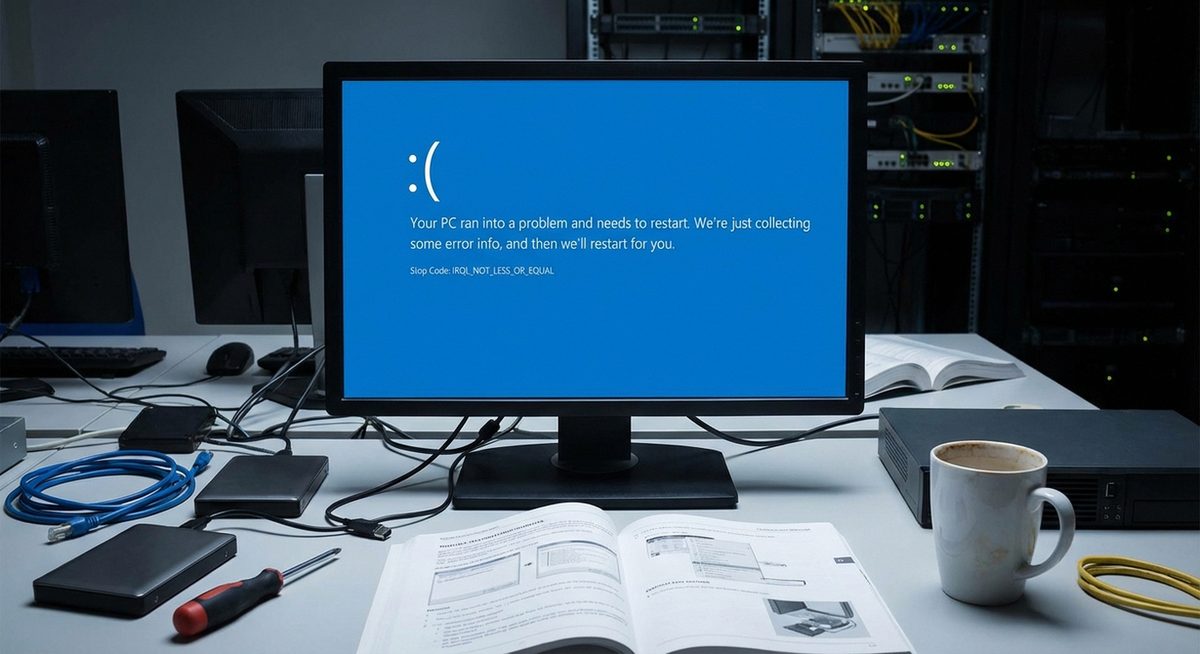
The IRQL_NOT_LESS_OR_EQUAL blue screen (stop code 0x0000000A) occurs when a Windows driver or kernel process attempts to access a memory address it does not have permission to use. This is one of the most common BSODs on Windows 10 and 11, typically caused by faulty device drivers, defective RAM, or incompatible software.
This error frequently appears after installing new hardware, updating drivers, or applying Windows updates. It can occur during normal usage, at startup, or while running resource-intensive applications. The stop code points to a memory access violation at an interrupt request level (IRQL) that is too high, which forces Windows to halt to prevent data corruption.
The troubleshooting methods below systematically address each known cause, starting with the most effective fixes.
Boot into Safe Mode and uninstall any recently installed drivers or software. If the BSOD started after a driver update, rolling back that driver usually resolves it immediately.
Your PC ran into a problem and needs to restart.
Stop code: IRQL_NOT_LESS_OR_EQUAL (0x0000000A)
Method 1: Update or Roll Back Faulty Drivers
Incompatible or buggy drivers are the primary cause of IRQL_NOT_LESS_OR_EQUAL. Network adapters, graphics cards, and USB controllers are the most frequent offenders.
Boot into Safe Mode
Restart your PC and hold Shift while clicking Restart. Navigate to Troubleshoot > Advanced Options > Startup Settings > Restart, then press F5 for Safe Mode with Networking.
Open Device Manager
Press Windows + X and select Device Manager. Expand each category and look for devices with yellow warning icons.
Roll Back or Update Problem Drivers
Right-click the device, select Properties > Driver tab. Click Roll Back Driver if a recent update caused the issue, or Update Driver to install the latest compatible version.
Restart and Test
Exit Safe Mode by restarting normally. Monitor for the BSOD — if it does not reappear after several hours of use, the driver fix was successful.
Tip: If the BSOD mentions a specific .sys file (like ndis.sys, ntfs.sys, or tcpip.sys), search for that filename online to identify which driver or component it belongs to and target your fix accordingly.
Method 2: Run Windows Memory Diagnostic
Faulty or failing RAM causes memory access violations that trigger this specific BSOD. Windows includes a built-in memory test tool.
Open Windows Memory Diagnostic
Press Windows + R, type mdsched.exe, and press Enter.
Restart and Run the Test
Click Restart Now and Check for Problems. Your PC restarts and runs a comprehensive memory test that takes 10-20 minutes.
Check Results After Restart
After the test completes and Windows boots, check Event Viewer > Windows Logs > System for MemoryDiagnostics-Results entries. If errors are found, a RAM module needs replacement.
Method 3: Run SFC and DISM System Repairs
Corrupted Windows system files can cause kernel-level memory access errors. SFC and DISM repair these files from a known-good source.
Open Elevated Command Prompt
Press Windows + X, select Terminal (Admin) or Command Prompt (Admin).
Run DISM First
Type: DISM /Online /Cleanup-Image /RestoreHealth and wait for completion (10-20 minutes).
Run SFC Scanner
Type: sfc /scannow and wait for the 100% verification. If files are repaired, restart and test for the BSOD.
Method 4: Uninstall Recent Software and Windows Updates
Third-party software — particularly VPN clients, antivirus programs, and virtualization tools — can install kernel drivers that conflict with Windows and trigger IRQL errors.
Uninstall Recently Added Software
Go to Settings > Apps > Apps & Features. Sort by Install Date and uninstall any software installed shortly before the BSOD started appearing.
Remove Problematic Windows Updates
Go to Settings > Windows Update > Update History > Uninstall Updates. Remove the most recent quality or feature update if the timing correlates with the error.
Restart and Monitor
After uninstalling, restart and use your PC normally. If the BSOD stops, the removed software or update was the cause.
Warning: VPN and antivirus software often install deep kernel-level drivers. Simply disabling these programs is not enough — you may need to fully uninstall them, restart, and then reinstall with updated versions.
Method 5: Check for Overheating and Hardware Issues
Overheating components — especially the CPU and RAM — can cause memory access errors that trigger IRQL BSODs. This is more common in laptops and systems with poor ventilation.
Monitor System Temperatures
Download a monitoring tool like HWMonitor or Core Temp. Check that CPU temperatures stay below 85°C under load and GPU stays below 90°C.
Clean Dust from Vents and Fans
Shut down and unplug your PC. Use compressed air to clean dust from intake/exhaust vents, fans, and heatsinks.
Reseat RAM Modules
Power off, open the case, and remove your RAM sticks. Clean the contacts with a dry cloth and firmly reinsert them. Try running with one stick at a time to identify a faulty module.
Why Does IRQL_NOT_LESS_OR_EQUAL Happen?
This error occurs at the kernel level when a process running at a high Interrupt Request Level (IRQL) attempts to access pageable memory that is not available at that priority level. In simpler terms, a driver or system component tries to read or write memory it should not access at that moment. This is a protection mechanism — Windows crashes intentionally to prevent the faulty memory access from corrupting data or causing hardware damage. The most common triggers are driver bugs, physical RAM defects, overclocked memory running at unstable timings, and corrupted Windows system files.
Frequently Asked Questions
The most common causes are incompatible device drivers, faulty RAM, corrupted system files, overclocked memory, and conflicts from third-party software like VPN clients or antivirus programs.
It can be either. Driver conflicts and corrupted files are software causes. Defective RAM, overheating, and failing storage are hardware causes. Start with software fixes as they are more common and easier to test.
Yes, unstable memory overclocks (XMP profiles set too aggressively) are a known trigger. Reset your RAM to default speeds in BIOS and test for stability before re-enabling XMP.
Check the BSOD minidump files in C:\Windows\Minidump using a tool like BlueScreenView or WinDbg. These tools show which driver file (.sys) caused the crash.
Not always, but it is one possible cause. Run Windows Memory Diagnostic and MemTest86 to test your RAM. If errors are found, the affected module needs replacement.
Yes, Windows updates that include driver updates or kernel changes can introduce compatibility issues. Uninstalling the recent update usually resolves this.
Force-shutdown three times during boot to enter Windows Recovery. From there, access Safe Mode or use Command Prompt to run SFC and DISM, or uninstall recent updates.
If the cause is software-based (corrupt files or drivers), a clean install will fix it. If the cause is hardware (bad RAM), the error will return even after reinstalling Windows.
There is only one IRQL_NOT_LESS_OR_EQUAL error (stop code 0x0000000A). However, a related but different error is DRIVER_IRQL_NOT_LESS_OR_EQUAL (0x000000D1) which specifically points to a driver as the cause.
Malware that installs rootkits or kernel-level components can corrupt drivers and system files, triggering this BSOD. Run a full scan with Windows Defender in Safe Mode to check.